BitBrowser CloudPC Connector: How to Manage CloudPCs and VPS in One Place
 2026.10.31 03:31
 YT.Shi
Managing multiple cloud computers often means keeping track of different host addresses, connection details, and remote desktop windows. Switching between machines can become inconvenient, especially when several CloudPCs or VPS hosts are part of the same workflow.
BitBrowser has introduced CloudPC Connector, a free desktop client designed to bring BitCloudPC instances and self-hosted VPS into one management interface. Instead of opening separate remote desktop tools for different machines, users can organize their cloud hosts in one list and connect to them through independent windows.
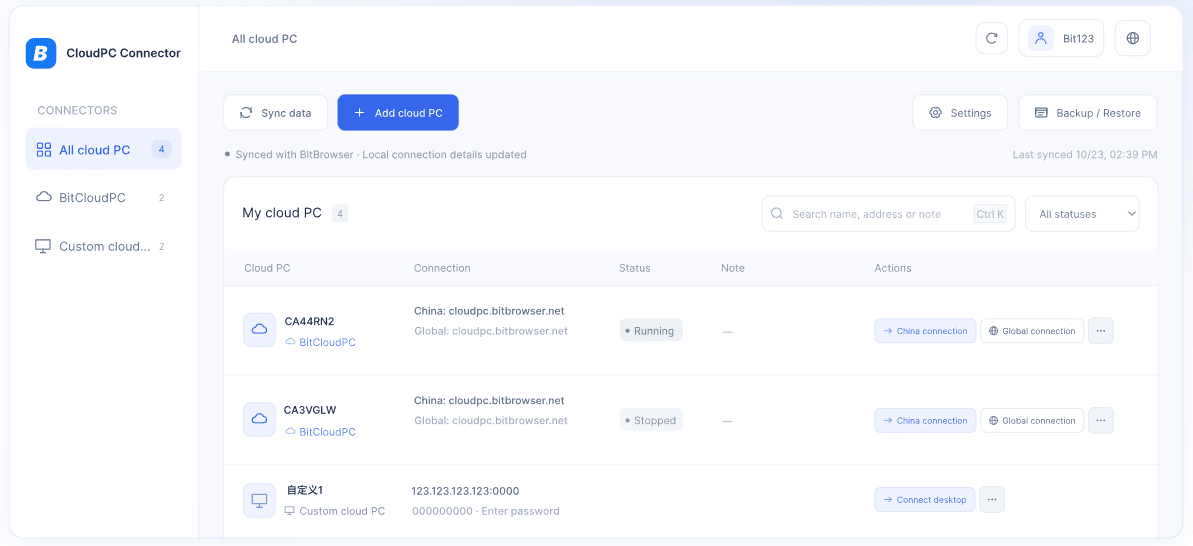
Available for Windows and macOS, CloudPC Connector also includes automatic instance synchronization, adjustable desktop resolution, encrypted local storage, and backup and restore options.
What Is BitBrowser CloudPC Connector?
CloudPC Connector is a desktop application for managing and connecting to multiple cloud computers from one place.
It supports BitCloudPC instances as well as custom cloud hosts. Users can also connect Windows hosts that support Remote Desktop Protocol (RDP), making the application useful beyond the BitCloudPC ecosystem.
Instead of switching between different remote desktop applications, users can browse their cloud hosts, search or filter the list, and open the machine they need.
Key features include:
▸ Unified CloudPC & VPS Management: Manage BitCloudPC and custom Windows hosts supporting RDP in one list.
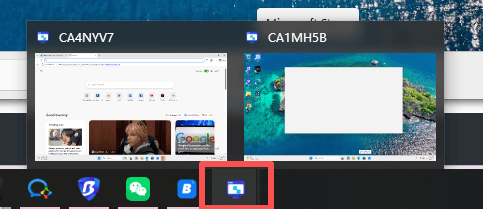
▸ Independent Connections: Open multiple CloudPCs in separate windows without creating duplicate sessions.
▸ Automatic Sync: Sync cloud computer instances and running status automatically.
▸ Flexible Desktop Settings: Choose resolutions from 720p to 4K, with support for custom settings and 22 interface languages.
▸ Data Security & Maintenance: Protect connection data with local encryption, encrypted backup and restore, and automatic updates with signature verification.
Use the Cloud PC Connector for Free
How to Install and Open CloudPC Connector
The basic workflow involves installing the client, synchronizing your cloud computer list, and connecting to the machine you need.
Before You Begin
▸ To sync BitCloudPC: BitBrowser 7.2.0 or later must be installed and running, and you must be signed in to your BitBrowser account.
▸ To connect to a self-hosted host: remote access must be supported/enabled on the target computer, and its address and port must be reachable.
Step 1: Download and Install the Client
Visit the official CloudPC Connector page and download the appropriate installer for your operating system.
▸ Windows 10 / 11 (64-bit)
▸ macOS 14 or later
▸ macOS installers for Apple Silicon and Intel

Step 2: Start Automatic Synchronization
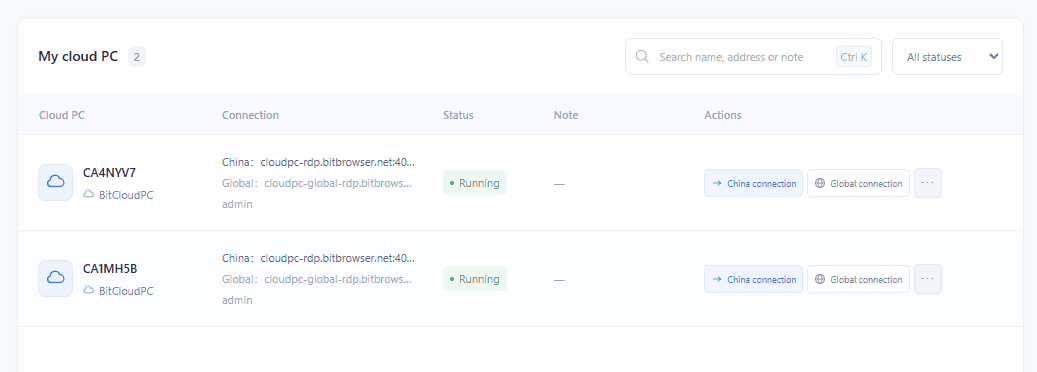
When you launch CloudPC Connector for the first time, it automatically retrieves your BitCloudPC list.
You can also use the Sync option to refresh the list manually.
Your available cloud computer instances and their running status are then displayed in the management interface.
Step 3: Connect to a CloudPC
Find the cloud computer you want to use and click Connect.
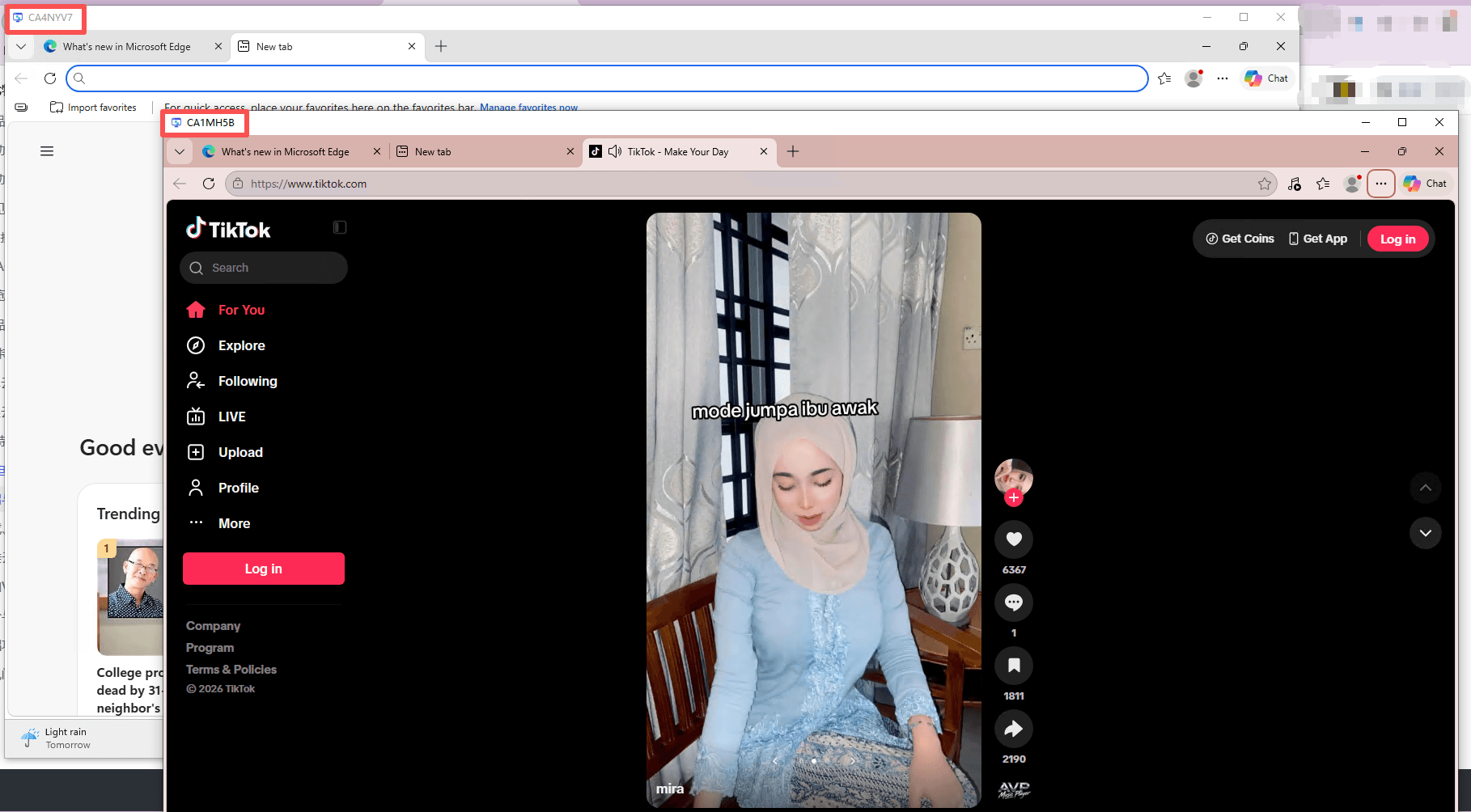
Each CloudPC opens in its own independent window. If you click Connect again for a machine that already has an active window, the application brings the existing window forward instead of opening another session.
You can then work with multiple remote computers from the same desktop client.
How to Manage and Use CloudPC Connector
After adding your cloud computers, you can connect to them, manage their power status, add custom VPS hosts, and back up your connection settings.
1. Connect to a Cloud Computer
CloudPC Connector provides two connection options for BitCloudPC: China connection and Global connection. Choose the route that best matches your network environment.

Custom cloud computers have a single Connect button.
Click Connect to open the remote desktop in a separate window. The window title displays the cloud computer's name, making it easier to identify each session when working with multiple machines.
Each cloud computer can have only one active connection window at a time. If you click Connect again, the existing window is brought to the front instead of starting a duplicate session.
2. Start, Stop, or Restart a CloudPC
You can manage a BitCloudPC's power status directly from the device list:
▸ Running: Select Stop or Restart.
▸ Stopped: Select Start.
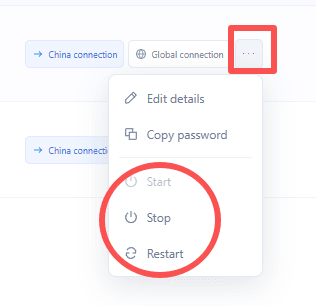
The status may not update immediately after you submit an action. Click Refresh or Sync to retrieve the latest status.
Cloud computers in transitional or restricted states, such as Creating, Restarting, or Suspended due to overdue payment, cannot be connected to or managed until the status changes.
3. Add a Custom VPS Host
CloudPC Connector also supports custom Windows VPS hosts that allow Remote Desktop Protocol (RDP) connections.
▸ Select Custom cloud PC from the left sidebar.
▸ Click Add cloud PC.
▸ Enter the connection details:
• Name: A label to identify the host.
• IP Address or Domain: The host's address.
• Port: The RDP connection port.
• Username and Password: Your remote login credentials.
• Notes: Optional additional information.
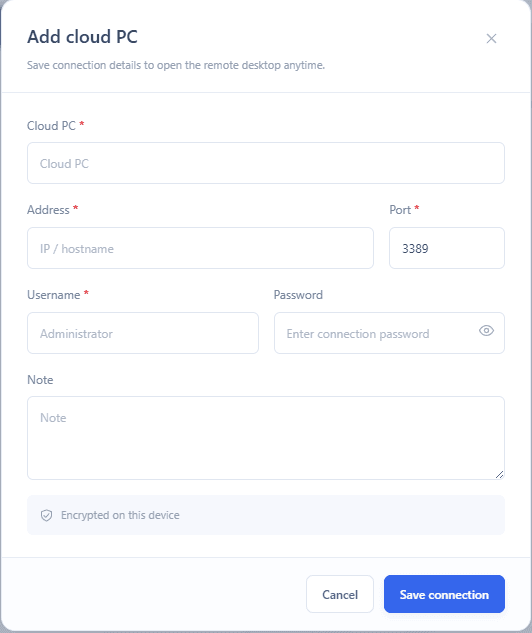
▸ Click Save Connection to add the host to your custom cloud computer list.
4. Back Up and Restore Connection Settings
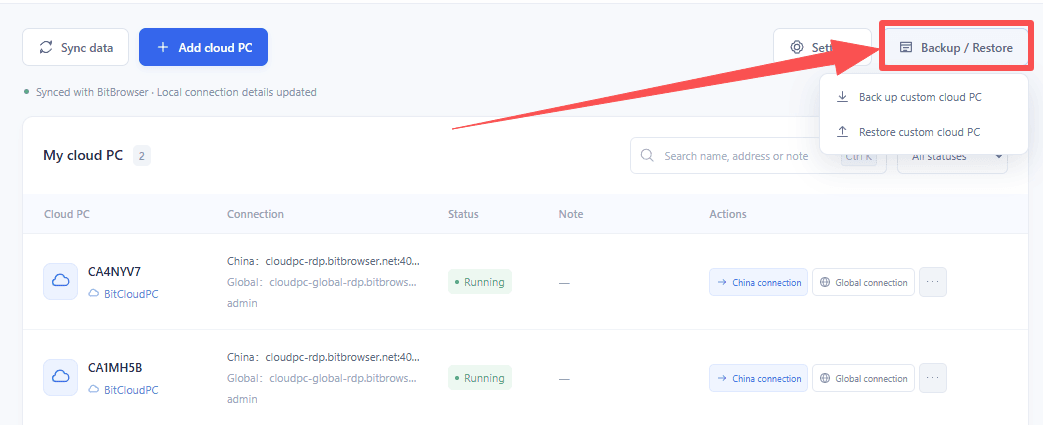
CloudPC Connector lets you export your connection records to an encrypted .bcpc backup file.
▸ Click Backup / Restore in the upper-right corner.
▸ Set a file password of at least eight characters.
▸ Export the .bcpc backup file.
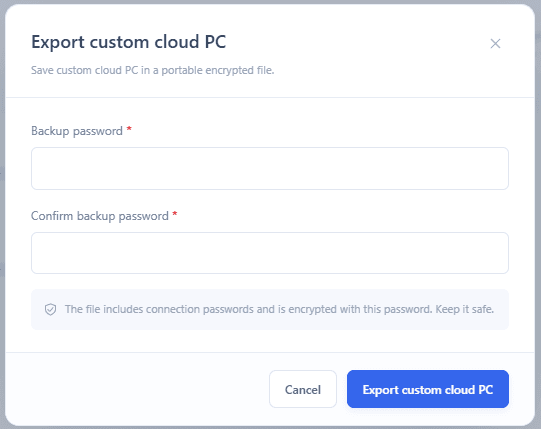
To restore your settings, select the backup file and enter the password you used when exporting it. Existing matching records will be updated, while new records will be added to the list.
Important: Backups do not include BitCloudPC instances themselves. Keep your backup password safe, as the file cannot be opened without it.
5. Edit Cloud Computer Details
The available editing options depend on the type of cloud computer:
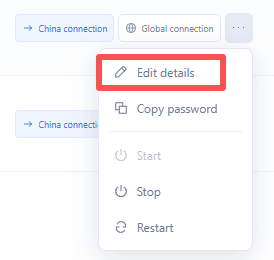
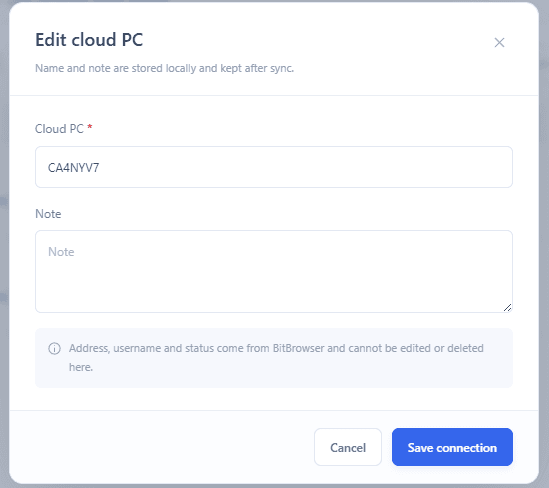
▸ BitCloudPC: You can change its display name and notes. These changes are saved locally and remain after the next synchronization. BitCloudPC entries cannot be deleted from the connector.
▸ Custom Cloud PC: You can edit all connection details or delete an entry.
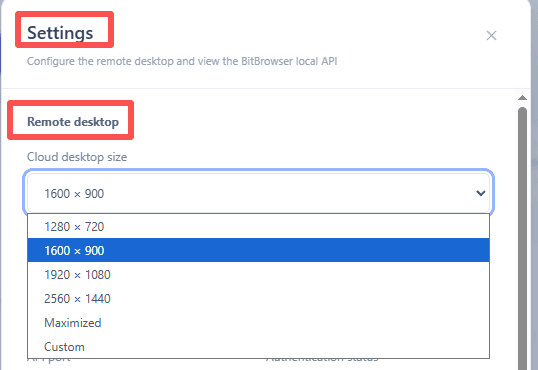
6. Adjust the Remote Desktop Window Size
You can change the remote desktop resolution in the application settings.
Troubleshooting Common Issues
1. Sync fails with a message asking me to check the BitBrowser version. What should I do?
Your BitBrowser version may be outdated. Update BitBrowser to version 7.2.0 or later, then try syncing again.
2. Sync fails with a message asking me to check whether BitBrowser is open. Why?
BitBrowser may not be running, or you may not be logged in. Open BitBrowser, sign in to your account, and click Sync again in CloudPC Connector.
3. Why does the account name at the top show "Guest"?
This usually means you are not logged in to BitBrowser. Sign in and wait for the account information to refresh automatically. You can also restart CloudPC Connector.
4. Why does the connection fail with a login error?
The username or password for the remote computer may be incorrect. Check your login credentials and try connecting again.
5. What happens to open remote desktop windows when I close CloudPC Connector?
All remote desktop windows opened through CloudPC Connector will close as well. You can reconnect whenever needed. Closing the windows does not affect the data on your remote computers.
Final Thoughts
BitBrowser CloudPC Connector brings BitCloudPC instances and self-hosted Windows VPS into one desktop application. Independent connection windows, automatic synchronization, adjustable resolution, and encrypted local storage make it a practical option for users who regularly work across multiple remote machines.
For anyone looking for a simpler way to organize CloudPCs and compatible VPS hosts, CloudPC Connector is worth trying. It is free to download for Windows and macOS.
Get started: https://www.bitbrowser.net/cloudpc-connector

 Multi-Account Management
 Prevent Account Association
 Multi-Employee Management
Recommended
See More