BitBrowser Virtual Desktop: What It Is and How to Use It
 2026.09.17 02:41
 YT.Shi
A traditional desktop works well when you only need to run one task at a time. However, things can become less convenient when you need to run browser automation while continuing to work with other applications.
BitBrowser Virtual Desktop provides another desktop workspace where BitBrowser and automation scripts can run separately from the main desktop. This helps prevent the mouse or window focus on the main desktop from being occupied by browser-related tasks.
Virtual Desktop is available in BitBrowser 7.1.5 and later. It does not create a separate computer or operating system. Instead, it provides an additional desktop environment on the same Windows computer.
This makes it useful for users who want to keep BitBrowser tasks separate from their normal desktop workflow without setting up a virtual machine or renting a Cloud PC.
What Is BitBrowser Virtual Desktop?
BitBrowser Virtual Desktop is a desktop workspace that allows BitBrowser and automation scripts to run separately from the main Windows desktop.
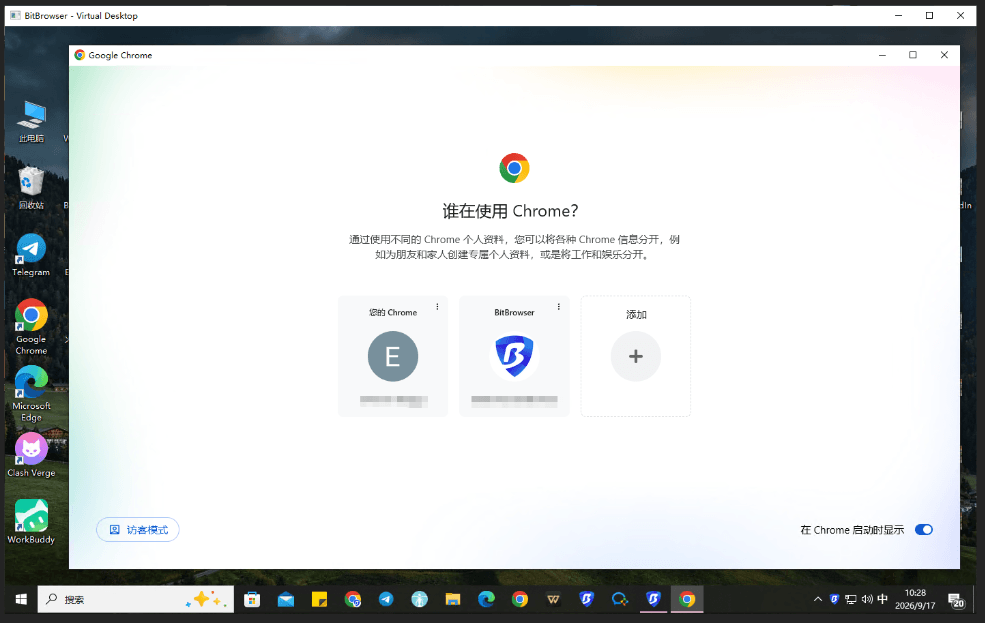
For example, you may be working on your main desktop while a BitBrowser automation task is running in the Virtual Desktop. The browser windows and mouse operations inside the Virtual Desktop do not occupy the active window or mouse focus on the main desktop in the same way as running them directly on your current desktop.
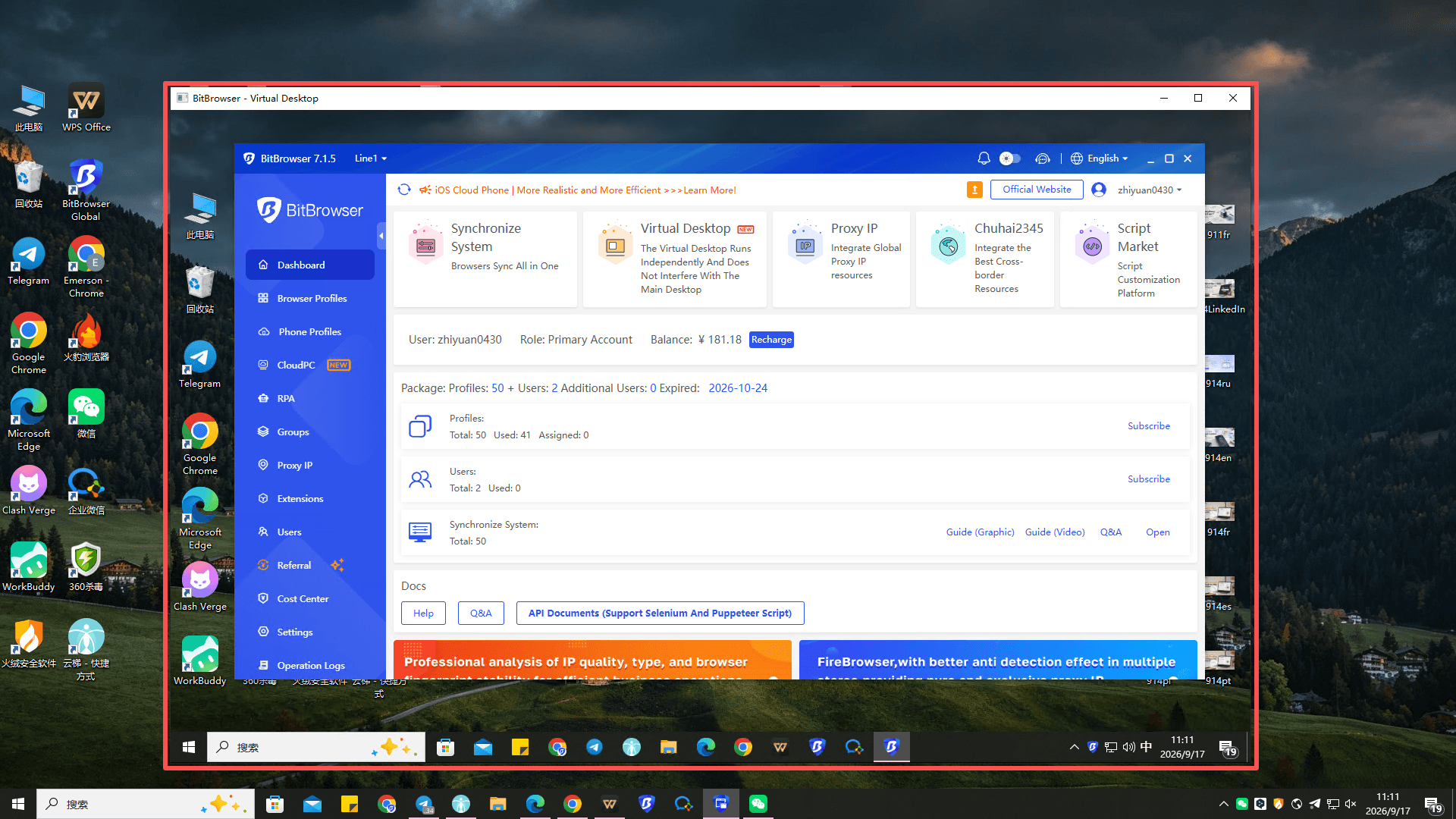
Virtual Desktop is designed for desktop and workflow separation, not complete system isolation. It still shares the current computer's files, network connection, and some system resources with the main desktop. For this reason, it should not be considered a virtual machine or a Cloud PC.
What Can You Do with Virtual Desktop?
Virtual Desktop is mainly useful when BitBrowser needs to run tasks while you continue using your computer for other work.
Run BitBrowser Separately
BitBrowser can be opened inside the Virtual Desktop instead of the main desktop. This provides a separate workspace for browser-related tasks and keeps the BitBrowser window away from the main desktop.
Run Automation Scripts
BitBrowser automation scripts can also run inside the Virtual Desktop. This can be useful when an automation workflow needs to interact with browser windows while you continue using other applications on the main desktop.
Manage Multiple Browser Profiles
Once BitBrowser is running inside the Virtual Desktop, its normal browser profile management functions remain available. You can open and manage browser profiles just as you normally would in BitBrowser.
Run Synchronization Tasks
BitBrowser synchronization workflows can also be used inside the Virtual Desktop. This allows browser operations and synchronization tasks to run in the separate desktop workspace while the main desktop remains available for other work.
Use Websites Normally
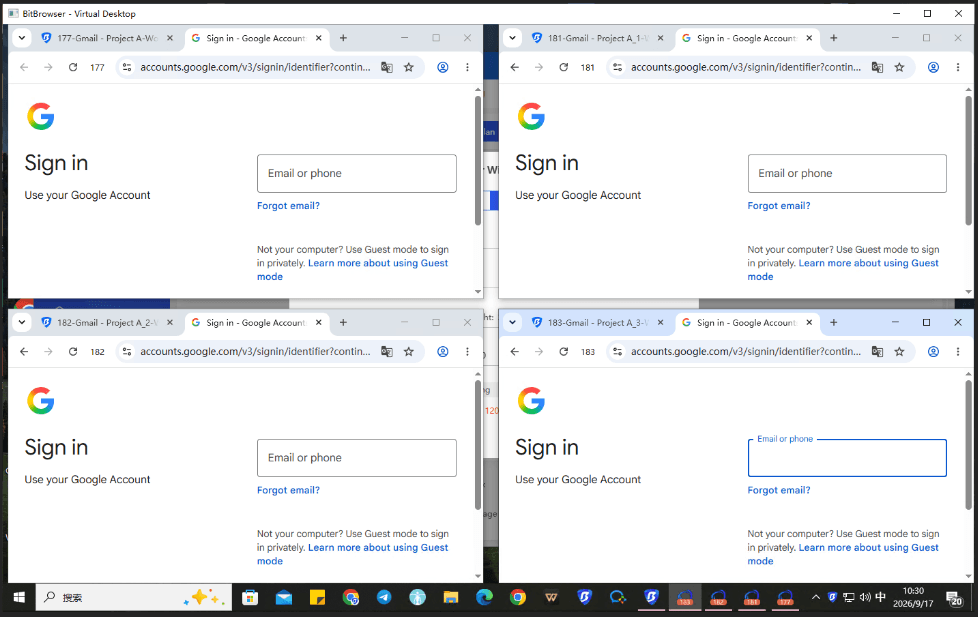
The Virtual Desktop is still connected to the host computer's network. During testing, websites such as Google could be opened normally inside the Virtual Desktop, just as they can on the main desktop.
Virtual Desktop vs. Virtual Machine vs. Cloud PC
Virtual Desktop, Virtual Machine, and Cloud PC can sound similar because all three provide some form of separation from a user's normal desktop. However, they work in very different ways.
| Feature | Virtual Desktop | Virtual Machine | Cloud PC |
|---|---|---|---|
| Runs on | Current computer | Current computer | Remote infrastructure |
| Separate operating system | No | Yes | Usually yes |
| Uses local computer resources | Yes | Yes | Mainly cloud resources |
| Shares host files | Yes | Depends on configuration | Usually separate |
| Shares host network | Yes | Depends on configuration | Uses remote network |
| System isolation | Limited | Higher | Higher |
| Requires virtualization software | No | Usually | No |
| Requires internet connection | Generally no | No | Yes |
| Main purpose | Separate desktop workspace | Run an independent OS | Remote PC environment |
Virtual Desktop
A Virtual Desktop is an additional workspace on the same computer. The host operating system remains the same, and the Virtual Desktop continues to use the computer's existing files, network connection, and some system resources.
Virtual Machine
A Virtual Machine uses virtualization technology to create a separate operating system environment on the same physical computer. For example, a Windows computer can run another Windows or Linux operating system inside a virtual machine. A VM provides a higher level of environment separation, but it also requires additional system resources and virtualization software.
Cloud PC
A Cloud PC runs on remote computing infrastructure rather than on the user's physical computer. Users connect to the remote PC through the internet and interact with its operating system and applications remotely. Unlike Virtual Desktop, a Cloud PC is designed to provide a remote computing environment with its own allocated resources.
Which One Do You Need?
The three technologies are designed for different situations.
● If you simply need another desktop workspace for BitBrowser and automation, Virtual Desktop may be sufficient.
● If you need to run another operating system on your current computer, a Virtual Machine is designed for that purpose.
● If you need a remotely accessible PC environment that runs outside your local computer, a Cloud PC is a different solution.
How to Enable BitBrowser Virtual Desktop
Before using Virtual Desktop, make sure BitBrowser has been upgraded to version 7.1.5 or later.
The first launch may require a few additional steps, especially if Virtual Desktop has not previously been enabled on the computer.
Step 1: Update BitBrowser
Open BitBrowser and make sure you are using BitBrowser 7.1.5 or later.
Virtual Desktop is available from the BitBrowser client after the required version has been installed.
Step 2: Open Virtual Desktop
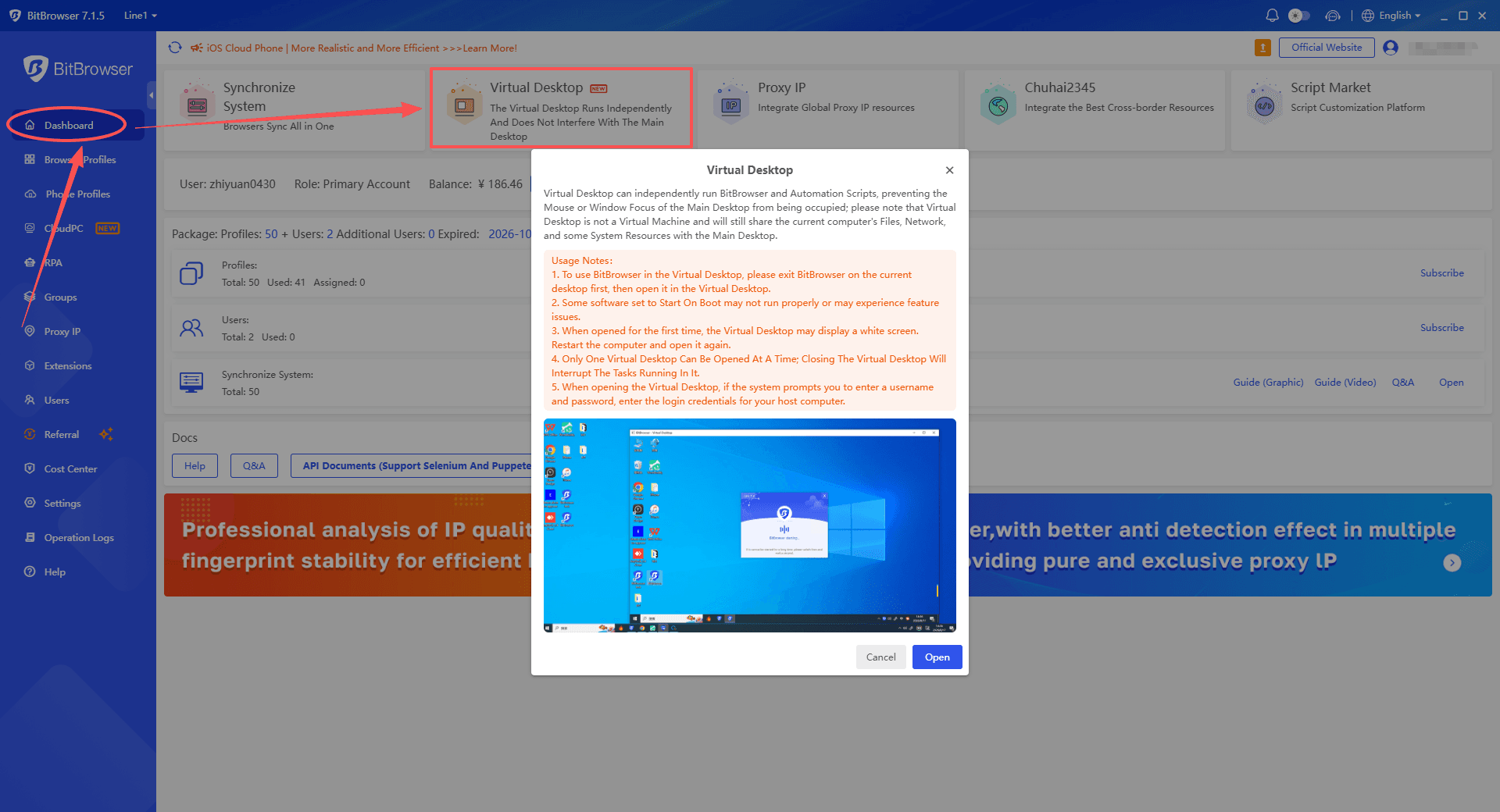
Open the Dashboard in the BitBrowser client.
Find Virtual Desktop and open the feature details.
After reading the usage information, click Open to start the Virtual Desktop.
Step 3: Enter Your Computer Login Credentials
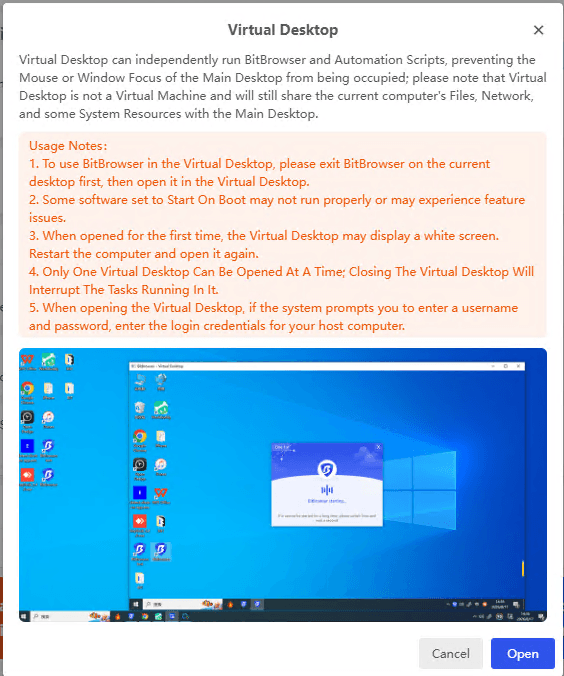
During the first launch, Windows may ask you to enter a username and password.
These are the login credentials for your host computer, not your BitBrowser account.
Enter the credentials you normally use to log in to the computer.
Step 4: Restart the Computer if Necessary
The first launch may not always work immediately.
Depending on the computer and system environment, the Virtual Desktop may display a blank, white, or black screen, or the system may ask you to restart the computer.
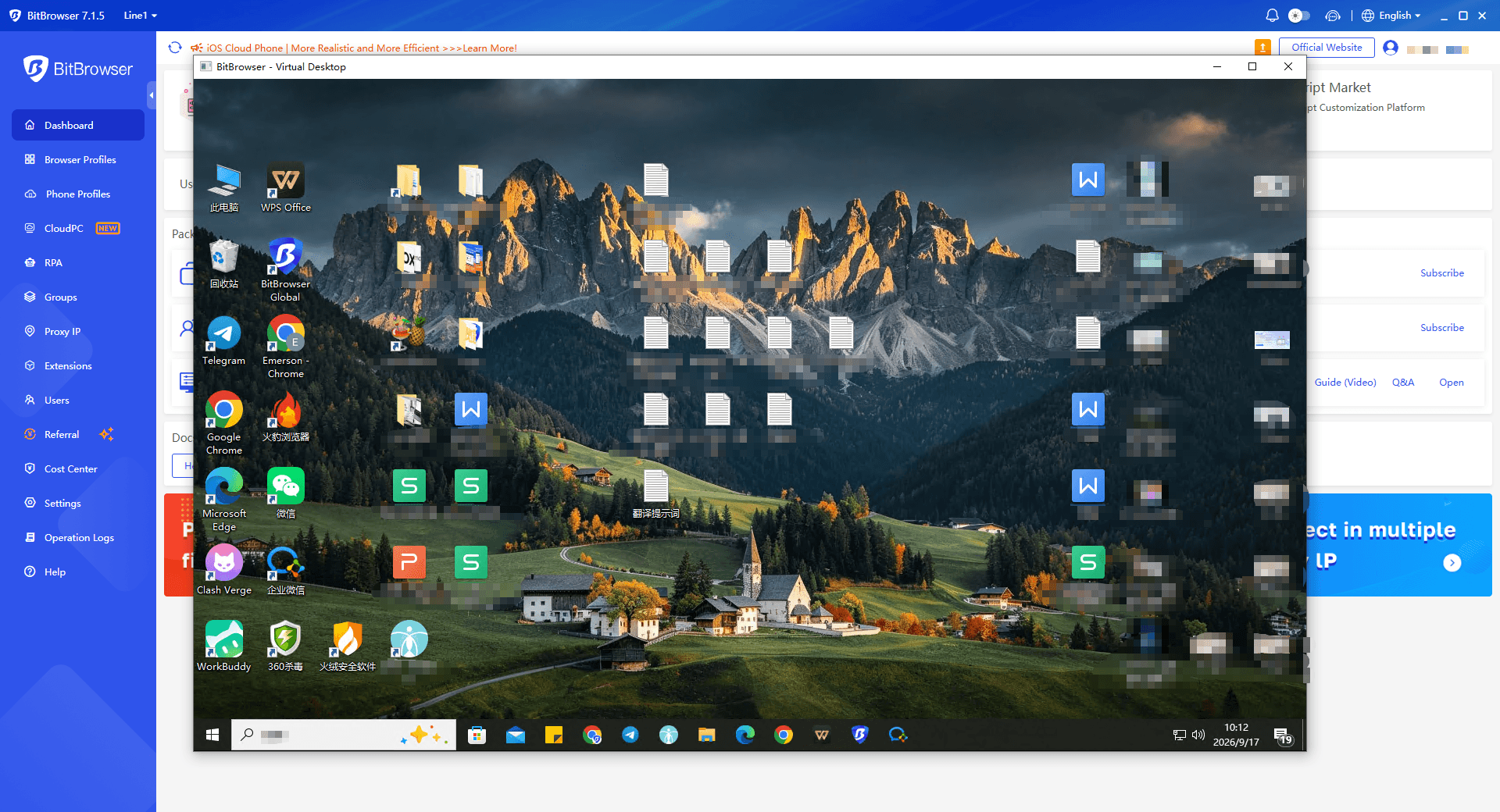
If this happens, restart the computer and try opening Virtual Desktop again from the BitBrowser Dashboard.

After restarting, go back to:
Dashboard → Virtual Desktop → Open
The Virtual Desktop should then start normally.
Step 5: Run BitBrowser in the Virtual Desktop
There is one important requirement before opening BitBrowser inside the Virtual Desktop.
BitBrowser must not continue running on the main desktop.
If BitBrowser is currently open on the main desktop, follow these steps.
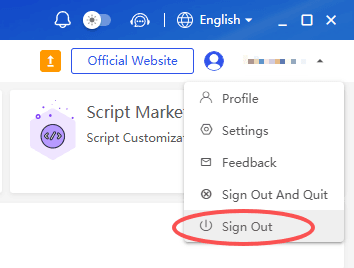
1. Sign Out of BitBrowser
On the main desktop, open BitBrowser and click Sign Out to log out of your BitBrowser account.
2. Exit the BitBrowser Client
After signing out, completely exit the BitBrowser client on the main desktop. Make sure the BitBrowser application is no longer running there.
3. Open BitBrowser in the Virtual Desktop
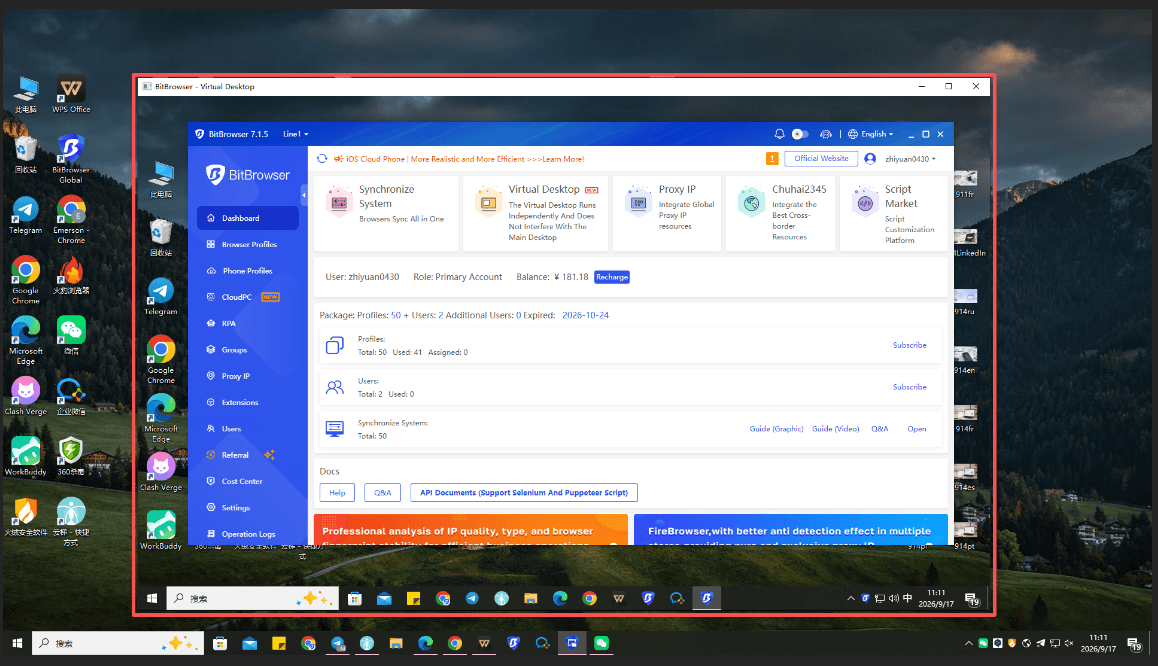
Switch to the Virtual Desktop and open the BitBrowser client. You can then sign in to your BitBrowser account and use BitBrowser normally.
Once BitBrowser is running inside the Virtual Desktop, you can perform regular browser operations, including managing browser profiles, running automation scripts, using synchronization features, and other supported BitBrowser workflows.
Using BitBrowser While Working on the Main Desktop
The main purpose of Virtual Desktop is to provide another workspace for browser operations.
For example, you can have BitBrowser and an automation workflow running inside the Virtual Desktop while using other applications on the main desktop.
This can be useful when an automation task needs to interact with browser windows or mouse focus.
Instead of running the automation directly on your active desktop, you can move the BitBrowser workflow to the Virtual Desktop and keep the main desktop available for other work.
The Virtual Desktop still uses the host computer's network and some system resources, so it should not be treated as a completely independent computer.
Important Things to Know
There are several limitations and usage requirements to keep in mind before using BitBrowser Virtual Desktop.
Only One Virtual Desktop Can Be Opened
Only one Virtual Desktop can be opened at a time.
The feature is designed as an additional workspace rather than a way to create multiple independent desktop environments.
Closing the Virtual Desktop Stops Its Tasks
If you close the Virtual Desktop, any tasks running inside it will be interrupted.
If BitBrowser automation or other workflows are still running, make sure you understand the effect before closing the Virtual Desktop.
Some Startup Applications May Not Work Correctly
Some software configured to Start On Boot may not run correctly inside the Virtual Desktop. In some cases, the application may start but certain features may not work as expected. This is a limitation to consider if your workflow depends on automatically launched software.
Virtual Desktop Shares System Resources
Virtual Desktop does not create a completely independent system. It continues to share the host computer's files, network, and some system resources with the main desktop. This is one of the main differences between Virtual Desktop and a Virtual Machine or Cloud PC.
The First Launch May Require a Restart
If the first launch produces a blank screen or the Virtual Desktop does not start correctly, restart the computer and try again.
BitBrowser Virtual Desktop vs. Bit Cloud PC
BitBrowser also provides BitCloudPC, but Virtual Desktop and Cloud PC are designed for different purposes.
A Virtual Desktop runs directly on your current computer. It gives you another desktop workspace without creating a new operating system or moving the computing environment to a remote server.
A Cloud PC, on the other hand, provides a remote PC environment that runs on cloud infrastructure.
| Feature | BitBrowser Virtual Desktop | BitCloudPC |
|---|---|---|
| Computing location | Local computer | Cloud infrastructure |
| Separate PC environment | No | Yes |
| Separate operating system | No | Yes |
| Local computer resources | Shared | Not the main computing resources |
| Remote access | Not its main purpose | Supported |
| Main use | Separate desktop workspace | Remote PC environment |
| Setup | Built into supported BitBrowser versions | CloudPC purchase and configuration |
● If the goal is simply to run BitBrowser and automation separately from the active desktop, Virtual Desktop provides a lightweight option.
● If the goal is to access a complete PC environment remotely, BitCloudPC is designed for that use case.
Final Thoughts
BitBrowser Virtual Desktop provides a separate workspace for running BitBrowser and automation tasks without occupying the main desktop.
It is not a Virtual Machine or Cloud PC and still shares the host computer's files, network, and some system resources.
Update BitBrowser to 7.1.5 or later, open Virtual Desktop from the Dashboard, and sign out of BitBrowser on the main desktop before using it in the Virtual Desktop.
Frequently Asked Questions
What is BitBrowser Virtual Desktop?
BitBrowser Virtual Desktop is an additional desktop workspace that allows BitBrowser and automation scripts to run separately from the main desktop.
Which BitBrowser version supports Virtual Desktop?
Virtual Desktop is available in BitBrowser 7.1.5 and later.
Is BitBrowser Virtual Desktop a Virtual Machine?
No. Virtual Desktop is not a Virtual Machine. It still shares the host computer's files, network, and some system resources.
Can I open multiple Virtual Desktops?
No. Only one Virtual Desktop can be opened at a time. Closing it will also interrupt tasks running inside it.
Is Virtual Desktop the same as BitCloudPC?
No. Virtual Desktop runs on your current computer as an additional desktop workspace, while BitCloudPC provides a remote PC environment running on cloud infrastructure.

 Multi-Account Management
 Prevent Account Association
 Multi-Employee Management
Recommended
See More