Best Discord Web Browser for Multiple Accounts: Complete Guide 2026
 2026.08.03 08:51
 YT.Shi
Managing one Discord account is easy. You open Discord Web, log in, and start chatting. But things become different when you need to manage multiple Discord accounts at the same time.
Maybe you run several Discord communities. Maybe you use separate accounts for gaming, work, customer support, testing, or different online identities.
The problem is that regular browsers were not designed for handling many Discord accounts.
You may end up:
● Logging in and out repeatedly
● Losing track of different sessions
● Opening the wrong account
● Managing too many browser tabs
This guide explains the best ways to manage multiple Discord accounts in a browser, including browser profiles, separate browsers, and anti detect browsers like BitBrowser.
Can You Use Multiple Discord Accounts in a Web Browser?
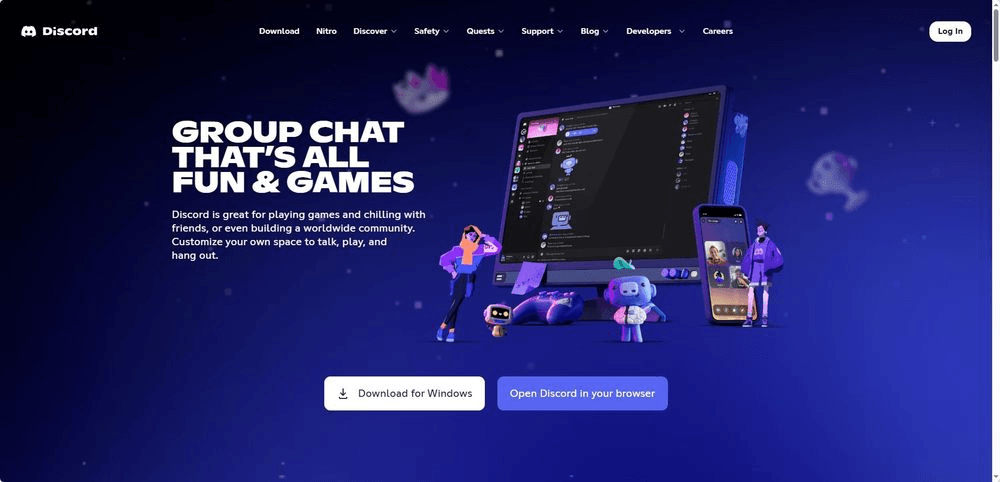
Yes, you can use multiple Discord accounts in a browser. Discord Web works with normal browsers such as Chrome, Firefox, Edge, Safari, and other Chromium based browsers.
For a single account, the process is simple. Open Discord Web → Log in → Start using Discord.
However, when you have multiple accounts, the main challenge is keeping each account separate.
Manage Multiple Accounts Right Away in Your Web Browser
Why Managing Multiple Discord Accounts Is Difficult
Constant Login Switching
The most common problem is repeatedly logging in and out.
For example:
● Account A → Personal Discord
● Account B → Gaming community
● Account C → Business server
Switching between them several times a day becomes annoying. You need to enter passwords again, complete verification steps, and wait for Discord to load.
Browser Data Gets Mixed
Normal browsers store account information through cookies, cache, local storage, and browser sessions. When multiple Discord accounts are used in the same browser environment, managing different accounts quickly becomes messy and inefficient.
Too Many Tabs and Windows
Some users try to solve this problem by opening multiple Discord tabs or windows. This may work at first, but once you need to manage 10 or 20 accounts, finding the right account and keeping everything organized becomes much more difficult.
Best Ways to Manage Multiple Discord Accounts in a Browser
If you only manage a few Discord accounts, regular browser features may already be enough. Most browsers provide simple ways to separate different accounts, including browser profiles, multiple browsers, and private windows.
1. Browser Profiles
Chrome, Edge, and other Chromium based browsers allow you to create separate profiles for different Discord accounts.
Each profile keeps its own cookies, login sessions, extensions, and browser settings.
For example:
● Chrome Profile 1 → Personal Discord account
● Chrome Profile 2 → Gaming community account
● Chrome Profile 3 → Work account
This method is free and easy to set up, making it a good choice for users managing a small number of accounts.
However, browser profiles become harder to organize as the number of accounts increases. You may end up with too many profiles, making it difficult to quickly find and manage the right account.
2. Multiple Browsers
Another simple option is using different browsers for different Discord accounts.
For example:
● Chrome → Account 1
● Firefox → Account 2
● Edge → Account 3
This keeps accounts separated without creating multiple browser profiles. However, it is only practical for a few accounts. Switching between many browsers can quickly become inconvenient.
3. Private or Incognito Windows
Private browsing allows you to open another Discord session without logging out of your main account.
For example:
● Regular window → Discord Account A
● Incognito window → Discord Account B
The downside is that private sessions are temporary. Once the window is closed, you usually need to log in again, which makes this method unsuitable for long-term account management.
For users managing multiple Discord accounts regularly, an isolated browser environment is usually a better option. This is where anti detect browsers can help by creating separate browser profiles with independent cookies, sessions, and settings.
Using BitBrowser for Multiple Discord Accounts
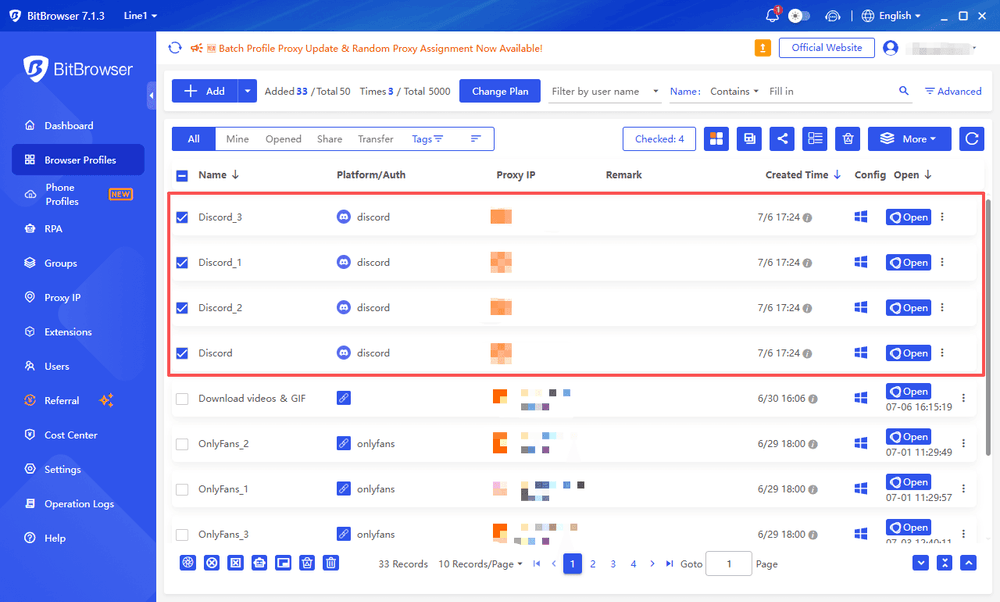
BitBrowser is designed for users who need multiple isolated browser environments. Instead of opening dozens of normal browser windows, you can create separate browser profiles and run different Discord accounts independently.
Separate Discord Browser Profiles
Each BitBrowser profile keeps its own environment. This means every Discord account can have its own:
● Login session
● Cookies
● Browser data
● Configuration settings
You do not need to repeatedly log in and out.
Keep Multiple Discord Sessions Active
With separate profiles, multiple Discord accounts can stay logged in simultaneously.
For example:
● Profile 1 → Discord Community A
● Profile 2 → Discord Community B
● Profile 3 → Discord Support Account
You can open each profile whenever needed.
Proxy Support for Different Profiles
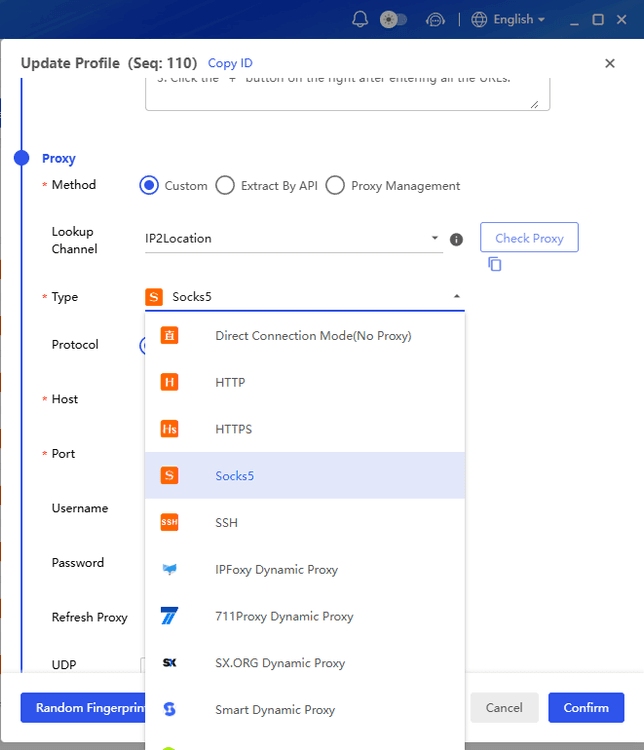
If your Discord accounts require different network environments, BitBrowser supports proxy configuration for individual profiles.
You can configure proxies separately instead of using one connection for all accounts.
Team Collaboration
For teams managing Discord servers, sharing browser profiles can simplify workflows.
Instead of sharing passwords and repeatedly completing verification steps, team members can work with assigned browser profiles.
Conclusion
Discord Web is already a convenient way to access Discord without installing the desktop app. But managing multiple Discord accounts requires more than simply opening extra tabs.
For a few accounts, browser profiles may be enough. For larger scale account management, isolated browser profiles provide a more organized solution.
With tools like BitBrowser, users can manage multiple Discord accounts from separate browser environments while keeping their sessions organized.
FAQ
Can I have multiple Discord accounts?
Yes. You can create and use multiple Discord accounts.
The challenge is managing them efficiently.
Can I run multiple Discord accounts at the same time?
Yes. Separate browser profiles allow multiple Discord sessions to stay open simultaneously.
What is the best browser for multiple Discord accounts?
For a small number of accounts, Chrome profiles are enough.
For users managing many Discord accounts, an anti detect browser with isolated profiles provides better organization.
Does Discord Web work on BitBrowser?
Yes. BitBrowser supports Chromium and Firefox kernels, so Discord Web works like it does in regular browsers.

 Multi-Account Management
 Prevent Account Association
 Multi-Employee Management
Recommended
See More 



