The Ultimate Guide to Browsers for Twitter: Which Browser Actually Fits Your Workflow (2026)
 2026.03.23 14:24
 YT.Shi
Using X/Twitter can be frustrating. You might encounter login walls and regional content blocks. Managing multiple accounts adds another layer of complexity, especially if you want to avoid account bans.
Choosing the right browser for Twitter can make your experience smoother, protect your privacy, and let you operate safely across multiple accounts.
Based on my experience with different tools, I’ve compiled a practical guide that covers everything from anonymous browsing to multi-account management, highlighting why BitBrowser stands out.
Why Browsing Twitter Can Be Frustrating
Most issues people face on Twitter are not random. They are tied to how the platform tracks behavior, devices, and network signals. Once you understand that, the frustrations start to make more sense.
Our previous guide to registering and logging in to Twitter on the web covers what you need to know when using Twitter in a browser.
Login walls and limited access
One of the most common problems is being forced to log in just to view content. You might click on a tweet from Google and only see a partial thread before being blocked.
This happens because Twitter uses session tracking to limit anonymous access. Standard browsers store cookies and quickly get flagged as “unregistered viewers,” which triggers the login wall.
If X (Twitter) login issues are something you run into often, it’s usually not just an account problem. In many cases, it’s related to how your browser session is being recognized.
Inconsistent content visibility
You may notice that the same link shows different content depending on how you open it. Sometimes replies are missing, media doesn’t load, or timelines look incomplete.
This usually comes down to:
● Region-based filtering
● Session history
● Browser fingerprint recognition
In other words, Twitter is not just showing content based on the link. It’s adapting what you see based on who it thinks you are.
Account restrictions and unexpected bans
If you manage more than one account, things get even more complicated. Logging into multiple accounts from the same browser often leads to:
● Temporary locks
● Verification requests
● Full account bans in extreme cases
From experience, this is rarely about what you post. It’s more about how you access Twitter. Reusing the same IP, device profile, and behavior pattern across accounts is one of the biggest risk factors.
How to Browse Twitter Without Limits
There isn’t a single “perfect” solution. Different setups solve different problems. The key is understanding what each method actually does behind the scenes.
1. Regular browsers with private mode
Using Chrome or Firefox in private mode is the easiest starting point. It prevents long-term cookie storage and gives you a clean session each time.
| Browser | Method 1 (Shortcut) | Method 2 (Menu Path) |
|---|---|---|
| Chrome | Windows/Linux/Chrome OS: Ctrl + Shift + NMac: ⌘ + Shift + N | Click top-right (┇) → New Incognito window |
| Firefox | Windows: Ctrl + Shift + PMac: Command + Shift + P | Click top-right (☰) → New Private Window |
| Edge | Windows: Ctrl + Shift + NMac: Command + Shift + N | Click top-right (•••) → New InPrivate window |
| Safari | Mac: Command + Shift + N | Click top menu “File” → New Private Window / New Private Tab |
In practice, this works for:
● Quick searches
● Viewing individual tweets
● Light anonymous browsing
But the limitation shows up quickly. Your IP and browser fingerprint are still the same, which means Twitter can still recognize repeated access patterns.
2. VPN combined with a standard browser
A VPN helps by masking your IP address and changing your apparent location. This can restore access to content that might be limited in your region.
It works well when:
● You are trying to access content from different regions
● You want to reduce basic tracking
However, VPN alone does not solve deeper detection issues. If you are switching accounts frequently, Twitter can still link them through browser fingerprints and behavior.
3. Anti-detect browser setup
This is where things start to feel noticeably different. Instead of just hiding your IP, an anti-detect browser changes how your entire environment looks to Twitter.
This is where tools like BitBrowser start to make a noticeable difference in real usage:
● A unique browser fingerprint per account
● Separate cookies and sessions
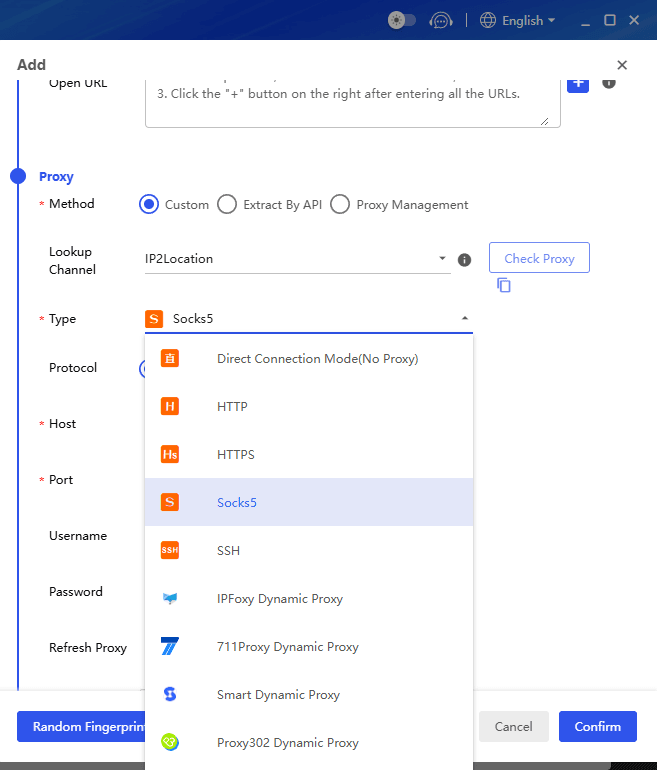
● Independent proxy configuration
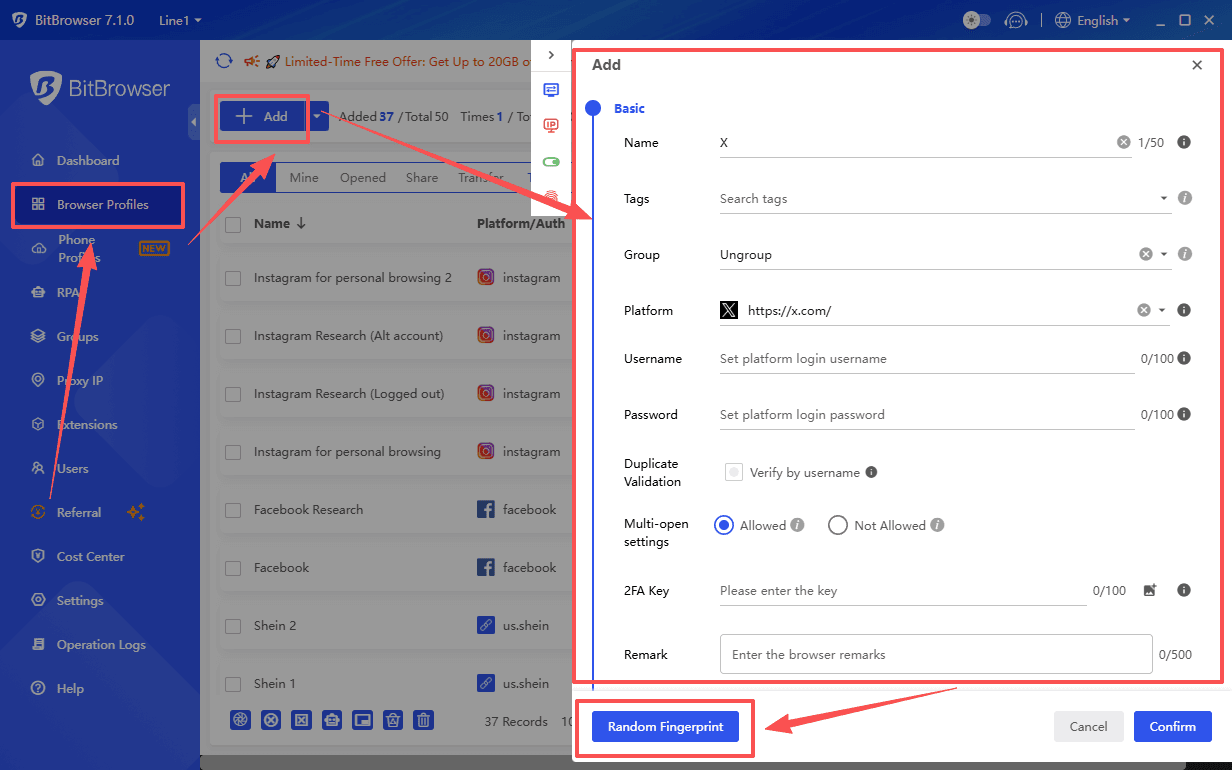
In real usage, this allows you to:
● Log into multiple accounts at the same time without overlap
● Avoid triggering verification loops
● Maintain stable sessions over long periods
What makes the biggest difference is consistency. Each account behaves like it’s coming from a completely different device, which aligns with how real users operate.
4. Structured workflow instead of random access
One thing that often gets overlooked is workflow. Even with the right tools, random behavior can still create risk.
A more stable approach looks like this:
● Assign one environment per account
● Use fixed proxies instead of constantly switching
● Avoid logging in and out repeatedly
● Space out actions instead of performing them all at once
This combination of tools and behavior is what actually removes most limitations. Once you understand these methods, the next question becomes which browser setup actually fits your workflow.
Best Browsers for Twitter Based on Use Case
Not every browser is built for the same purpose. Instead of looking for a single “best” option, it’s more useful to match the tool to what you’re trying to do.
1. For quick access and everyday browsing
Why mainstream browsers are still the default choice
If your goal is simple and straightforward, like opening tweet links, checking timelines, or following discussions, mainstream browsers are still the most convenient option.
Chrome: speed, compatibility, and convenience
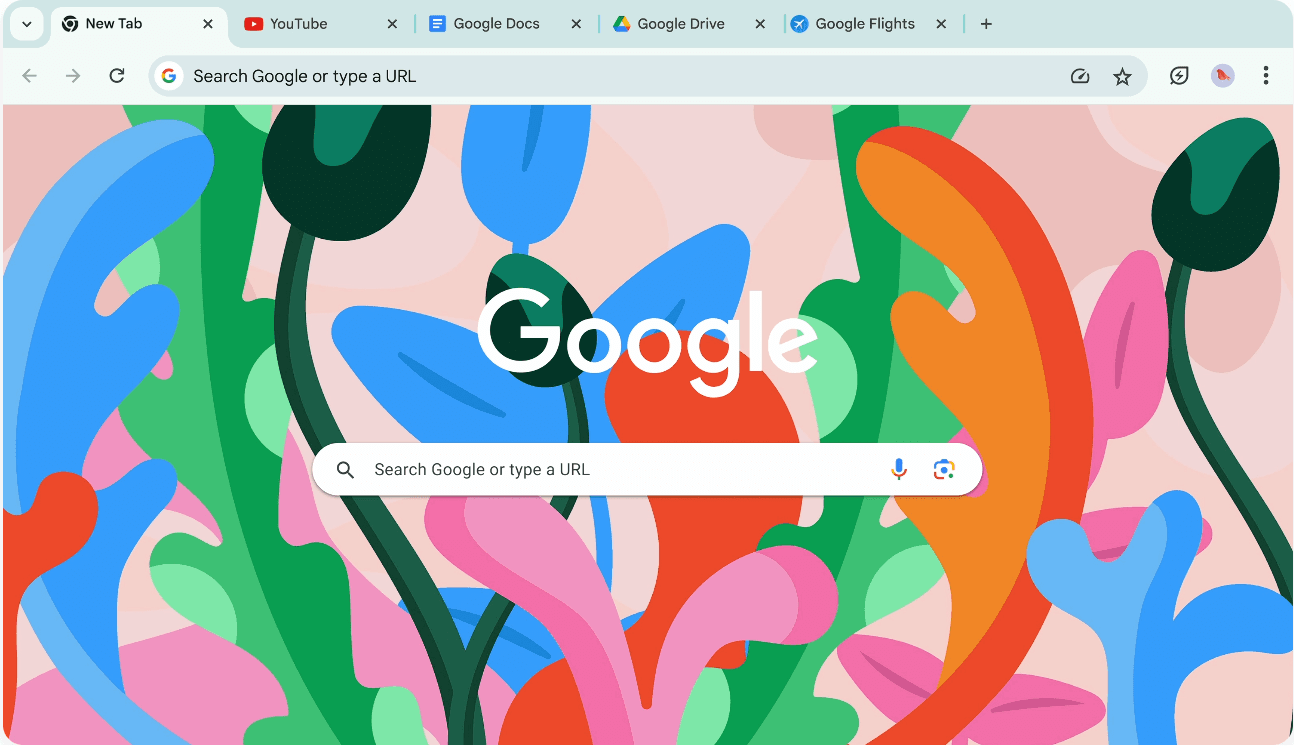
Chrome is usually the default choice for a reason. It loads Twitter quickly, handles media smoothly, and works well with extensions. If you rely on tools like tweet schedulers or analytics plugins, Chrome gives you the most compatibility with the least friction.
The downside is that it is also one of the most trackable environments. Your session history, cookies, and fingerprint are all easily tied together. Repeated visits can quickly lead to login prompts or limited access.
Arc: better organization for heavy browsing
Arc takes a slightly different approach. Its interface feels more structured, especially if you tend to keep multiple tabs open. Grouping Twitter with dashboards, search pages, and saved threads in a single workspace makes it easier to stay organized.
For research-heavy use, this actually saves time. However, under the surface, it behaves similarly to Chrome in terms of tracking and identification. It improves workflow, not anonymity or account safety.

Where these browsers fall short
In short, these browsers are great for convenience and speed, but they are not designed to handle restrictions, tracking, or multi-account separation.
2. For lightweight anonymous browsing
If you prefer not to log in and want a bit more privacy:
Tor Browser: strong anonymity with trade-offs
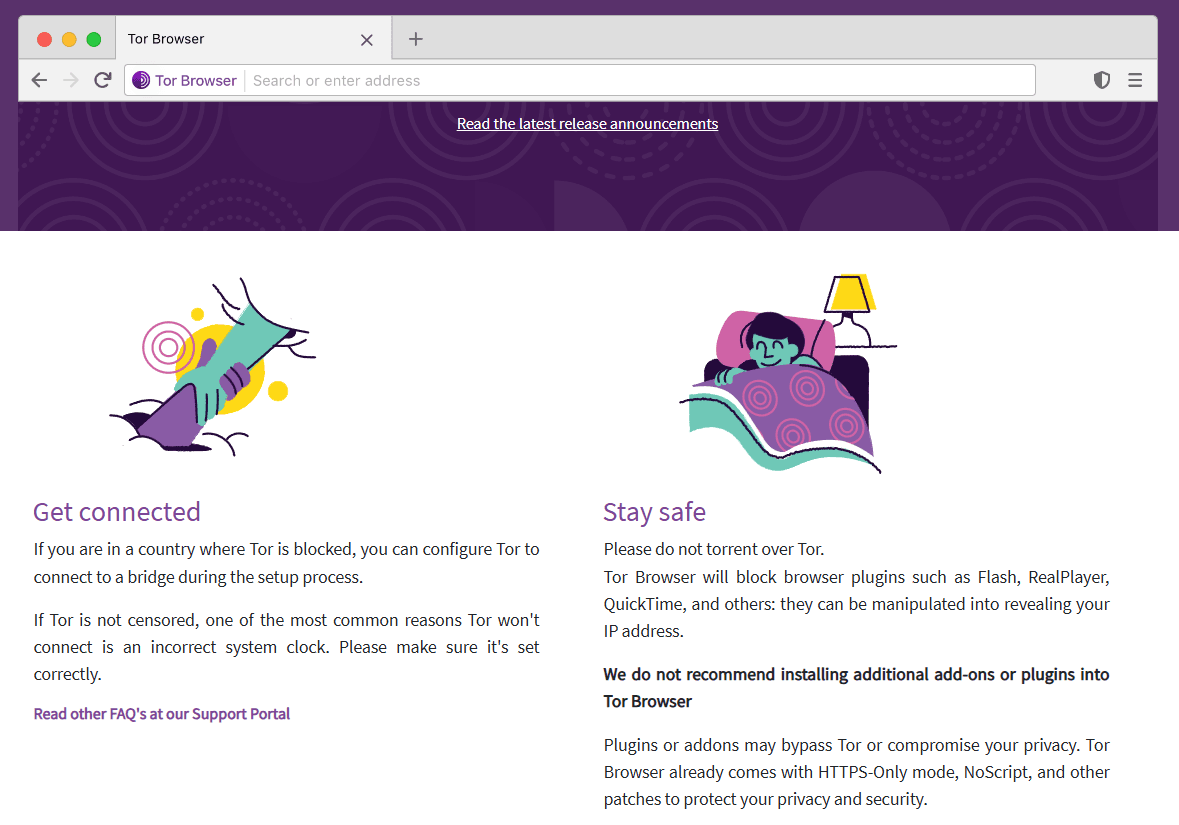
Tor Browser routes your traffic through multiple nodes, making it very difficult to trace your real location.
For viewing public Twitter content without leaving a clear footprint, it works well. The trade-off is usability. Pages load slower, media can lag, and frequent CAPTCHA checks can interrupt the experience. It feels more like a secure tunnel than a daily browsing tool.
Carbon and privacy browsers: a balanced approach
Carbon and similar privacy-oriented browsers take a lighter approach. They block trackers, reduce fingerprinting signals, and offer a cleaner environment compared to standard browsers.
In practice, this makes casual browsing feel less restricted, especially when you are opening links from search or checking profiles without logging in.

The limitation of session-level privacy
However, these tools have a clear limitation. They are designed for privacy at the session level, not for account management.
Once you start logging into multiple Twitter accounts, the lack of profile isolation becomes a problem. Sessions can overlap, and from Twitter’s perspective, those accounts may still look connected.
So while privacy browsers are useful for reading and exploring, they are not built for stability or scaling.
3. For multi-account management and scaling
This is where standard browsers stop being practical.
When you need to:
● Manage multiple Twitter accounts
● Keep accounts stable over time
● Reduce the risk of bans
A dedicated setup becomes necessary.
BitBrowser is designed specifically for this scenario. Instead of treating all accounts as coming from the same device, it separates them completely.
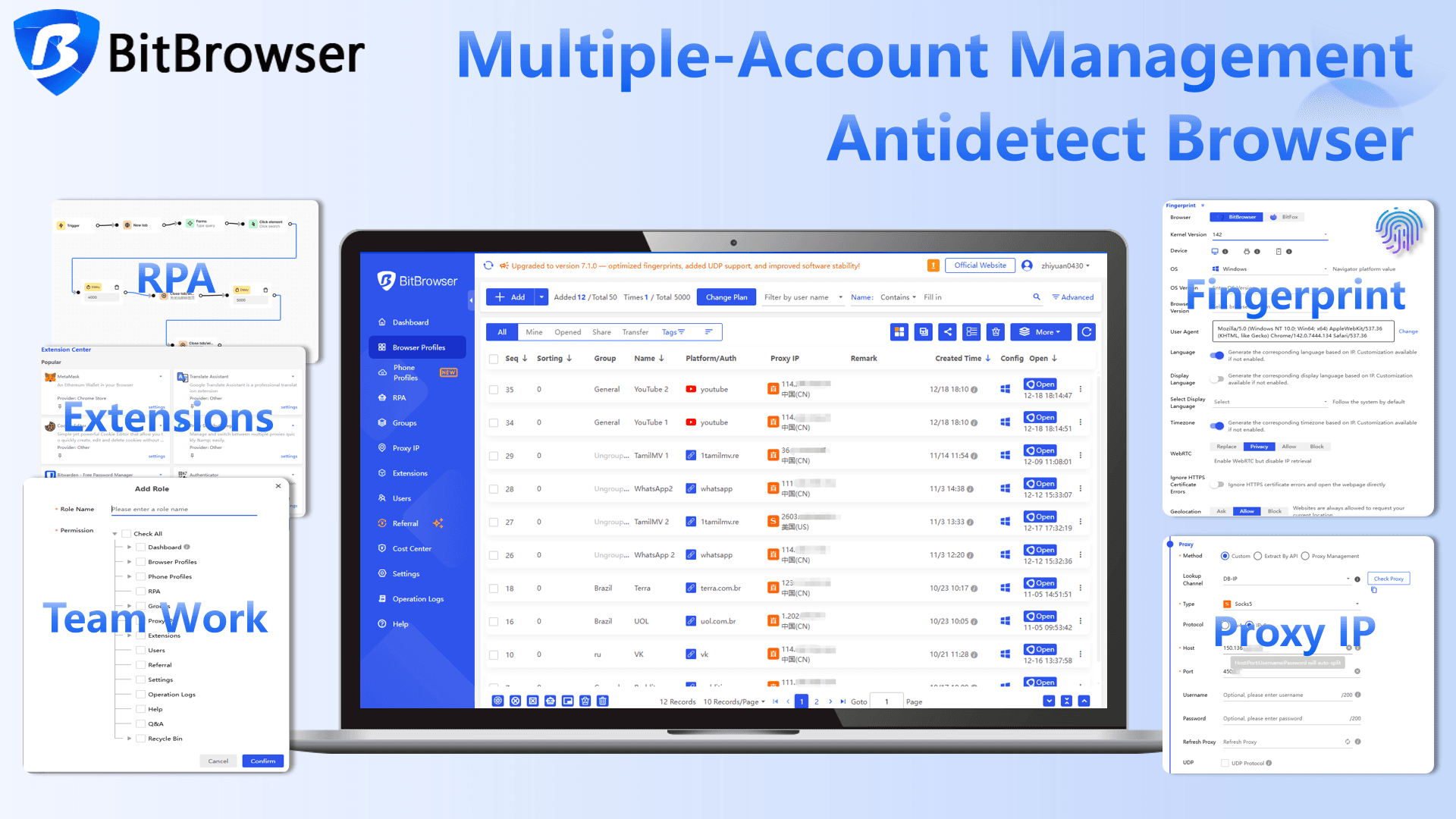
From actual usage, the difference shows up in a few ways:
● Accounts stay logged in longer without interruptions
● Fewer verification requests
● Much smoother switching between accounts
Compared to tools like other browsers, BitBrowser feels more flexible in day-to-day use, especially when handling multiple profiles locally without constant syncing delays.
Get 10 permanent free profiles
How to choose the right browser for Twitter
If you break it down simply:
For reading and quick access, Chrome or Arc is enough.
For occasional anonymous browsing, Tor or privacy browsers can help.
For anything involving multiple accounts or long-term stability, a dedicated browser like BitBrowser becomes necessary.
The key is not choosing the most advanced tool, but choosing the one that matches how you actually use Twitter.
Twitter Browsing FAQ
Can I browse Twitter anonymously?
Yes, using BitBrowser or Tor, you can access most public content without logging in.
How to browse Twitter without signing in?
Incognito mode with a VPN can help, but the safest option is using BitBrowser with separate configurations per account.
How do I view NSFW content on Twitter?
Log in and enable sensitive content in settings, or use BitBrowser with a VPN for anonymous access.
How to avoid account bans on Twitter?
Assign unique fingerprints and IPs to each account, vary activity patterns, and avoid high-frequency repetitive actions.
Conclusion
Finding the right browser for Twitter is no longer just about preference. It directly affects what you can access, how stable your accounts are, and how much friction you deal with daily.
For simple browsing, standard browsers are still enough. For better privacy, adding a VPN or using a privacy-focused browser helps to a degree. But for anyone managing multiple accounts or trying to avoid restrictions consistently, a more structured setup is necessary.
In practice, using an anti-detect solution like BitBrowser, combined with a stable workflow, makes Twitter far more usable again. It removes most of the common limitations and lets you focus on what you actually want to do on the platform.