How to Create a Temporary Gmail Account in 2026: 3 Easy Methods
 2026.09.15 03:57
 YT.Shi
Need a Gmail address for a short-term project, one-time registration, testing, or a separate online activity? You don't necessarily need to use your primary inbox. In 2026, there are several ways to get a temporary or disposable email address, but they don't all work the same way.
Gmail does not offer a special account type that automatically expires after a certain period. Instead, you can create a separate Gmail account and use it temporarily, use a Gmail Plus alias for sorting incoming messages, or choose a disposable email service when you only need an address for a short time.
In this guide, we'll explain all three methods, what each one actually does, and when to use each option.
What Is a Temporary Email Address?
A temporary email address is an email address intended for short-term or limited use. Unlike your primary personal email, you may use it for a specific registration, project, test, newsletter, or other situation where you don't want to give out your main address.
However, "temporary Gmail" and "temporary email" aren't exactly the same thing.
Google doesn't provide a separate Gmail account that automatically disappears after a few hours or days. A new Gmail account is a regular Google Account. You can simply use it for a limited purpose and stop using or delete it when you no longer need it.
Gmail also supports Plus aliases, such as yourname+shopping@gmail.com. These are not separate accounts. Messages sent to the alias still arrive in your main Gmail inbox.
Disposable email services work differently again. They provide temporary addresses that can often be used without creating a long-term account, but they aren't Gmail addresses.
Understanding this difference makes it much easier to choose the right option.
Why Do People Use Temporary Email Addresses?
There are several common reasons to use a temporary or secondary email address:
● One-time registrations: You may need an email address to create an account on a website that you don't expect to use regularly.
● Testing: Developers, marketers, and users may need separate addresses when testing registration flows, notifications, or email campaigns.
● Newsletters and promotions: A separate address can keep marketing emails away from your primary inbox.
● Short-term projects: A dedicated Gmail account can be useful for a temporary project, event, campaign, or collaboration.
● Account separation: Keeping different activities in separate email accounts can make logins, notifications, and browser sessions easier to organize.
● Privacy: You may simply prefer not to give your primary email address to every website you use.
The best method depends on whether you need a real Gmail account, an alternative address connected to your existing Gmail, or an address that is designed to be disposable.
Method 1: Create a Separate Gmail Account
If you specifically need a temporary Gmail account, this is the most straightforward option.
A separate Gmail account is a normal Google Account with its own Gmail address, inbox, password, and account settings. It doesn't automatically expire, but you can use it for a short-term purpose and stop using it when the project or activity is finished.
Step-by-Step: Create a Temporary Gmail Account
1. Open Google's account creation page.
Go to Google's account sign-up page and select Create account.
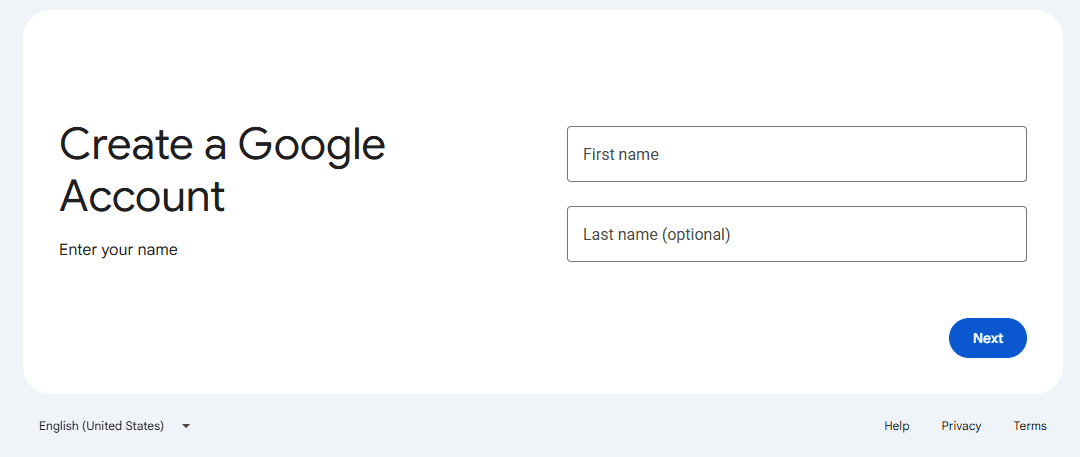
2. Choose the account type.
Select For my personal use if you're creating a personal Gmail account.
3. Enter your name.
Follow Google's instructions and enter the requested account information.
4. Choose a Gmail address.
Create a new username for the account.
For example:
project.testing2026@gmail.com
or
temporary.newsletter2026@gmail.com
If your preferred username is already taken, you'll need to choose another available address.
5. Create a password.
Choose a unique password for the new account. Don't reuse the password from your primary Gmail account.
6. Complete Google's verification and setup steps.
Google may ask for additional information or verification during registration. The exact requirements can vary, so follow the instructions shown on the screen.
7. Add recovery information if appropriate.
A recovery email or phone number can make it easier to regain access if you forget the password or encounter an account problem.
8. Finish creating the account.
Once the setup is complete, you'll have a separate Gmail inbox that you can use independently from your primary account.
What Can You Do With a Separate Gmail Account?
Because this is a real Google Account, you can use it for normal Gmail functions, including sending and receiving messages, signing up for services, and managing your own inbox.
If you frequently use more than one Gmail account, you may also want to keep their browser sessions separate. Here's a useful guide on how to manage multiple Gmail accounts if you're working with several accounts at the same time.
Pros: Full Gmail functionality, separate inbox, separate login, and better account separation.
Cons: It takes more time to create than a disposable address, and Google may require verification during signup.
Method 2: Use a Gmail Plus Alias
If you don't actually need another Gmail account, a Gmail Plus alias can be a much simpler solution.
Gmail allows you to add a +tag to your existing email address. For example, if your address is:
yourname@gmail.com
you can use:
yourname+shopping@gmail.com
or:
yourname+testing@gmail.com
or:
yourname+newsletter@gmail.com
Messages sent to these addresses still arrive in your regular Gmail inbox.
How to Use a Gmail Plus Alias
1. Start with your existing Gmail address.
Suppose your normal address is:
yourname@gmail.com
2. Add a plus sign and a label.
Create an address such as:
yourname+shopping@gmail.com
You can use different words or numbers after the + to create different variations.
3. Use the alias when signing up for a service.
Enter the alias instead of your primary Gmail address when a website or service accepts it.
4. Create a Gmail filter if needed.
You can create a filter that recognizes the +tag and automatically labels, archives, or deletes matching messages.
This makes Plus aliases useful for organizing incoming mail and identifying where an address was used.
Is a Gmail Plus Alias a Temporary Gmail Account?
No. This is an important distinction.
A Plus alias does not create a new Google Account, new password, or separate Gmail inbox. It is simply another way of addressing messages to your existing mailbox.
There is also an important privacy limitation: a Plus alias does not hide your underlying Gmail address. Someone who knows how Gmail aliases work can usually remove the +tag and identify the main address.
Pros: No new account, no new password, easy to create, and useful for filtering.
Cons: It isn't a separate Gmail account, it doesn't automatically expire, and some websites may not accept or recognize Plus-addressed emails.
If you need a completely separate Gmail identity and inbox, use Method 1 instead. If you need an email address that actually expires after a short period, a disposable email service in Method 3 is a better fit.
Method 3: Use a Disposable Email Service
If you only need an email address for a very short period, a disposable email service may be more convenient than creating a Gmail account.
These services provide temporary email addresses designed for short-term use. Depending on the provider, the address and messages may expire automatically after a certain amount of time.
How to Use a Disposable Email Address
1. Choose a reputable disposable email service.
Open the provider's website and check how long the temporary address and received messages remain available.
2. Generate or select a temporary address.
Some services automatically create an address for you, while others allow you to choose one.
3. Use the address for your short-term purpose.
You can provide it when a website requires an email address and you only need to receive a message temporarily.
4. Check the temporary inbox.
If the service provides an inbox, use it to receive the confirmation or other message you need.
5. Let the address expire or stop using it.
Temporary addresses are designed for limited use, so don't rely on them for accounts or services that you'll need to recover later.
When Should You Use a Disposable Email?
A disposable email can make sense when you need an address for a very short-term situation and don't need a permanent inbox.
However, it isn't the same as a temporary Gmail account. You won't necessarily get the same features, account recovery options, or long-term reliability that come with a normal Google Account.
Pros: Fast, convenient, and designed for short-term use.
Cons: Some websites block disposable domains, messages may expire, and it's not suitable for important accounts that you'll need to recover later.
⚠️ Important Caveat: These are third-party services. Never use them for anything sensitive, like banking or important accounts. The service owner could potentially access your messages, and you have no long-term control over the address.
Temporary Gmail vs. Gmail Alias vs. Disposable Email
Still not sure which option to choose? The main difference is whether you need a separate account.
The simplest rule is:
● Need a real Gmail account? Create a separate Gmail account.
● Need to organize emails in your existing Gmail? Use a Plus alias.
● Only need an address for a short time? Consider a disposable email service.
How to Manage Multiple Temporary Gmail Accounts with BitBrowser
If you create several Google or Gmail accounts for different projects, testing activities, or business workflows, managing all of the logins in one ordinary browser can quickly become messy.
You may have to repeatedly sign in and out, deal with mixed cookies and sessions, or accidentally open the wrong Gmail account in the wrong browser tab.
This is where BitBrowser can be useful.
BitBrowser lets you create separate browser profiles, with each profile keeping its own cookies, local storage, browser settings, and login sessions. Instead of putting several Gmail accounts into one browser environment, you can give each account its own profile.
How to Manage Multiple Gmail Accounts with BitBrowser
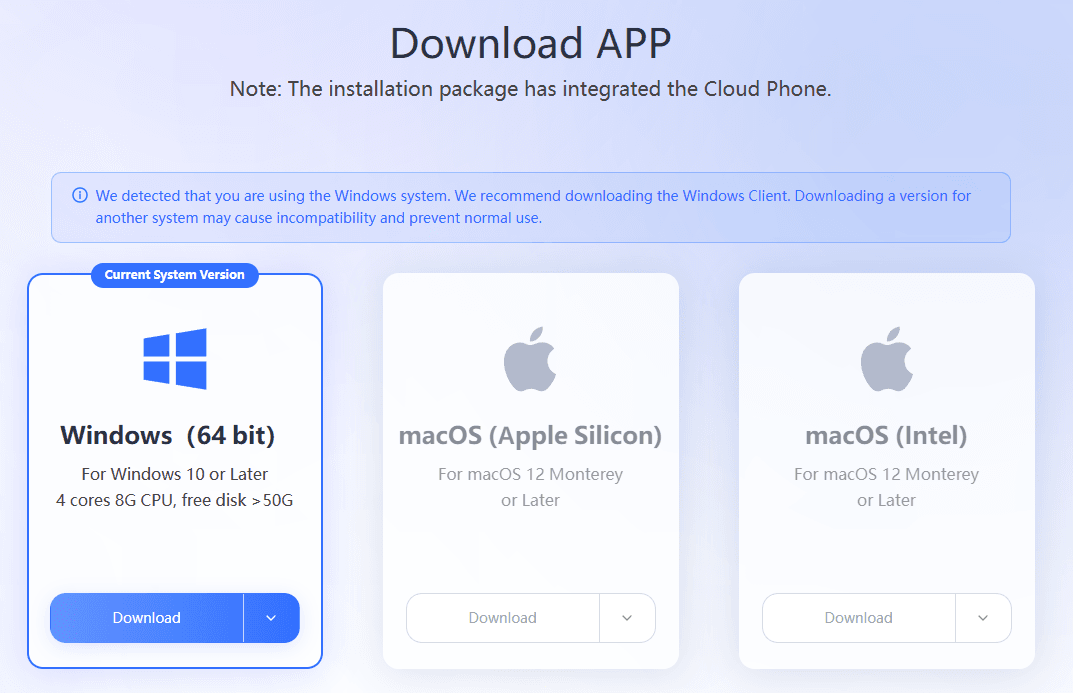
1. Create a BitBrowser account and open the browser.
Install BitBrowser and sign in to your account.
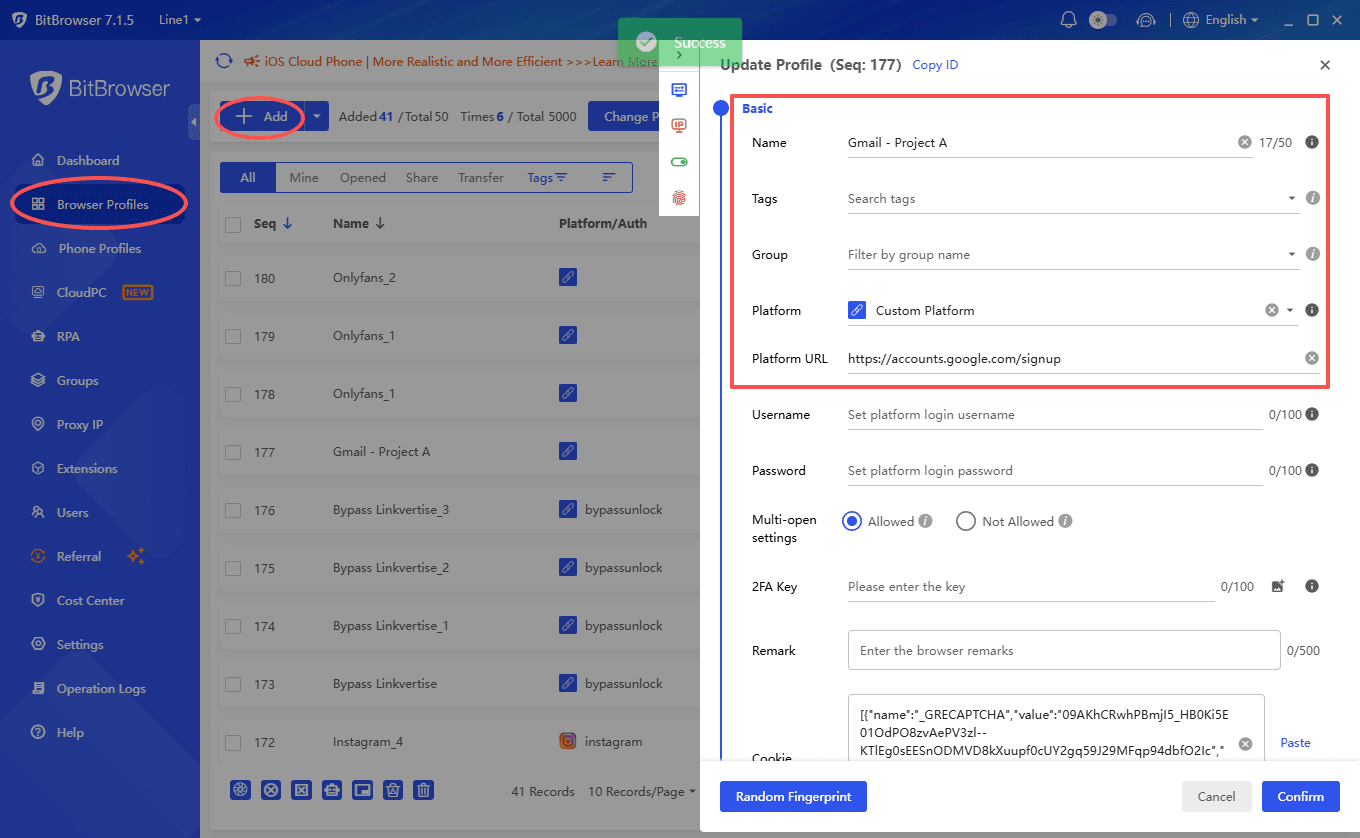
2. Create a separate browser profile.
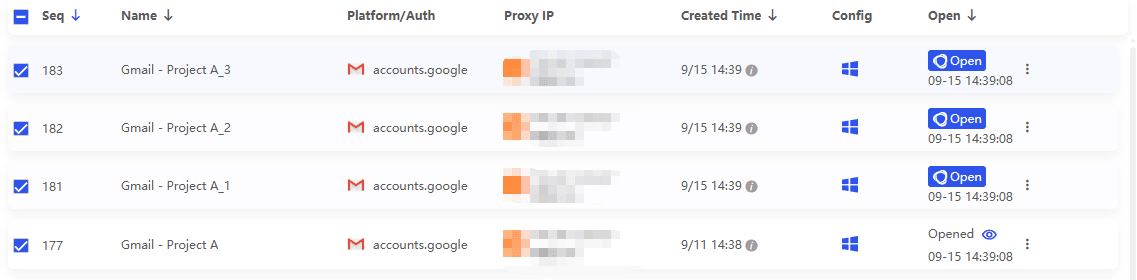
Create a profile for each Gmail account. You could name them based on their purpose, such as:
● Gmail - Project A
● Gmail - Testing
● Gmail - Newsletter
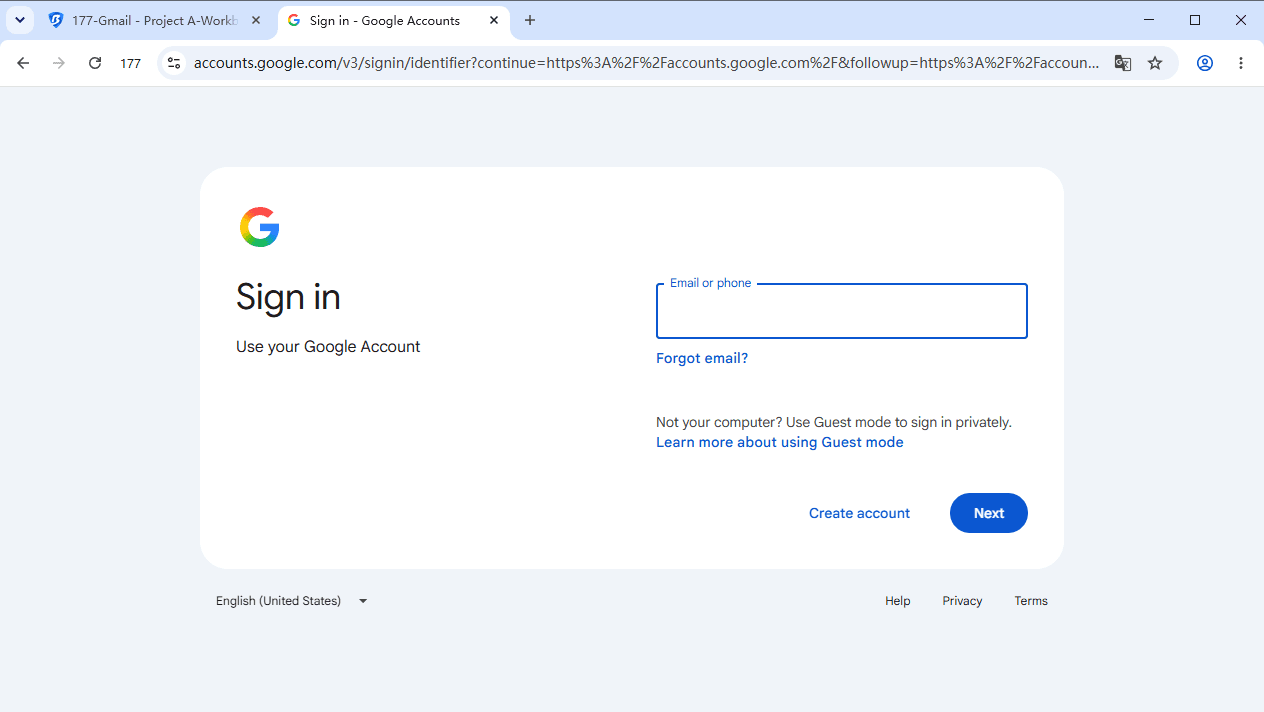
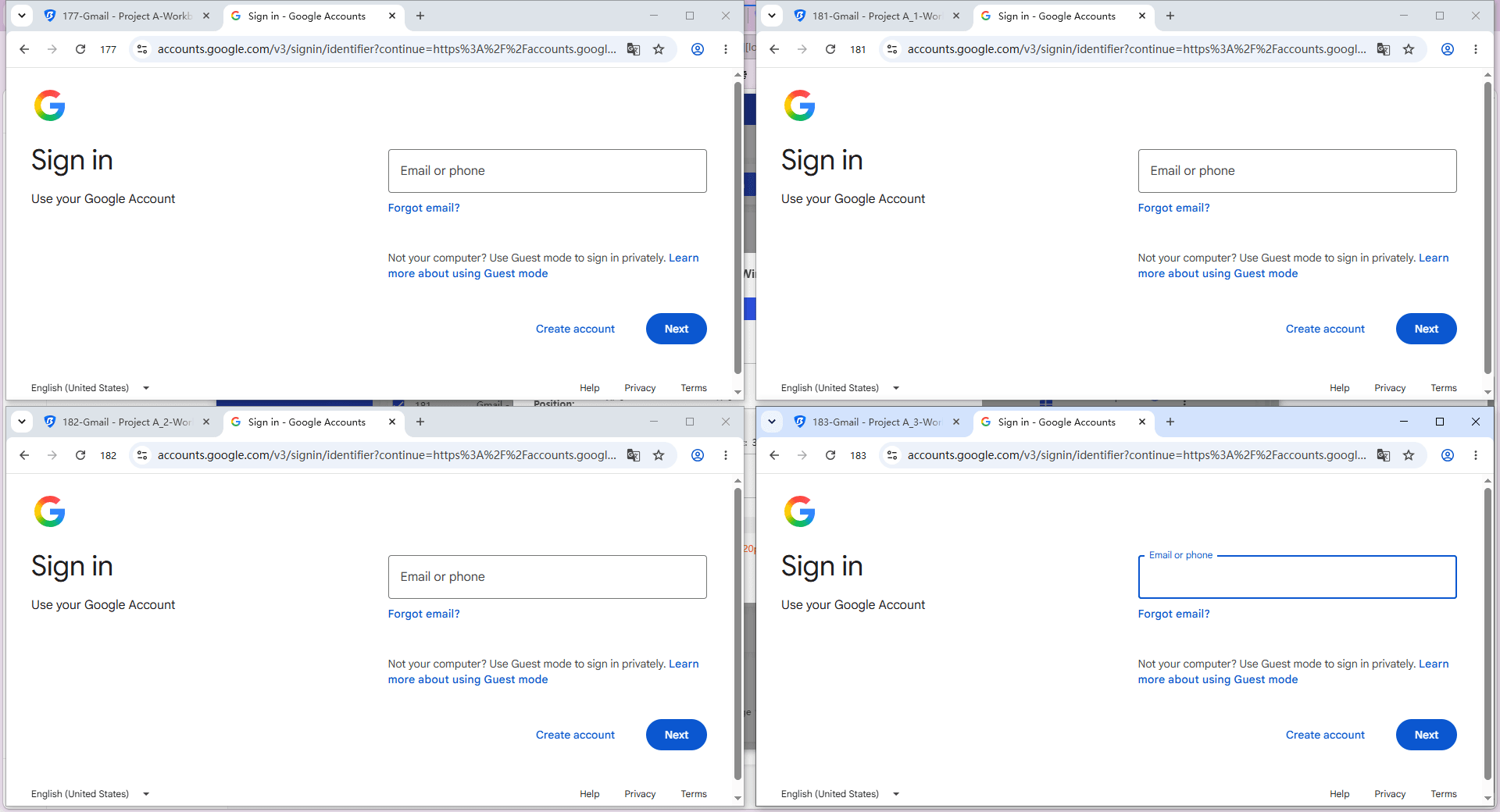
3. Log in to one Gmail account in each profile.
Open the profile and sign in to the corresponding Gmail account.
4. Keep the profiles separate.
Each profile maintains its own browser data, so you can switch between Gmail accounts without constantly logging out of one account and into another.
5. Use the profiles for different workflows.
For example, you could keep a temporary project Gmail account in one profile and a separate testing account in another.
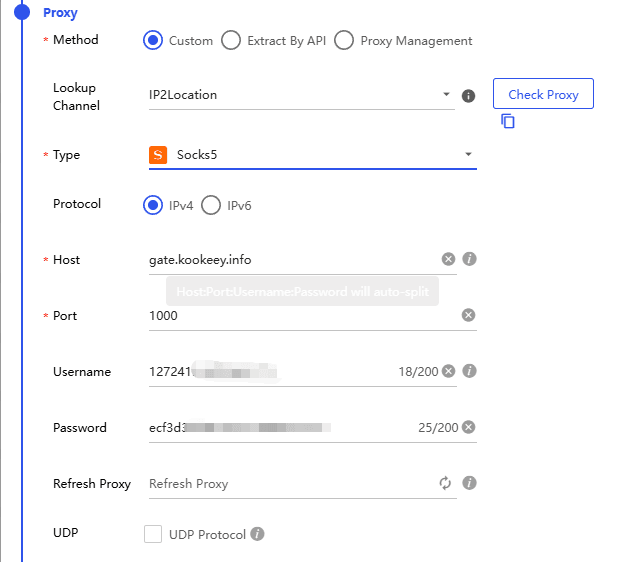
You can also configure a separate proxy for each profile when you need the accounts to connect through different locations or network environments. This helps keep each profile's browser data and connection settings separate.
Why Use BitBrowser for Multiple Gmail Accounts?
The main advantage is profile isolation. Each browser profile can maintain its own:
● Cookies and login sessions
● Local browser data
● Browser settings
● Proxy configuration, when needed
● Separate workspace for different accounts
For more details, see our guide on managing multiple Gmail accounts.
What About Creating a Gmail Account Without a Phone Number?
Phone verification is one of the questions that often comes up when people search for temporary Gmail accounts.
Google may require phone verification during account creation, and whether it appears can depend on the signup process and Google's verification requirements at the time.
There isn't a reliable official method that guarantees a Gmail account can always be created without a phone number.
If you're researching this specifically, you can also read our guide on how to create a Gmail account without a phone number for more information about the available options and limitations.
Best Practices When Using Temporary Gmail Accounts
A temporary or secondary email account is still a real account if it is created through Gmail. Treat it accordingly.
● Don't use a temporary account for important services that you may need to recover later.
● Use a unique password rather than reusing the password from your primary account.
● Keep recovery information in mind if the account will remain active for more than a short period.
● Don't assume a Gmail account will automatically expire. You need to stop using or delete it yourself.
● Use separate browser profiles if you're managing several accounts and want to keep their sessions organized.
● Avoid disposable email for important accounts. If you may need password recovery or long-term access, a regular Gmail account is usually a better choice.
FAQ – Temporary Gmail Accounts
Can I create a Gmail account that automatically expires?
No. Google doesn't offer a special Gmail account type that automatically expires after a fixed period. You can create a separate Gmail account and use it temporarily, then stop using or delete it when you no longer need it.
Is a Gmail Plus alias a separate account?
No. A Plus alias such as yourname+test@gmail.com is connected to your existing Gmail account. Messages are delivered to the same inbox.
What's the difference between temporary Gmail and disposable email?
A temporary Gmail account is normally a regular Google Account that you use for a short period. A disposable email address is specifically designed for short-term use and may expire automatically.
Can I create multiple Gmail accounts?
Yes. You can create separate Google Accounts with different Gmail addresses. If you're managing several accounts regularly, separate browser profiles can make switching between them easier.
Can I create a Gmail account without a phone number?
Google may ask for phone verification during signup, and there is no guaranteed official method to bypass that requirement. The requirement can vary depending on Google's verification process.
Is BitBrowser useful for managing multiple Gmail accounts?
Yes. BitBrowser can keep Gmail accounts in separate browser profiles, with separate cookies, login sessions, and browser data. This can make multiple-account workflows easier to organize and reduce accidental cross-account logins.
Conclusion: Which Temporary Email Method Should You Use in 2026?
There isn't one universal definition of a "temporary Gmail account." The best method depends on what you actually need.
● For a real Gmail account: Create a separate Google Account and use the new Gmail address for your short-term purpose.
● For organizing mail: Use a Gmail Plus alias such as name+project@gmail.com.
● For a quick, disposable address: Use a reputable disposable email service.
● For managing several Gmail accounts: Use separate BitBrowser profiles to keep browser sessions and account data organized.
The key is to choose the method based on whether you need a new Gmail account, an address variation, or a genuinely disposable mailbox. Once you understand that distinction, choosing the right option becomes much easier.