How to Download Instagram Photos: Save Pictures on iPhone, Android, and PC
 2026.09.04 06:29
 YT.Shi
Want to save an Instagram photo to your phone or computer? The best method depends on whether you're downloading your own photos, saving someone else's public post, or simply keeping an image for later.
In this guide, you'll learn how to download Instagram photos on iPhone, Android, and PC, save images to your camera roll or gallery without taking a screenshot, and back up your own Instagram data.
We'll also show you how BitBrowser can help you download Instagram photos in bulk from multiple accounts.
Why Doesn't Instagram Have a Download Option
If you don't see a Download option on Instagram, it may be because of the following:
· Content type: Instagram generally does not provide a direct download option for other users' photos. Some Reels may have a Download option if the creator allows downloads.
· App version: Make sure you're using the latest version of the Instagram app, as older versions may not support certain features.
· Regional availability: Some Instagram features may vary by region.
· Private accounts: Content from private accounts cannot be downloaded through Instagram's built in download feature.
Can You Download Photos From Instagram
Yes, but the official options are limited, and the available methods depend on who owns the photo.
Instagram does not provide a direct download button for photos posted by other users. This is mainly intended to protect creators’ copyright. However, downloading your own Instagram photos is officially supported.
For public photos posted by other users, you may need to use alternative methods or third party tools.
Difference Between “Save” and “Download” on Instagram
What you need to know is the difference between Save and Download.
· When you tap Save on an Instagram post, the post is added to your Saved collection inside Instagram. It does not necessarily save the image file to your phone or computer.
· When a download option is available, it can save the available image or media file to your device. However, not every Instagram photo has a direct Download button.
For your own Instagram content, there is also an official option to export your information, which can include photos and posts.
Instagram Photo Download Methods at a Glance
| Method | Best For | Device | Quality | Key Notes |
|---|---|---|---|---|
| Instagram Download | Your own photos | iPhone, Android | Original/available quality | Uses Instagram's built in download option |
| Download Account Data | Backing up your own photos | iPhone, Android, PC | Original files | Useful for downloading older account data |
| Save to Instagram | Keeping posts for later | All devices | Not applicable | Saves the post inside Instagram, not to your device |
| Screenshot | Quick copies of public photos | iPhone, Android, PC | Lower | Simple but limited by screen resolution |
| Third Party Downloader | Public photos | iPhone, Android, PC | Higher | Usually requires copying the Instagram post link |
| Browser Extension | Downloading photos on PC | PC | Higher | Adds download features to supported browsers |
| View Page Source | Technical users | PC | Depends | More complicated and may stop working after Instagram updates |
| Mobile Browser / Notes | Saving public photos on mobile | iPhone, Android | Depends | Availability depends on the device and browser |
| BitBrowser Profiles | Download Instagram photos in bulk from multiple accounts | PC | Depends on download method | Keeps different Instagram sessions and workflows organized |
How to Download Your Own Instagram Photos
If you want to keep copies of photos you've uploaded to Instagram, there are two useful options.
Method 1: Download Your Original Photos Automatically
Instagram has a setting that can save copies of content you post to your device. The name and location of this setting may vary slightly depending on your app version.
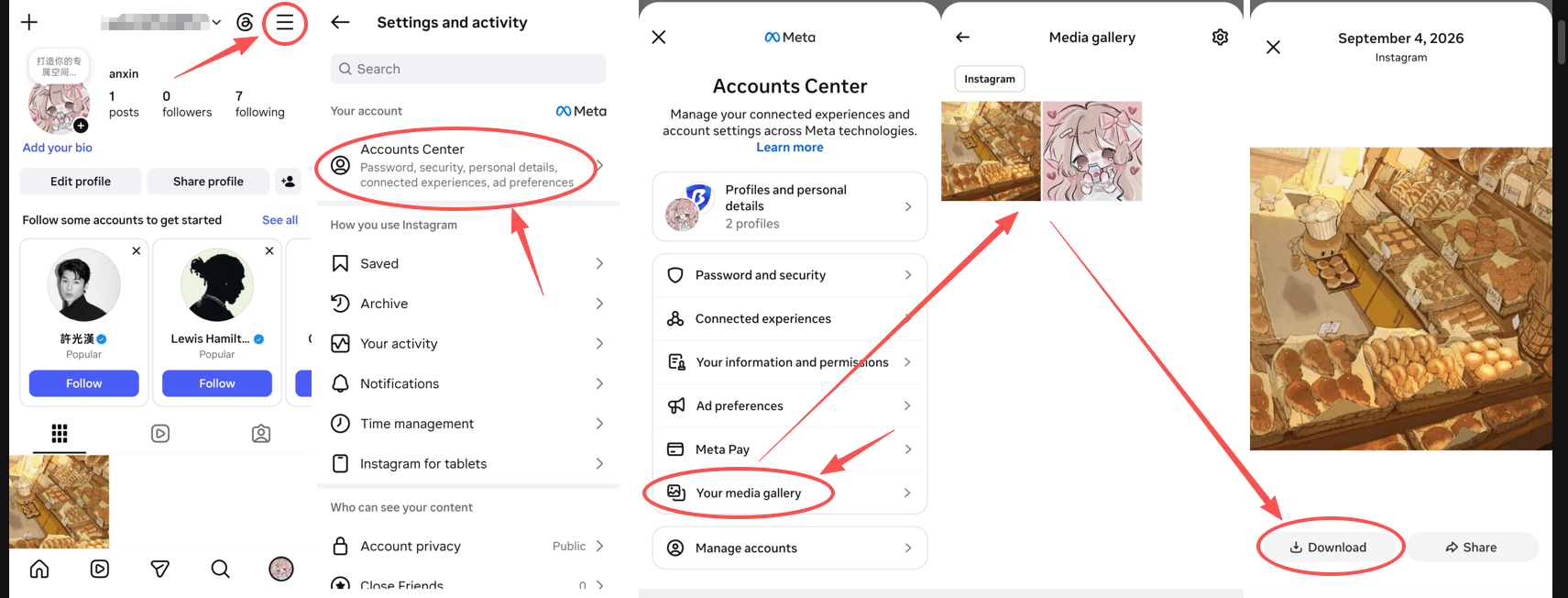
To check it:
1. Open Instagram and go to your profile.
2. Tap the ☰ menu in the top right.
3. Select Settings and activity.
4. Tap Accounts Center.
5. Select Your media gallery.
6. Choose the photo you want to download.
7. Tap Download.
This is useful for future posts because a copy can be saved to your device when you publish new content.
Method 2: Download Your Account Data for a Complete Backup
If you want to back up all your Instagram data, including older photos, you can request a copy of your account information.
Steps:
1. Go to Settings and privacy → Accounts Center.
2. Select Your information and permissions → Download your information.
3. Follow the instructions to choose the data you want to download and submit your request. Instagram will prepare a file containing your selected account data for you to download.
How to Save Other People's Instagram Photos
If you want to keep another person's post for later, the easiest option is Instagram's Save feature.
1. Open the post.
2. Tap the Save icon.
3. The post will be added to your Saved collection.
4. Open your Saved section whenever you want to find it again.
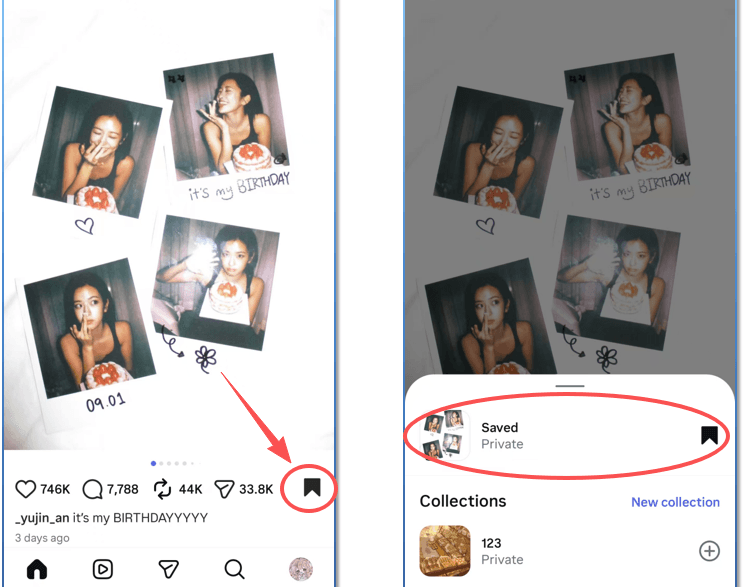
Keep in mind that Save is not the same as downloading. The post remains inside Instagram rather than becoming a normal image file on your device.
If you need a local copy for personal reference, a screenshot is one simple option. On some devices, opening a public Instagram post in a mobile browser may also allow you to save the displayed image directly.
If you plan to repost, publish, or commercially use someone else's photo, get permission from the creator first. Saving an image does not give you ownership or redistribution rights.
How to Download Other People's Instagram Photos
Method 1: Take a Screenshot
Taking a screenshot is the simplest option and does not require any third party tools.
· iPhone: Press the Side button and Volume Up button at the same time.
· Android: Usually, press the Power and Volume Down buttons at the same time.
· Pros and cons: It is quick and easy, but the image quality is limited by your screen resolution and the screenshot may include Instagram interface elements.
Method 2: Use a Third Party Downloader
Instagram downloaders are a common way to save photos from public posts in higher quality. The typical process involves copying the post link and pasting it into a downloader.
General steps:
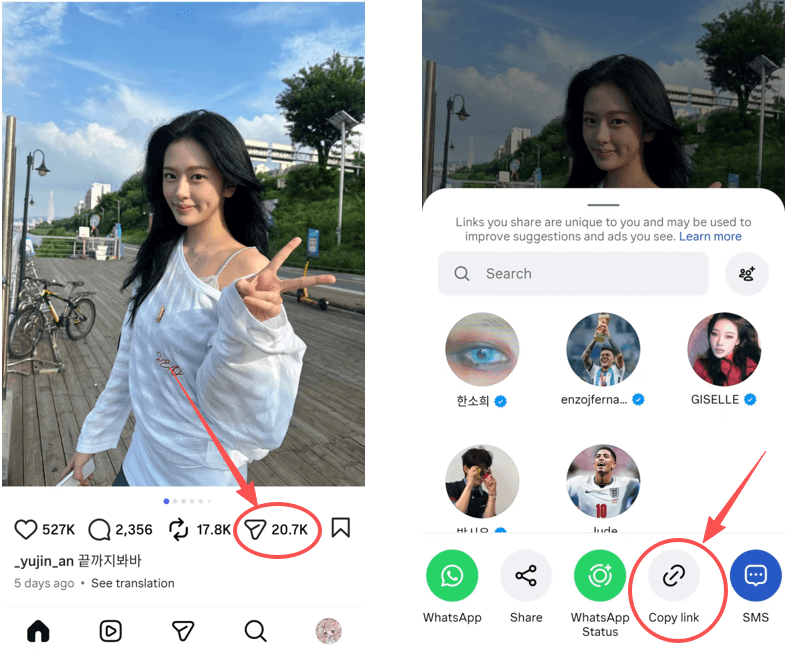
1. Open the photo you want to save in the Instagram app.
2. Tap the “...” menu or the Share icon and select Copy link.
3. Open a browser on your phone or computer and visit a third party Instagram downloader.
4. Paste the copied link into the input field and follow the download instructions.
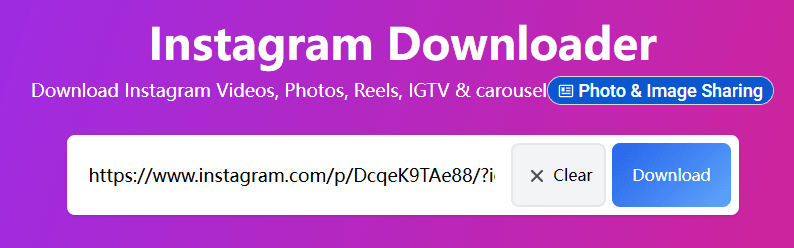
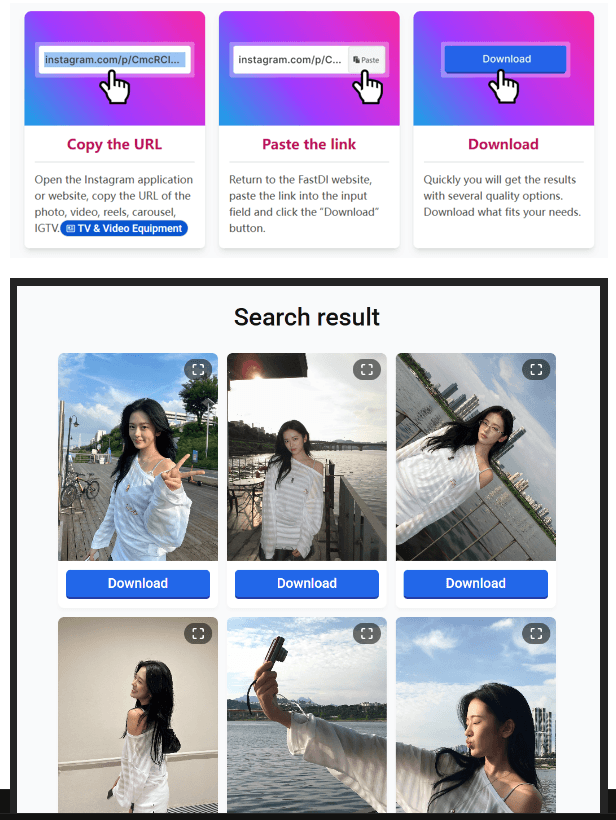
The available features and quality may vary between different services, so check the website before downloading.
Method 3: Use Your Phone’s Sharing Options
On some Android devices, copying an Instagram post link may trigger additional actions through the system sharing menu, such as saving or downloading content.
However, this is not a standard Instagram feature and availability depends on your device manufacturer and Android version.
How to Download Instagram Photos on iPhone
Download Your Own Photos
Use the method described above and enable Save Original Photos to automatically save your Instagram photos to your iPhone.
Save Other People’s Photos to Camera Roll
1. Take a screenshot: Use the iPhone’s built in screenshot feature.
2. Use a third party website: Copy the Instagram post link, open a downloader in Safari, paste the link, and download the photo. The image will usually be saved to the Photos app.
3. Use Notes as a workaround: Copy the post link, open it in Safari, then press and hold the image and select Copy. Paste it into the Notes app, then select Save to Photos.
How to Download Instagram Photos on Android
Download Your Own Photos
Enable Save Original Photos in Instagram settings. Depending on your device, saved photos may take a short time to appear in your gallery.
Save Other People’s Photos to Gallery
1. Take a screenshot: Use your Android phone’s built in screenshot feature.
2. Use a third party website: Copy the Instagram post link, open a downloader in Chrome or another browser, paste the link, and download the photo. It will typically be saved in your Downloads folder or Gallery.
How to Download Instagram Photos on PC
Method 1: Use a Browser Extension
Instagram downloader extensions for Chrome, Edge, or Firefox can add a download button directly to Instagram posts.
How to use: Install a suitable extension, open Instagram in your browser, and click the Download icon that appears next to the photo or post.
Method 2: Use a Third Party Downloader
Copy the Instagram post link, open a third party downloader in your PC browser, paste the link, and follow the download instructions.
Method 3: View the Page Source
If you have some technical knowledge, you can inspect the page source to find the image URL. However, this method is more complicated and may stop working when Instagram changes how its website handles images.
How to Download Instagram Photos in Bulk with BitBrowser
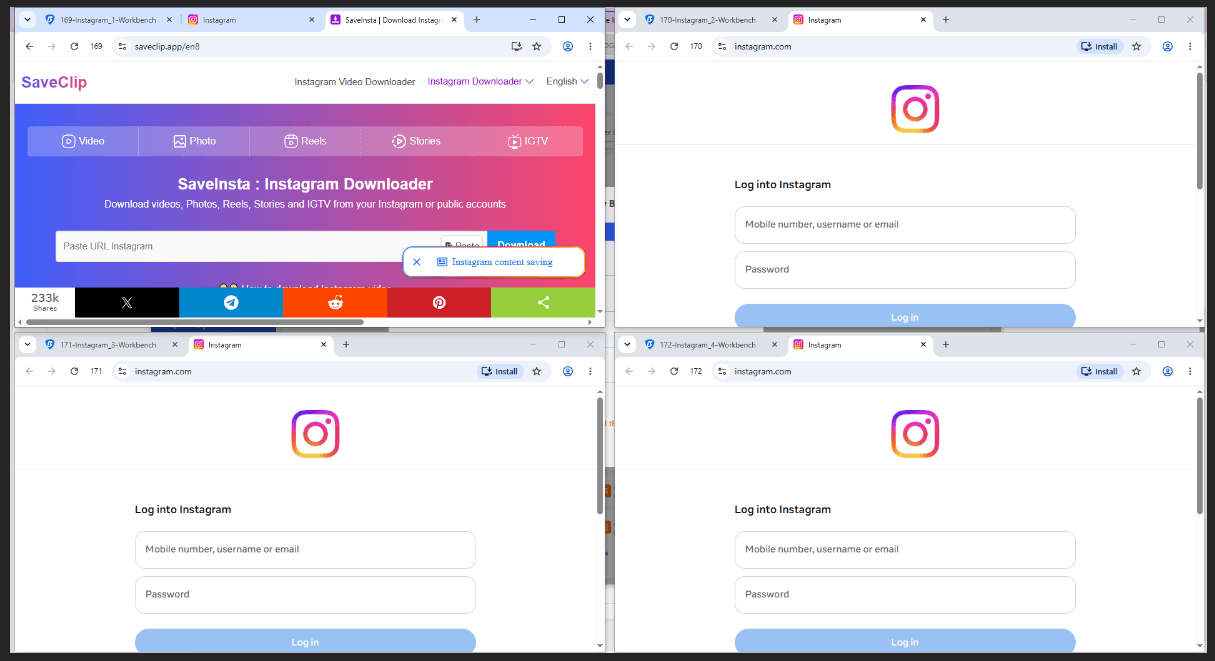
If you regularly manage multiple Instagram accounts and need to save photos from different profiles, doing everything in a single browser can become difficult to organize. BitBrowser lets you create separate browser profiles, making it easier to keep different Instagram sessions and workflows organized.
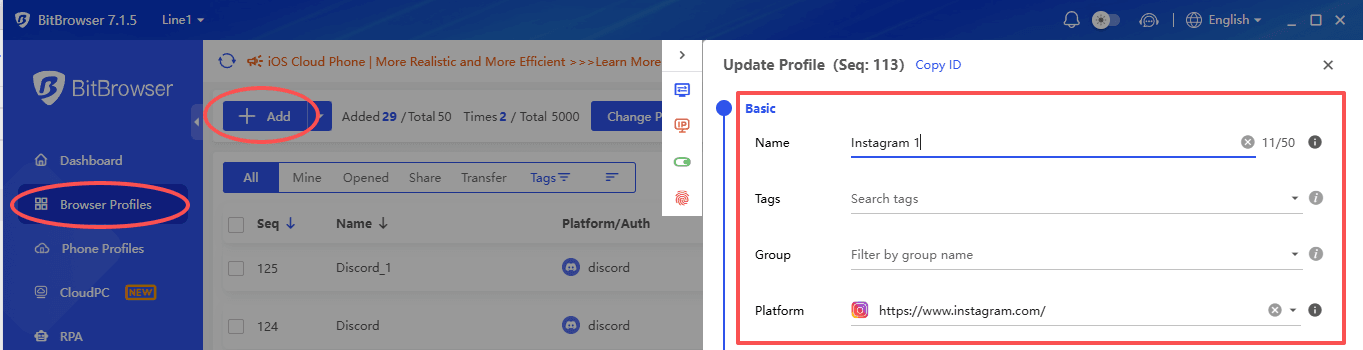
Step 1: Create Separate Browser Profiles
Install BitBrowser and create a browser profile for each Instagram account or workflow you need to manage. Each profile keeps its own cookies, local storage, and browser environment.
Step 2: Log In to Instagram
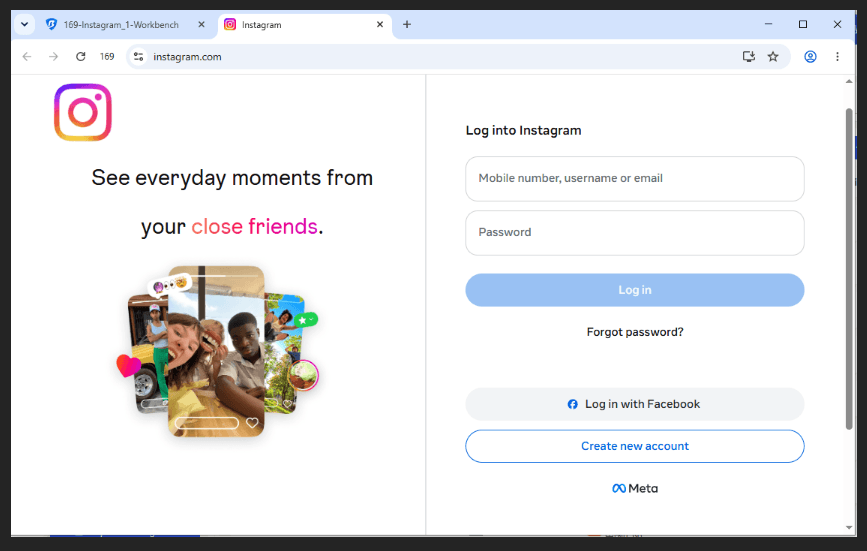
Open the Instagram website in the relevant BitBrowser profile and sign in to your account. You can keep different accounts in separate browser profiles instead of switching between sessions in the same browser.
You can also browse Instagram anonymously without logging into your account.
Step 3: Open the Photos You Want to Save
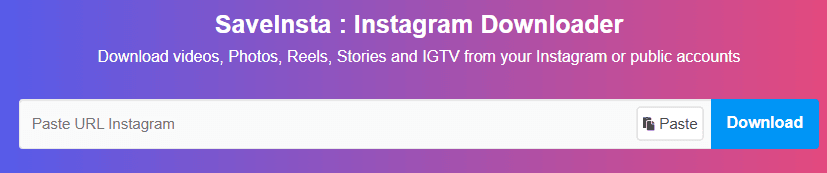
Find the public Instagram posts you want to download. Copy their post links and use your preferred Instagram downloader or another supported method to save the images.
Step 4: Process Multiple Profiles
When you need to work with photos associated with several accounts, open the corresponding BitBrowser profiles separately. This makes it easier to manage multiple sessions and keep downloaded content organized by account or project.
Summary
Downloading Instagram photos depends on whether you want to save your own content or photos from public posts. For your own photos, Instagram provides built in download and data export options. For other people's public photos, you can use screenshots, mobile browser options, or third party downloaders.
The best method also depends on your device. iPhone and Android users can save photos to their camera roll or gallery, while PC users can use browser extensions, download websites, or other browser based methods. If you manage multiple Instagram accounts, BitBrowser can help keep separate browser profiles and photo workflows organized.
Frequently Asked Questions
How can I download photos from Instagram?
You can download your own photos using Instagram's built in options. For public photos from other users, you can use a screenshot or a third party downloader.
How do I download someone else's Instagram photos?
For public posts, copy the post link and use a third party Instagram downloader. You can also take a screenshot if image quality is not a priority.
How do I save Instagram photos to my phone?
On iPhone or Android, you can save your own photos through Instagram's available options. For public photos from other users, you can use a screenshot or a third party downloader.
Can I save Instagram photos without taking a screenshot?
Yes. For public posts, you can copy the post link and use a third party downloader. On some devices, you may also be able to save an image directly from a mobile browser.
Why can't I download pictures from Instagram?
Instagram does not provide a direct download option for every photo, especially photos posted by other users. App versions, regions, content types, and account privacy can affect the available options.
Can I download Instagram photos in full size?
The available resolution depends on the original image and the download method. A third party downloader may provide better quality than a screenshot, but it cannot exceed the quality of the original image.
How do I download Instagram photos on PC?
You can use a browser extension, a third party downloader, or inspect the page source. Chrome, Edge, and Firefox can all be used for these methods.
Can BitBrowser help download Instagram photos in bulk?
BitBrowser helps organize Instagram photo workflows across multiple browser profiles. You can use separate profiles for different accounts and manage photo saving tasks more efficiently.

 Multi-Account Management
 Prevent Account Association
 Multi-Employee Management
Recommended
See More 



