How to Safely Run Multiple Instagram Accounts without Getting Flagged?
 2026.04.03 15:31
 YT.Shi
Instagram allows one user to have multiple accounts. The platform even provides a built-in feature to add and switch between up to 10 accounts directly within its app or on its website. For most people, using this official feature for a few personal accounts is perfectly safe.
However, the risk increases significantly when you manage many accounts, or if your activity mimics that of a bot or a spam network.
Why Instagram Flags Multiple Accounts
Instagram's security systems look for signals that multiple accounts are being controlled by the same person or an automated program. This process is called "account association" or "fingerprinting". If the system suspects your accounts are linked for inauthentic purposes, it may take action, which can range from a temporary shadowban (where your content's reach is limited) to a permanent account suspension.
The main signals Instagram looks for are:
● Your IP Address: This is your computer's unique address on the internet. If multiple accounts are logged into from the same IP address, especially in a short period, it can trigger a red flag.
● Your Browser Fingerprint: This is a collection of your browser's unique characteristics, such as your operating system, screen resolution, installed fonts, and plugins. When multiple accounts share an identical fingerprint, they can be easily linked together.
● Your Activity Patterns: Behaviors like following and unfollowing many people in a short time, leaving identical comments, or posting on a rigid schedule can appear automated and trigger a review.
How to Add and Switch Between Multiple Instagram Accounts
For 2-5 personal or small business accounts, Instagram's built-in account switching is likely all you need. Simply add your accounts within the settings of the Instagram app or website. This method is convenient and generally safe because the activity is clearly linked to a single, real user.
When you add multiple Instagram accounts, you can easily switch between them without logging out. Follow these step-by-step instructions to manage multiple accounts efficiently.
Caution: Avoid rapidly switching between multiple accounts, as this can sometimes be misinterpreted as suspicious behavior.
Add Another Instagram Profile to Your Account
You can create additional profiles under the same Instagram account.
1. Open the Instagram app.
2.Tap Profile or your profile picture in the bottom right to go to your profile.
3.Tap your profile name at the top right.
4.Tap Add Instagram account.
5.Tap Create new account.
6.Enter your new profile name, then tap Next.
7.Tap Continue, then tap Allow and Continue to add the new profile to your Accounts Center.
Note:
● If you don’t want to add the new profile to Accounts Center, tap Create password to set a password instead, then tap Next.
● Add a phone number or email, then tap Next.
● Tap Complete sign up to finish creating your new account.
Add Multiple Existing Instagram Accounts
1. In the bottom left, tap More, then select Switch accounts.
2. Enter the username and password of the account you want to add.
3.Tap Log In to add the account.
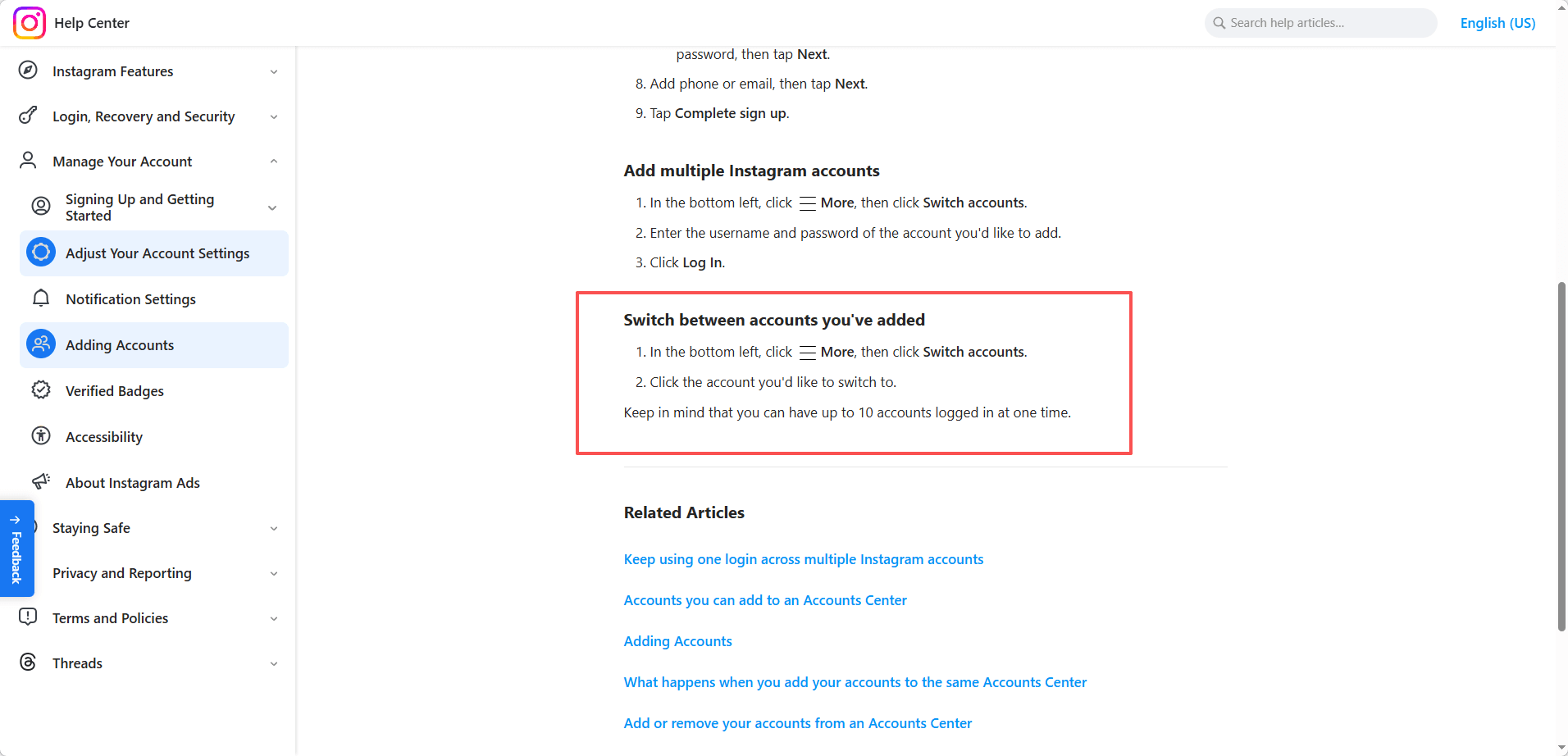
Switch Between Accounts You’ve Added
1. In the bottom left, tap More, then select Switch accounts.
2.Tap the account you want to switch to.
Keep in mind: Instagram allows you to stay logged in to up to 10 accounts simultaneously, making it easy to manage personal and work profiles.
Advanced Ways for Managing Multiple Instagram Accounts Safely
If you need to manage more than 5 Instagram accounts or want a higher level of security, basic switching features are no longer enough. Here are more advanced and scalable solutions:
1. Use Separate Browser Profiles
A simple starting point is to use your browser’s built-in profile feature in Chrome, Firefox, or Edge. Each browser profile stores its own cookies, cache, and browsing data, which helps separate accounts at a basic level.
This method works for small-scale use, but it lacks advanced fingerprint spoofing and deeper anti-detection capabilities, making it less reliable when managing multiple Instagram accounts long term.
2. Use BitBrowser for Anti-Detect Multi-Accounting
For more advanced needs, tools like BitBrowser are designed specifically for multi-accounting and anti-detect browser use cases.
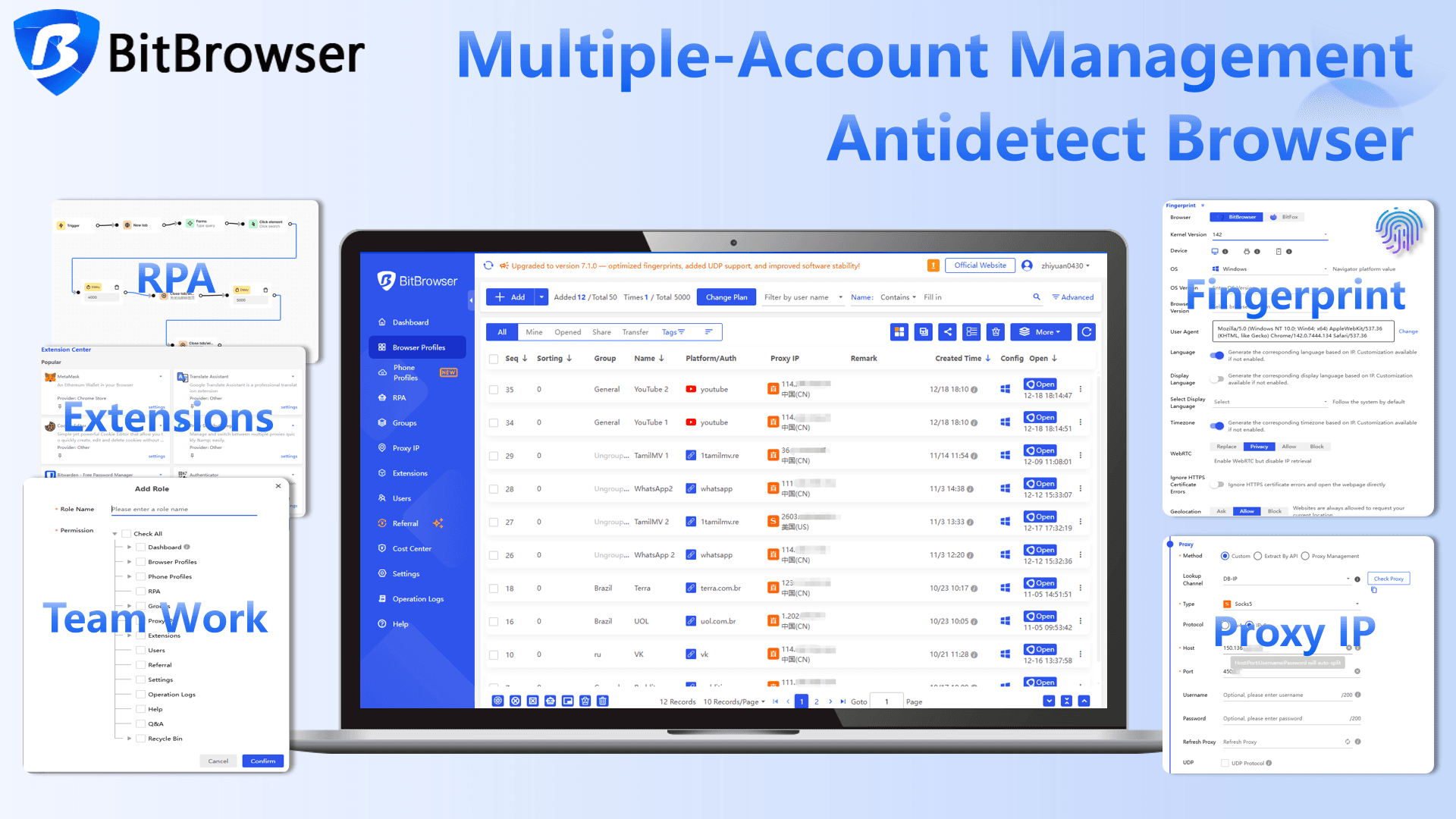
BitBrowser allows you to create fully isolated browser environments where each profile has a unique browser fingerprint, including parameters like user agent, timezone, language, and hardware configuration. This helps simulate real user behavior and prevents accounts from being linked together.
It also isolates fingerprint elements such as Canvas, WebGL, and Audio, which are commonly used in browser fingerprint tracking, while helping prevent WebRTC leaks and reducing risks of browser leaks that could expose your real IP or system data. This makes it a strong solution for users who need secure and scalable account management automation.
3. Use a Dedicated Proxy for Each Account
Proxies are a key component of any anti-detect setup. They act as intermediaries that mask your real IP address.
For best results, assign a unique proxy to each account or browser profile. This ensures that every account operates under a different IP, which is essential for IP isolation and avoiding platform detection systems.
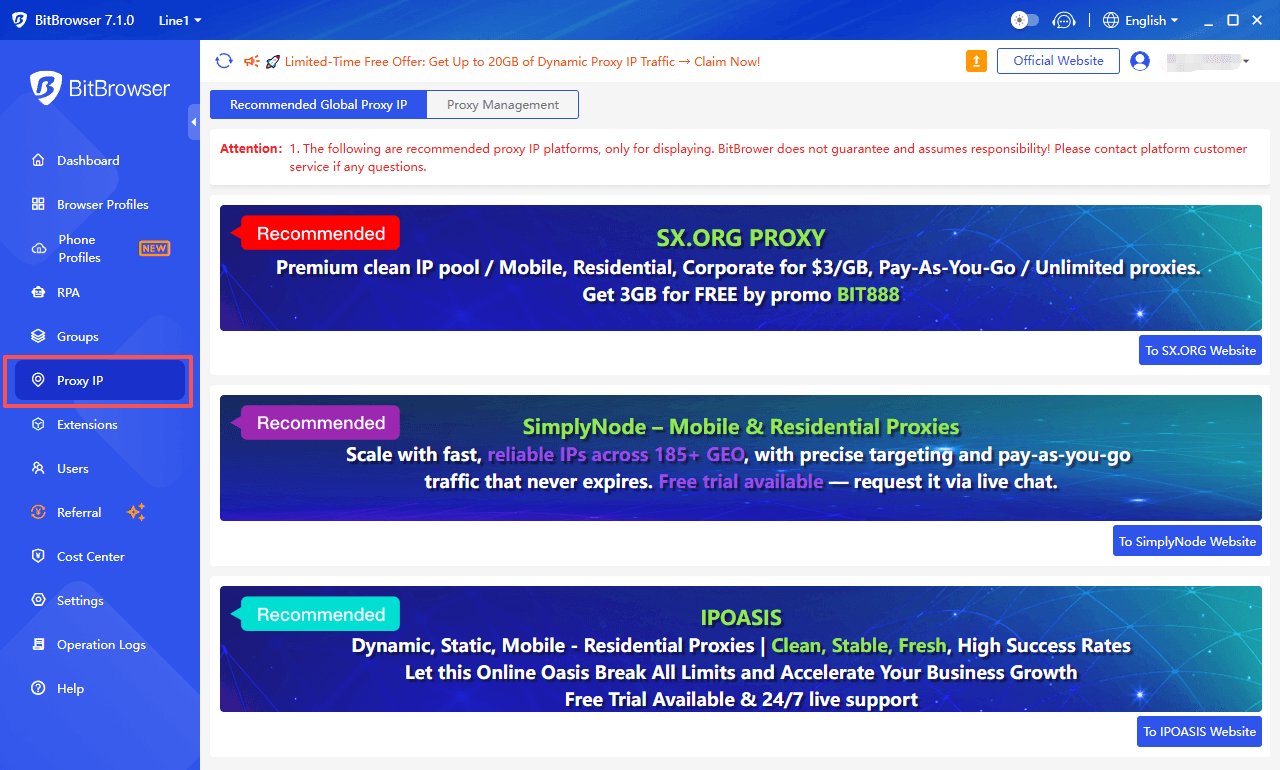
It’s also important to use high-quality residential or mobile proxies and match the proxy location with the account’s region to maintain consistency in IP, timezone, and language settings.
How to Use BitBrowser to Safely Run Multiple Instagram Accounts (Step-by-Step)
Once you’ve set up the right environment with an anti-detect browser, the next step is to configure and run your Instagram accounts safely. Here’s a practical workflow using BitBrowser.
1. Create a New Browser Profile and Add Your Account
After opening BitBrowser:
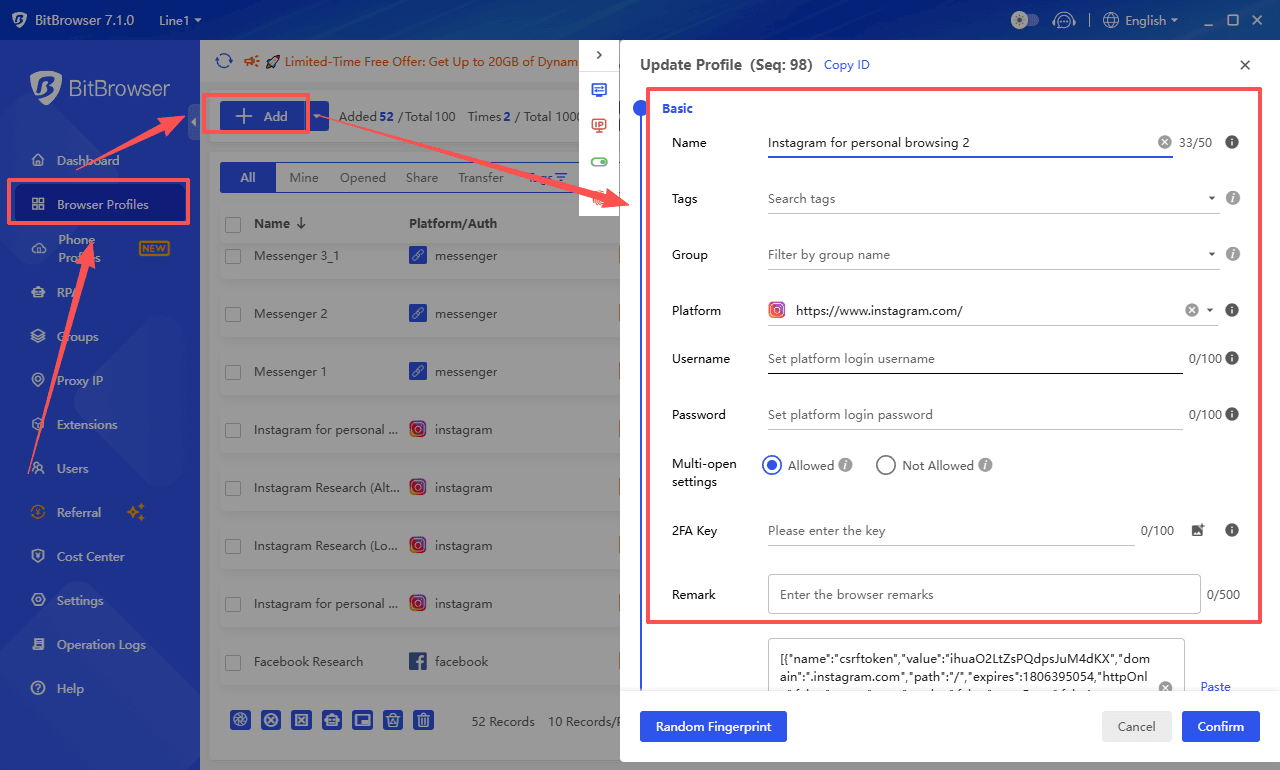
1. Click Create Profile in the dashboard.
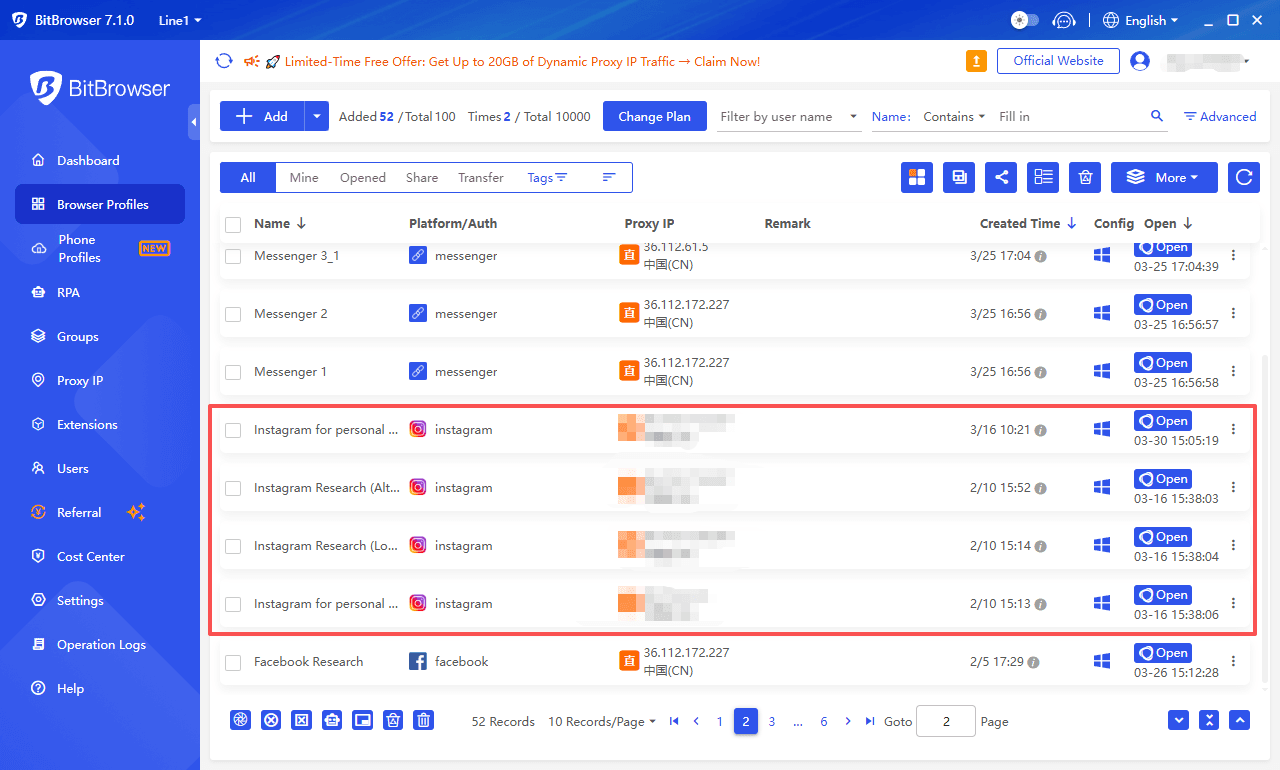
2. Set a profile name (e.g., Instagram for personal browsing 2).
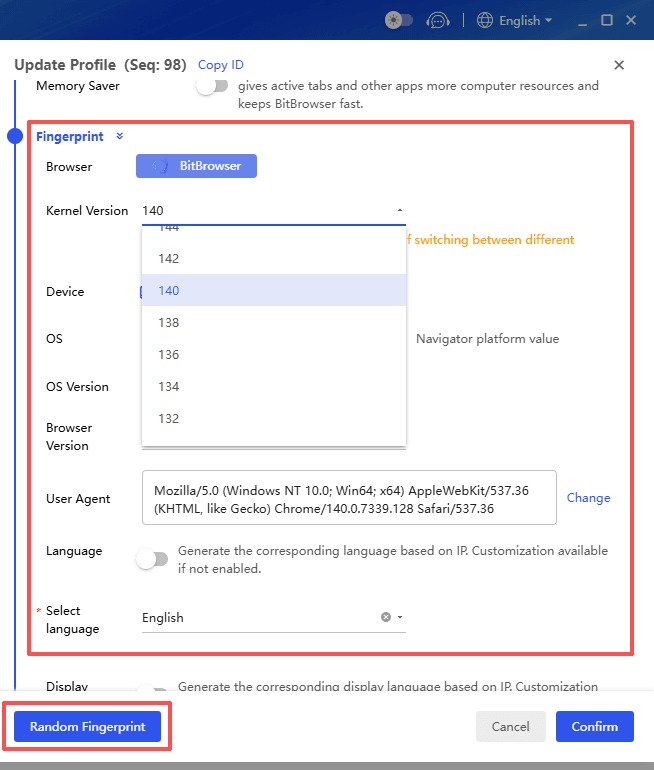
3. Configure or generate a unique browser fingerprint (user agent, OS, resolution, etc.).
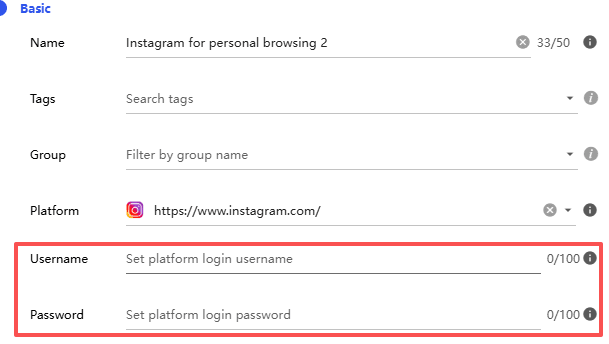
Then choose how you want to add your Instagram account:
● Login with username and password (standard method)
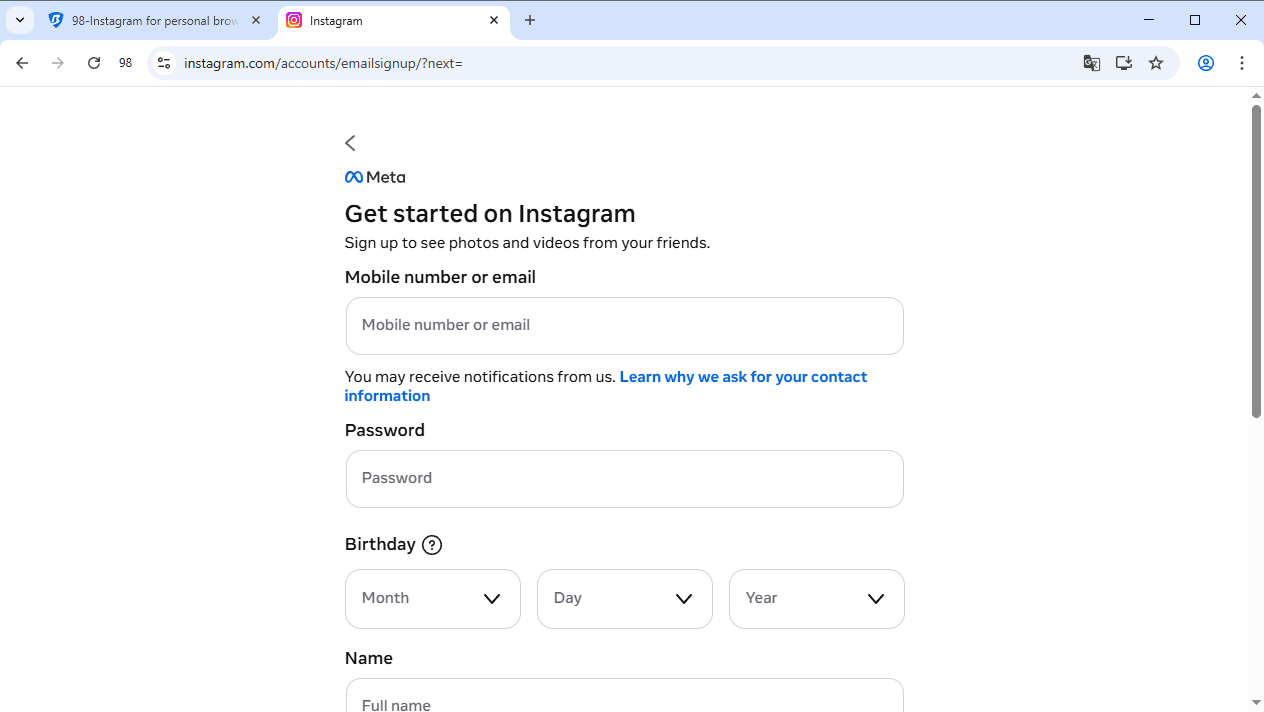
● Create a new account directly inside the profile environment
● Import cookies to restore an existing login session without re-entering credentials
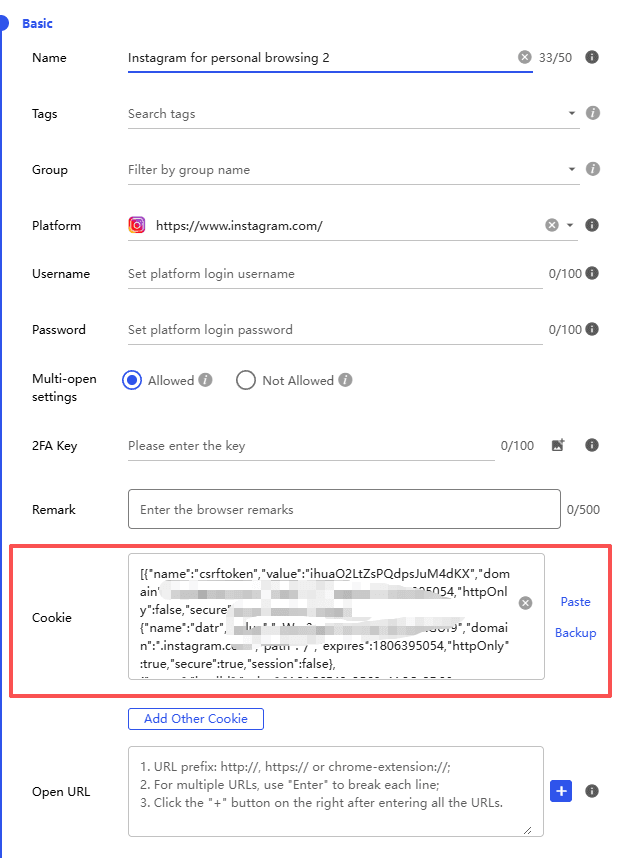
This flexibility is useful for different workflows, especially for cookie-based login and efficient multi-account management.
2. Configure a Dedicated Proxy
1. Go to the Proxy Settings section inside the profile.
2. Enter your proxy details (IP, port, username, password).
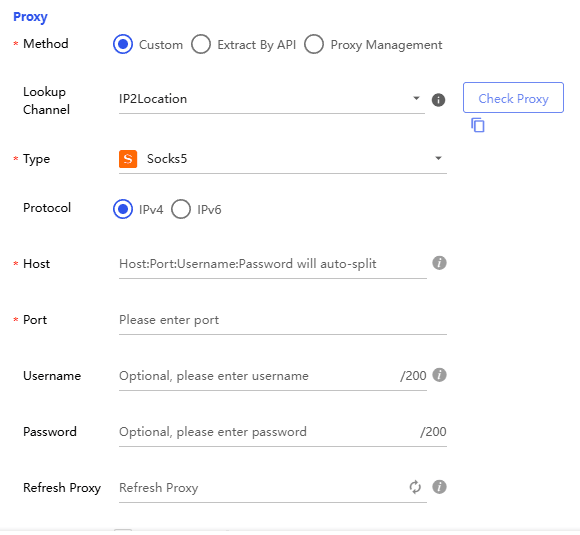
3. Use a residential or mobile proxy for higher trust.
4. Match the proxy location with the account’s region.
This ensures proper IP isolation and avoids mismatches between IP, timezone, and language.
3. Check Fingerprint Consistency
Before launching the profile:
● Ensure IP, timezone, and language are aligned (you can verify this using an IP check tools or tools like Whoer)
● Confirm WebRTC is masked to prevent WebRTC leaks
● Check for potential browser leaks or inconsistencies
A consistent setup is critical for avoiding detection.
4. Launch the Profile and Access Instagram
1. Click Open on the profile.
2. A new isolated browser window will launch.
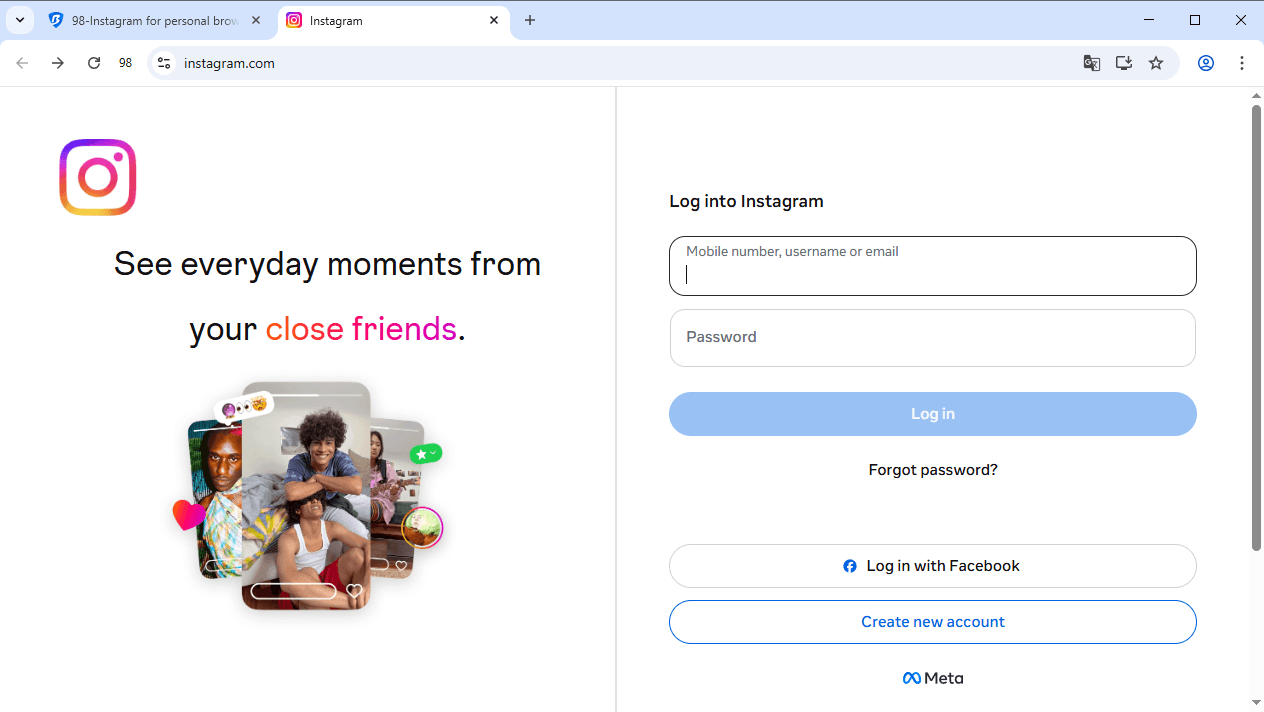
3. Go to Instagram and log in or continue your session. You can open multiple browser windows at the same time, each tied to a different profile, allowing efficient multi-account management without cross-interference.
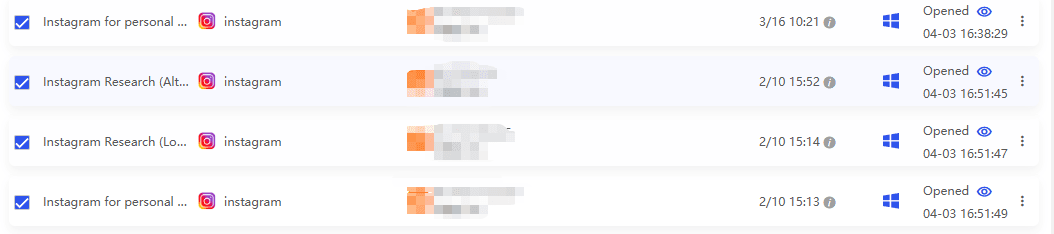
4. Additionally, BitBrowser offers a synchronizer feature, which allows you to perform the same actions across multiple browser windows simultaneously.
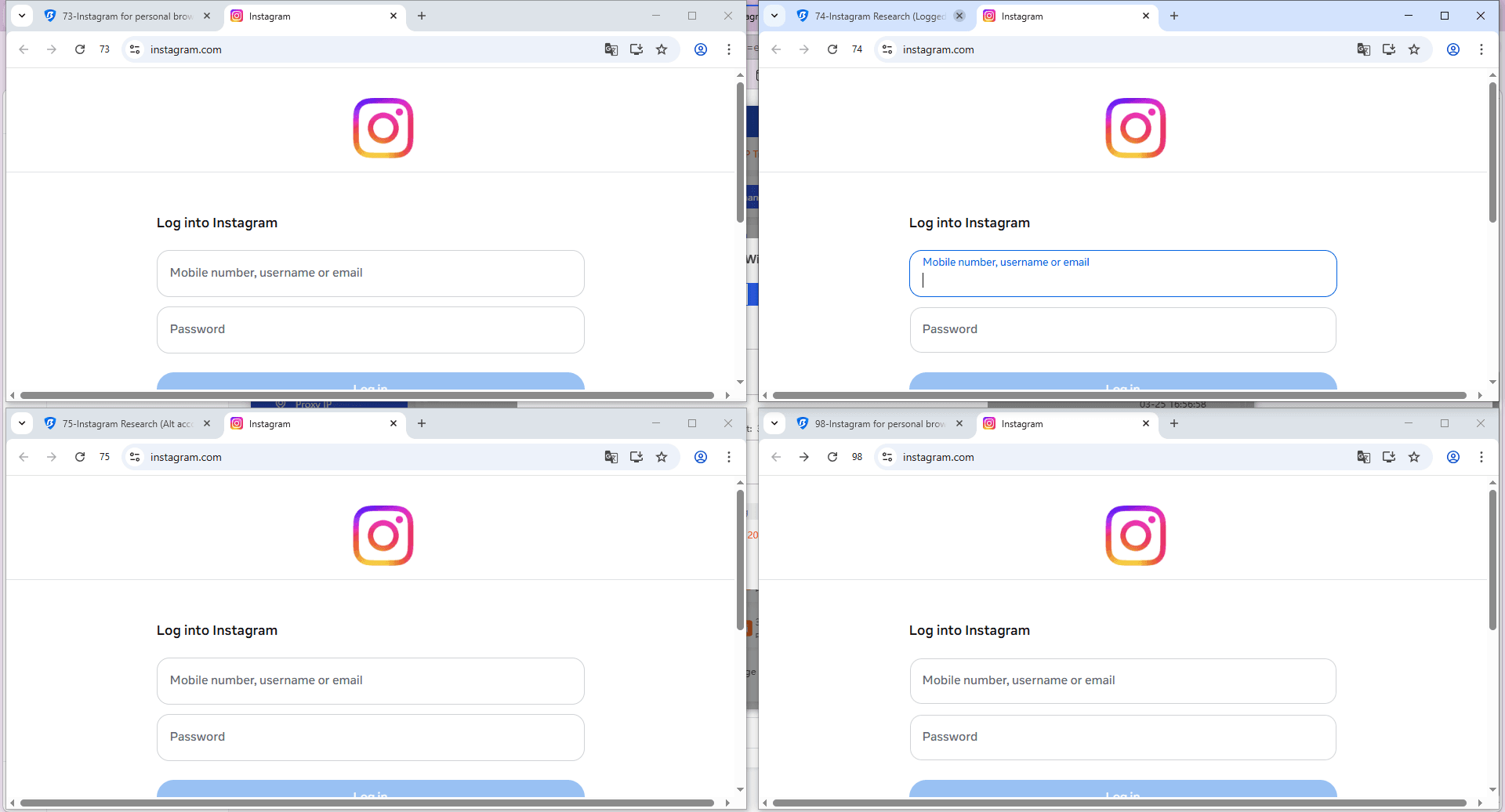
Each profile behaves like a separate real device.
Conclusion
Managing multiple Instagram accounts is easy at a small scale using the platform’s built-in switching feature. But as soon as you move into multi-account operations, the risks of account association, IP tracking, and browser fingerprint detection increase significantly.

 Multi-Account Management
 Prevent Account Association
 Multi-Employee Management
Recommended
See More 



