How to Set Up an MCP Server With BitBrowser: Step-by-Step Guide for 2026
 2026.08.28 21:41
 petro
petroThe Model Context Protocol (MCP) is becoming an important standard for connecting AI assistants with external tools, browser environments, APIs, and data sources.
Instead of simply answering questions, an MCP-compatible AI agent can interact with approved applications and perform structured tasks.
For browser automation and profile management, BitBrowser provides an especially interesting implementation.
Starting with BitBrowser 7.1.5, BitBrowser added MCP service support alongside its Local API, browser-profile management, Virtual Desktop, proxy configuration, fingerprint settings, and expanded team controls.
The result is a browser environment where compatible AI clients such as Claude, Cursor, and other MCP-capable applications can interact with BitBrowser through natural-language instructions.
If you want to follow the official configuration alongside this tutorial, see the BitBrowser MCP Setup Guide.
What Is an MCP Server?
MCP, or Model Context Protocol, is an open protocol that provides a standardized way for AI applications to communicate with external tools and services.
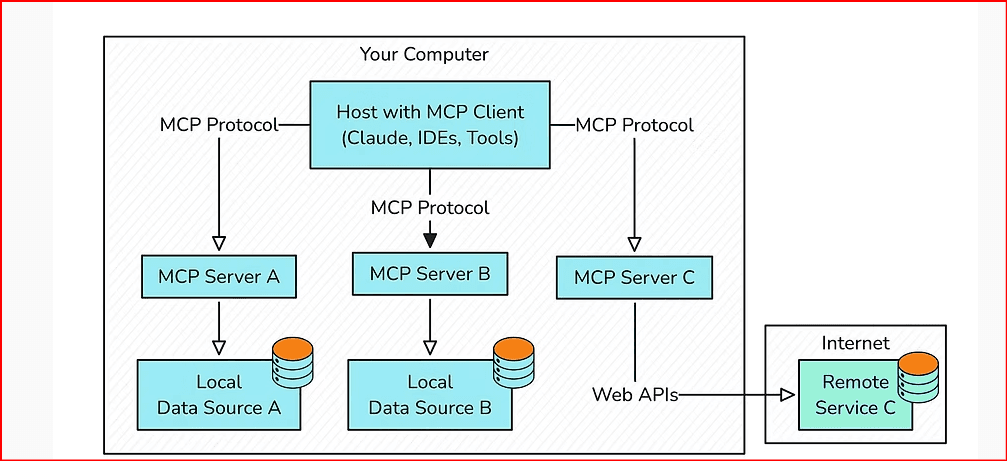
A simple MCP architecture looks like:
AI Client
↓
MCP Server
↓
External Tool
With BitBrowser, the architecture becomes:
Claude / Cursor / AI Agent
↓
MCP
↓
BitBrowser Local MCP Server
↓
BitBrowser Browser Profiles
↓
Authorized Websites or Web Applications
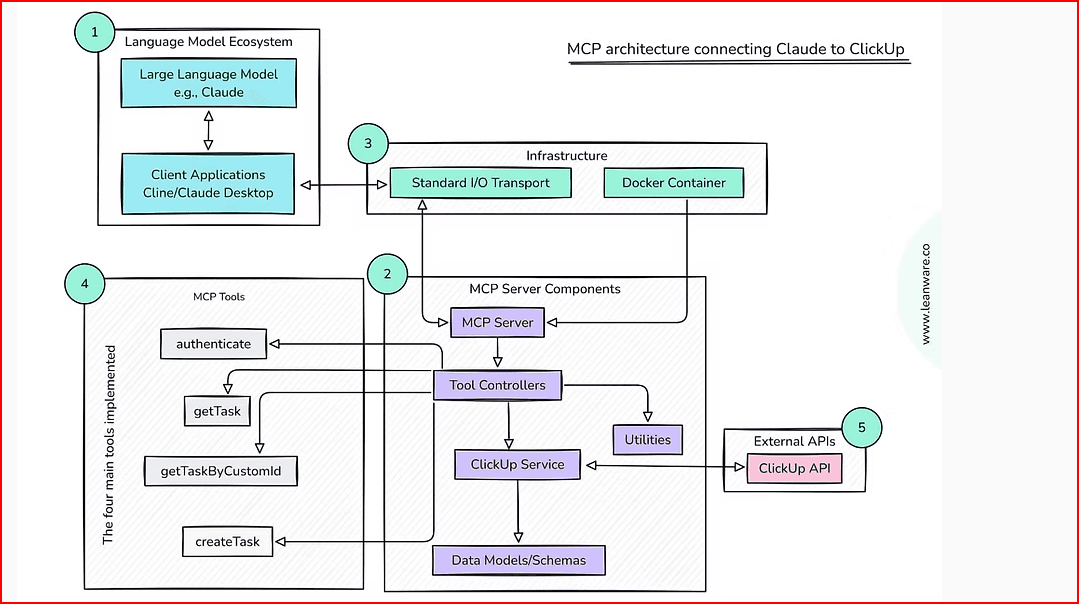
The MCP server acts as a bridge between the AI client and BitBrowser.
It allows compatible AI software to discover available tools, submit supported requests, execute approved operations, and receive results.
Why MCP Matters for Browser Automation
Traditional browser automation commonly relies on technologies such as:
- Selenium
- Puppeteer
- Playwright
- REST APIs
- Custom scripts
Those technologies remain useful.
MCP adds an AI-oriented control layer.
Instead of manually writing code for every browser-management operation, a user can potentially describe a task in natural language and allow an AI client to call the appropriate BitBrowser tool.
For example:
Create a browser profile for my website localization QA project.
The AI client can interpret the instruction and invoke an appropriate browser-management operation exposed through MCP.
This makes MCP particularly useful for:
- AI-assisted website QA
- Localization testing
- Browser-profile administration
- Authorized multi-account workflows
- Market research
- Team operations
- Internal browser automation
- Repetitive browser-management tasks
What Is the Role of BitBrowser in MCP?
The main advantage of BitBrowser MCP is not MCP alone.
BitBrowser combines MCP with a browser-profile infrastructure designed to maintain separate browsing environments.
A BitBrowser profile can maintain its own:
- Cookies
- Local storage
- Login sessions
- Browser fingerprint
- Proxy
- Extensions
- Browser settings
- Project configuration
This means an AI agent does not need to operate everything through one ordinary Chrome session.
Instead, it can potentially interact with multiple controlled BitBrowser environments.
For example:
Marketing Profile
↓
Independent cookies + proxy + fingerprint
QA Profile
↓
Independent cookies + proxy + fingerprint
Research Profile
↓
Independent cookies + proxy + fingerprint
The profiles remain separated.
BitBrowser MCP Architecture
A practical architecture can look like:
Claude / Cursor / AI Agent
↓
MCP Client
↓
BitBrowser Local MCP Server
↓
BitBrowser Local API
↓
Browser Profile
↓
Authorized Website
This architecture combines AI interaction with controlled browser environments.
The BitBrowser 7.1.5 release is particularly important because it officially introduced MCP service support together with Virtual Desktop and several browser-management improvements.
BitBrowser 7.1.5 and MCP
BitBrowser 7.1.5 introduced several features relevant to AI-driven browser workflows.
These include:
- MCP service support
- Virtual Desktop
- Local API integration
- Updated browser API endpoints
- Expanded team controls
- Improved fingerprint protection
- URL allowlists and blocklists for sub-accounts
- Additional browser-profile controls
According to the BitBrowser 7.1.5 release notes, Local API authentication must be enabled before using the MCP service.
This integration makes it possible to combine AI agents with BitBrowser's existing profile-management infrastructure.
Prerequisites
Before configuring BitBrowser MCP, prepare:
- BitBrowser 7.1.5 or later
- A supported operating environment
- BitBrowser Local API access
- Local API authentication
- An MCP-compatible AI application
- Cursor, Claude, or another compatible MCP client
If you do not already have the application installed, you can download BitBrowser from the official website.
You should also make sure you have authorization to automate the websites, business accounts, and browser environments involved in your workflow.
Step 1 – Install or Update BitBrowser
Start by downloading the latest supported version from the official BitBrowser download page.
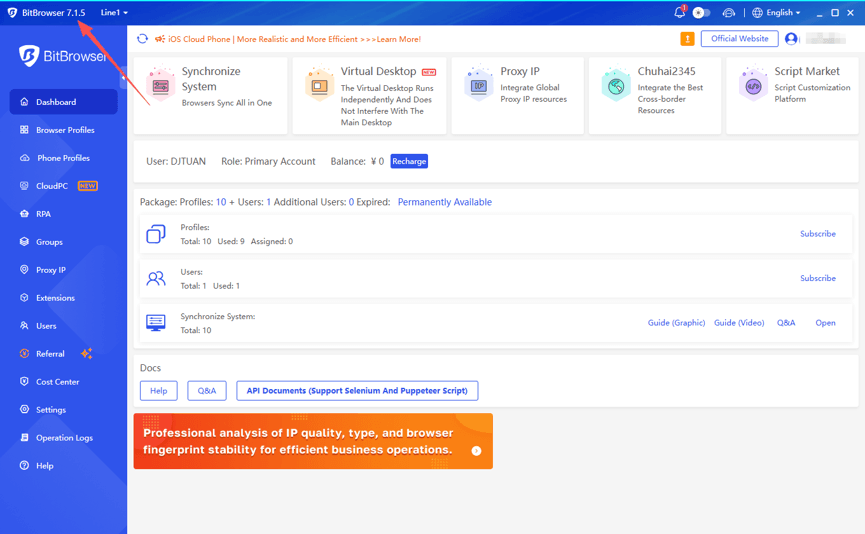
If BitBrowser is already installed, check your version.
You should be running BitBrowser 7.1.5 or later for MCP functionality described in this guide.
MCP service support was introduced with the BitBrowser 7.1.5 update.
After installing or updating BitBrowser, restart the application.
Step 2 – Open BitBrowser Local API Settings
Launch BitBrowser.
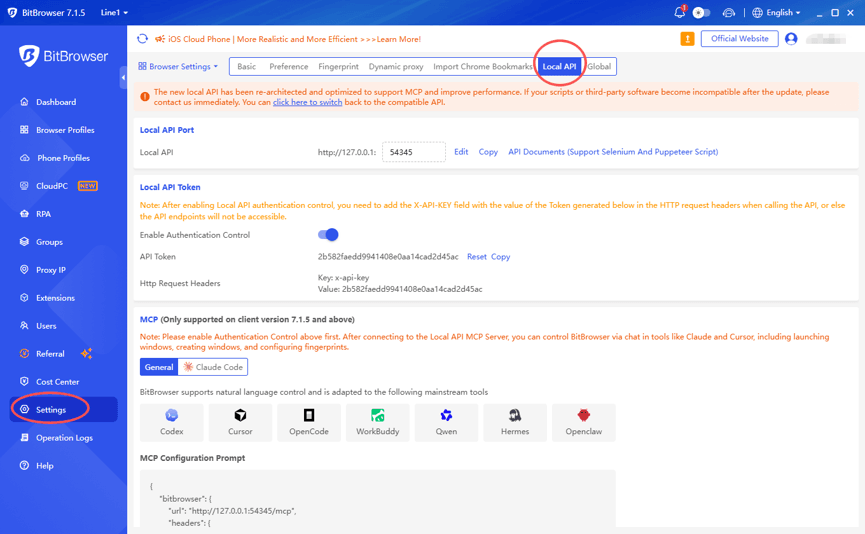
Navigate to:
Settings → Browser Settings → Local API
The Local API provides the underlying interface that allows external applications and automation tools to communicate with BitBrowser.
MCP adds an AI-oriented interaction layer on top of this browser-management infrastructure.
Step 3 – Enable Local API Authentication
Before using MCP, enable Local API authentication.
Locate:
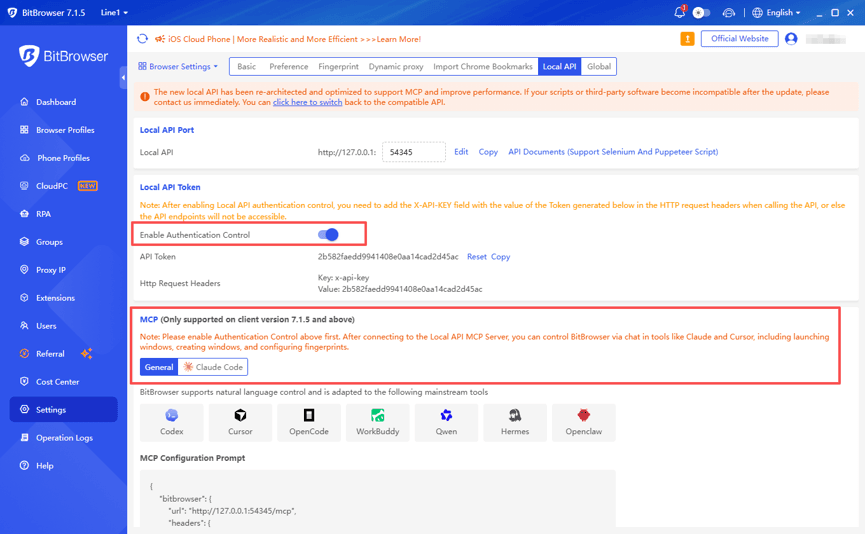
Enable Authentication Control
and turn it on.
BitBrowser generates an API token.
Authentication uses an HTTP header similar to:
Key: x-api-key
Value: <your API token>
Protect this token carefully.
Do not:
- Publish it online
- Add it to a public GitHub repository
- Share it with unauthorized team members
- Include active credentials in public screenshots
If you regenerate the token, remember to update the corresponding MCP configuration.
Step 4 – Check the BitBrowser MCP Endpoint
The BitBrowser Local API commonly uses a local address such as:
http://127.0.0.1:54345
The corresponding MCP endpoint can be:
http://127.0.0.1:54345/mcp
Because 127.0.0.1 refers to your own machine, BitBrowser normally needs to remain running while the MCP client communicates with it.
Always verify the current address shown by your BitBrowser installation, especially if you changed the Local API port.
For current configuration information, consult the official BitBrowser MCP guide.
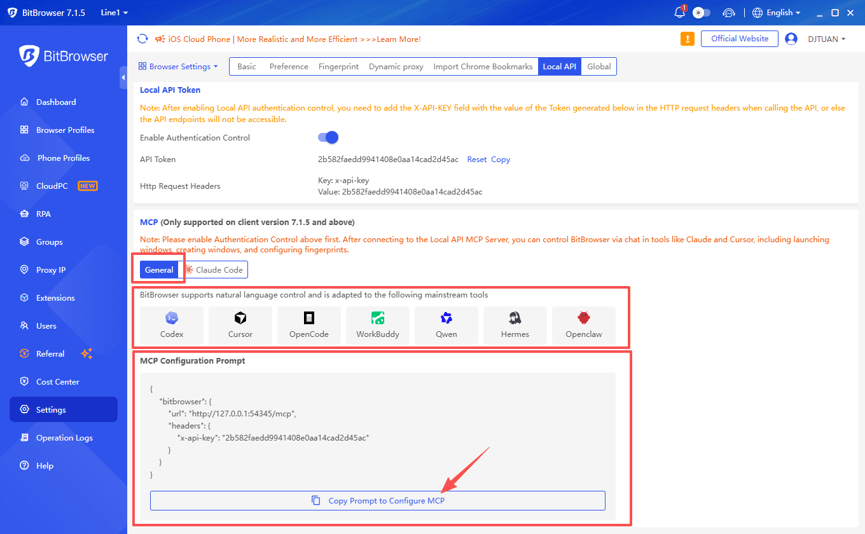
Step 5 – Copy the BitBrowser MCP Configuration
Open the MCP configuration section inside BitBrowser.
BitBrowser can provide the connection information required by supported AI clients.
Copy the configuration generated for your environment.
Using the generated configuration reduces the risk of incorrectly entering:
- Endpoint
- Port
- Authentication
- API token
- MCP parameters
Make sure the x-api-key information remains present where required.
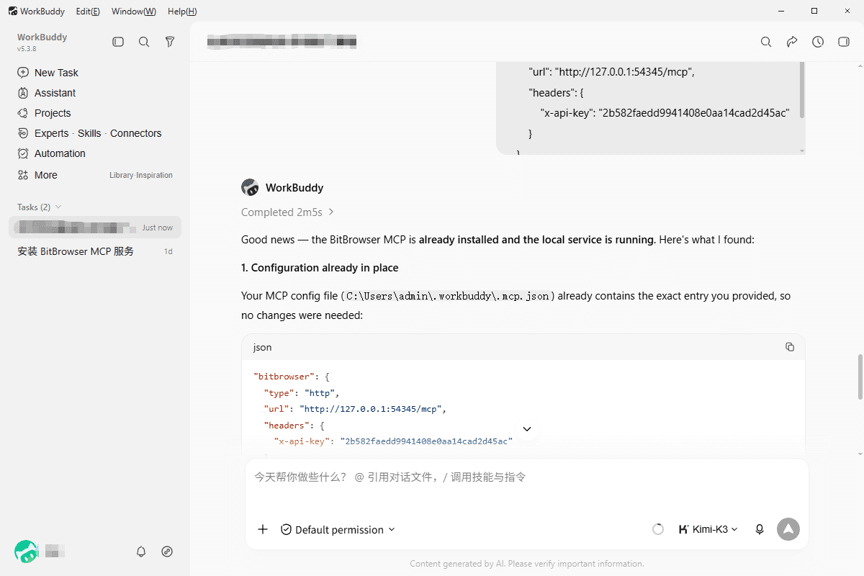
Step 6 – Connect BitBrowser MCP to Cursor
Open Cursor.
Navigate to:
Settings → Tools & Integrations → MCP
Create a new MCP server.
Paste the configuration supplied by BitBrowser.
Save the configuration.
Then restart or reload Cursor if required.
Once the connection succeeds, Cursor should be able to discover the tools exposed through the BitBrowser MCP environment.
You can compare your configuration with the examples in the BitBrowser MCP Setup Guide.
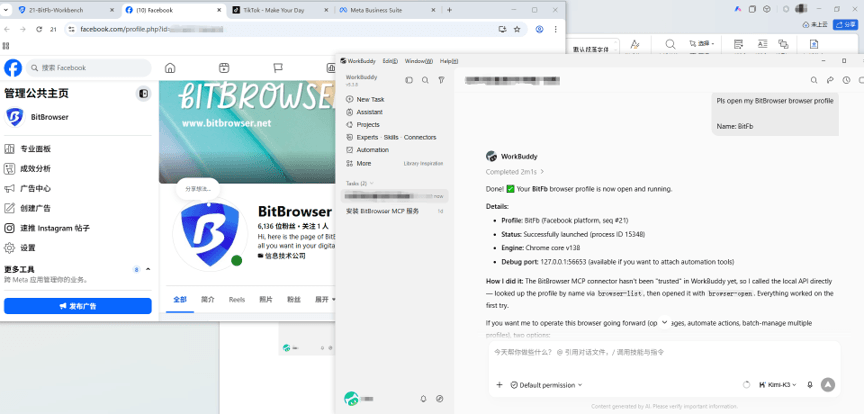
Step 7 – Connect BitBrowser MCP to Claude
For a Claude environment that supports custom MCP servers, open the relevant MCP configuration.
Add the BitBrowser server information.
Confirm that you are using the MCP endpoint displayed by BitBrowser.
For a standard local configuration, it may look like:
http://127.0.0.1:54345/mcp
Make sure authentication is also configured correctly.
Restart your MCP client after saving changes when necessary.
Step 8 – Test the MCP Connection
The safest first test is a read-only operation.
Instead of immediately telling the AI agent to create, edit, or delete profiles, start with:
Check whether the BitBrowser MCP connection is active.
List the browser profiles that you can access.
Do not create, launch, modify, or delete anything.
This verifies four important components:
- BitBrowser is running.
- The MCP endpoint is available.
- Authentication is valid.
- The AI client can discover BitBrowser tools.
Only continue with write operations once the connection works correctly.
Step 9 – Create a BitBrowser Profile With MCP
Once the connection works, test profile creation.
For example:
Create a BitBrowser profile named MCP_Test_Profile.
Use a current Chromium environment.
Do not configure a proxy yet.
Do not import cookies.
Return the new profile ID and stop.
This creates one controlled testing environment.
Avoid starting by asking the AI agent to generate dozens or hundreds of profiles.
Verify one profile first.
Understanding BitBrowser Browser Profiles
A BitBrowser browser profile acts as an independent browser environment.
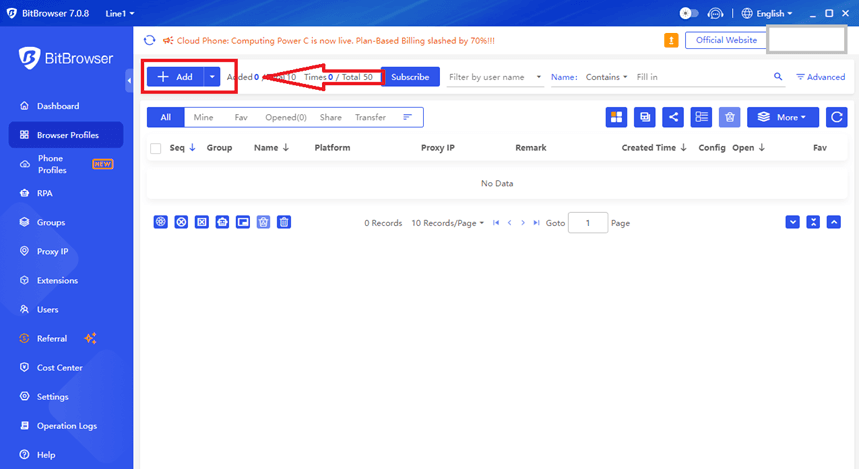
Each profile can maintain separate:
- Cookies
- Browser history
- Local storage
- Proxy information
- Extensions
- Fingerprint settings
- Login sessions
This separation is one of the main reasons BitBrowser can be useful in MCP workflows.
Instead of:
AI → One Browser
you can create:
AI → MCP → BitBrowser
↓
Profile A
Profile B
Profile C
Each profile can represent a separate authorized project, client, testing environment, or business workflow.
Step 10 – Add a Proxy to the BitBrowser Profile
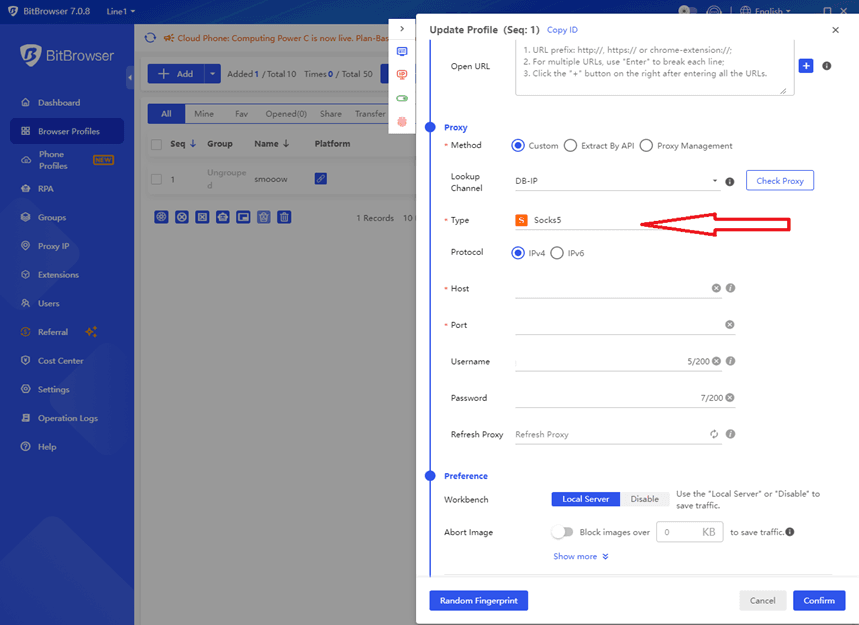
BitBrowser supports proxy configuration at the browser-profile level.
This can be useful for legitimate workflows such as:
- Localization QA
- Regional website testing
- International market research
- Geo-targeted ad verification
- Regional application testing
Depending on your configuration and proxy provider, commonly used protocols can include:
- HTTP
- HTTPS
- SOCKS5
A typical proxy configuration contains:
Host
Port
Username
Password
BitBrowser also provides proxy-management functionality for organizing and checking endpoints.
Example MCP Proxy Instruction
After creating a profile, you could give the AI client a controlled instruction such as:
Add the approved HTTP proxy assigned to MCP_Test_Profile.
Do not change the fingerprint configuration.
Test the proxy connection.
Report the detected country and stop.
Breaking the workflow into controlled stages makes troubleshooting easier.
Step 11 – Test the Proxy
Before using the profile for a project, verify the network connection.
Check:
- Proxy connectivity
- Country
- Region
- Protocol
- Authentication
- Stability
If proxy detection fails, do not immediately create another browser profile.
Instead, check:
- Host
- Port
- Username
- Password
- Proxy provider status
The problem may simply be the proxy configuration.
Step 12 – Keep the Browser Environment Consistent
A stable browser workflow normally uses reasonably consistent profile settings.
For example:
US Profile
- US proxy
- English language
- Appropriate timezone
- US localization project
Germany Profile
- German proxy
- German language
- Appropriate timezone
- German QA project
France Profile
- French proxy
- French language
- Appropriate timezone
- France research project
Maintaining separate profiles also makes project auditing easier.
Step 13 – Launch a Profile With MCP
After the test profile is ready, ask the AI client to launch it.
Example:
Launch MCP_Test_Profile.
Do not navigate anywhere after launching it.
Then verify that the correct browser window opens.
After confirming the right profile launched, continue with the authorized workflow.
BitBrowser MCP for Multi-Profile Management
One of BitBrowser's useful characteristics is its ability to maintain multiple independent browser profiles.
Consider an agency managing several authorized client environments.
| Client | Browser Environment |
|---|---|
| Client A | BitBrowser Profile A |
| Client B | BitBrowser Profile B |
| Client C | BitBrowser Profile C |
| Client D | BitBrowser Profile D |
Each profile can retain separate:
- Cookies
- Sessions
- Local storage
- Proxy configuration
- Fingerprint settings
MCP can then assist with permitted administrative tasks around these profiles.
Example AI Commands for BitBrowser MCP
After establishing a secure MCP connection, example requests might include:
List all browser profiles assigned to Project Alpha.
Check the proxy configuration of France_QA.
Launch Germany_Research.
Create a profile named Client_Project_03.
Check whether MCP_Test_Profile is currently running.
The exact operations available depend on the BitBrowser version and the MCP/Local API tools currently exposed.
BitBrowser MCP + Local API
MCP does not eliminate the need for APIs.
Instead, BitBrowser MCP and the Local API can complement one another.
An AI-driven workflow can use:
AI Agent
↓
MCP
↓
BitBrowser
A deterministic automation workflow can use:
Application / Script
↓
BitBrowser Local API
↓
BitBrowser
Developers can therefore choose the interface most appropriate for each task.
Use MCP when an AI agent needs tool-oriented interaction.
Use the Local API when an application requires predictable programmatic behavior.
BitBrowser Browser API Improvements
The BitBrowser 7.1.5 update also introduced newer browser API endpoints, including:
browser/add
and:
browser/modify
These changes expanded BitBrowser's automation environment.
Developers can therefore combine:
- MCP
- Local API
- Browser profiles
- AI agents
- Scripts
- Proxy configuration
- Fingerprint environments
inside one broader browser-management workflow.
BitBrowser Virtual Desktop
Another notable feature highlighted in the BitBrowser 7.1.5 release is Virtual Desktop.
Virtual Desktop allows BitBrowser to operate in a separate desktop environment instead of mixing browser windows with ordinary desktop activity.
This can be useful when AI-assisted workflows require browsers to remain open while the workstation continues to be used normally.
Potential advantages include:
- Better workspace organization
- Less interference with daily desktop activity
- Cleaner browser automation
- Easier separation between automated and manual work
BitBrowser MCP for Teams
MCP becomes more useful when combined with BitBrowser's team functionality.
A company may have different roles:
- Administrator
- Developer
- QA specialist
- Marketing specialist
- Researcher
- Account manager
Not every employee needs access to every browser profile.
BitBrowser provides team-management features that can help organizations separate responsibilities and environments.
Team Security Controls
The BitBrowser 7.1.5 release notes also describe expanded controls for sub-accounts.
These include options related to:
- DevTools access
- Extension installation and removal
- URL allowlists
- URL blocklists
- Browser access
- Profile behavior
Such controls become increasingly important when AI tools can perform browser actions.
Use Least-Privilege Access
AI agents should receive only the permissions required to complete assigned tasks.
For example, an AI assistant that only needs to launch existing QA profiles should not automatically be allowed to:
- Delete profiles
- Modify every proxy
- Change organization permissions
- Access unrelated client environments
- Install extensions
- Change every browser fingerprint
Start with minimal access and expand permissions only when required.
Recommended BitBrowser MCP Workflow
A controlled workflow might look like this:
Step 1 – Inspect
List all QA profiles.
Do not modify anything.
Step 2 – Verify
Check the current configuration of France_QA.
Do not change anything.
Step 3 – Check Network
Confirm that France_QA uses the approved France proxy.
Do not modify the profile.
Step 4 – Launch
Launch France_QA.
Step 5 – Perform the Authorized Task
The AI or human operator can then continue with the approved workflow.
Breaking automation into smaller steps makes auditing and troubleshooting easier.
Common BitBrowser MCP Use Cases
AI-Assisted Website QA
Teams can maintain dedicated browser environments for testing websites.
Localization Testing
Profiles can represent different regional configurations for verifying localized pages.
Advertising Verification
Marketing teams can maintain authorized profiles for checking advertising experiences across regions.
Market Research
Researchers can separate browser sessions for different markets and projects.
Authorized Multi-Account Administration
Agencies can organize client environments without mixing cookies and sessions.
Internal Business Automation
AI agents can interact with approved dashboards through designated browser environments.
Development Testing
Developers can create reproducible browser profiles for testing applications in different browser configurations.
What BitBrowser MCP Should Not Be Used For
MCP does not provide permission to violate website or platform rules.
Do not use automated browser workflows for:
- Unauthorized account access
- Credential theft
- Fraud
- Fake engagement
- Unauthorized scraping
- Circumventing access controls
- Bypassing platform enforcement
- Abusive account creation
- Manipulating advertising systems
Use BitBrowser MCP only for legitimate and authorized workflows.
Troubleshooting BitBrowser MCP
MCP Cannot Connect
Check:
BitBrowser is running
Your installed version supports MCP
Local API is enabled
Authentication Control is enabled
MCP endpoint is correct
API token is valid
MCP client configuration is valid
For the latest setup steps, compare your configuration with the official BitBrowser MCP tutorial.
Authentication Error
Verify the:
x-api-key
header.
Make sure the API token matches the current token generated by BitBrowser.
If the token was regenerated, update your MCP client configuration.
AI Can Connect but Cannot See Profiles
Start with a simple request:
List the BitBrowser profiles available to this connection.
Do not modify anything.
If no profiles appear, investigate permissions and MCP access before attempting write operations.
Profile Changes Are Not Visible
Refresh the BitBrowser interface.
Then ask:
Check the current configuration of MCP_Test_Profile.
Do not make additional changes.
Verify the current state before repeating the previous operation.
This helps prevent accidental duplicate changes.
Proxy Connection Fails
Check:
- Proxy host
- Port
- Protocol
- Username
- Password
- Provider status
Use BitBrowser's proxy-testing functionality before proceeding with the profile.
Security Best Practices
Because MCP can allow an AI client to invoke external tools, security should be part of the deployment from the beginning.
Protect:
- BitBrowser API tokens
- Proxy passwords
- Browser cookies
- Login sessions
- MCP configuration files
- Browser profiles
- Team permissions
Avoid storing active credentials in public repositories or shared documents.
Recommended MCP Deployment Strategy
A professional deployment can be introduced in stages.
Phase 1 – Read-Only Access
Allow the AI to:
- List profiles
- Inspect configurations
- Check profile status
Phase 2 – Limited Write Access
Allow:
- Creating approved test profiles
- Launching profiles
- Updating designated settings
Phase 3 – Controlled Production Automation
Introduce:
- Profile templates
- Team permissions
- Approved proxy management
- Logging
- Workflow validation
- Standardized automation procedures
This staged approach reduces accidental changes.
Why BitBrowser Is Useful for MCP
BitBrowser combines several components useful for modern AI-assisted browser workflows:
MCP Service
Local API
Isolated Browser Profiles
Proxy Management
Fingerprint Configuration
Team Permissions
Virtual Desktop
This provides a more structured environment than simply connecting an AI agent to one ordinary browser.
A conventional setup might be:
AI Agent → Chrome
A BitBrowser workflow can become:
AI Agent
↓
MCP
↓
BitBrowser
↓
Profile A / Profile B / Profile C
↓
Different Authorized Projects
Final Thoughts
BitBrowser MCP represents a significant development for AI-assisted browser management.
With BitBrowser 7.1.5 and later, compatible AI tools can connect to the BitBrowser MCP environment and interact with supported browser-management functions.
The basic setup is straightforward:
- Download or update BitBrowser.
- Enable the Local API.
- Enable Authentication Control.
- Copy the BitBrowser MCP configuration.
- Add it to Cursor, Claude, or another compatible MCP client.
- Test the connection using read-only commands.
- Create one test browser profile.
- Configure an approved proxy if required.
- Verify the environment.
- Launch the profile.
- Gradually introduce controlled automation.
The real advantage is not simply controlling a browser through AI.
BitBrowser combines MCP, browser-profile isolation, proxy configuration, fingerprint environments, Local API access, team permissions, and Virtual Desktop inside one browser-management ecosystem.
For organizations experimenting with MCP-powered automation in 2026, BitBrowser can therefore serve as a practical browser orchestration layer for AI agents.
For additional configuration details, see the official BitBrowser MCP Setup Guide.
Frequently Asked Questions
Does BitBrowser Support MCP?
Yes. BitBrowser 7.1.5 introduced MCP service support.
Where Can I Find the Official BitBrowser MCP Setup Instructions?
See the BitBrowser MCP Setup Guide.
Where Can I Download BitBrowser?
Use the official BitBrowser download page.
Can BitBrowser MCP Work With Cursor?
BitBrowser's MCP workflow is designed to connect with compatible MCP clients, including AI-oriented development environments.
Can BitBrowser Work With Claude?
Compatible Claude environments supporting MCP can be integrated with supported MCP servers and tools.
Can MCP Create BitBrowser Profiles?
BitBrowser's MCP environment can expose supported browser-management functions. The exact available tools depend on the installed BitBrowser version and current MCP implementation.
Can I Configure Proxies in BitBrowser?
Yes. BitBrowser profiles support proxy configuration for legitimate workflows such as localization QA, regional testing, and authorized research.
Does MCP Replace the BitBrowser Local API?
No.
MCP provides an AI-oriented interaction layer, while the Local API supports deterministic programmatic automation.
They can complement one another.
What Is the Safest Way to Start?
Begin with read-only commands.
Confirm that the AI can list and inspect profiles before allowing it to create or modify browser environments.
The three main links are now embedded contextually throughout the article: BitBrowser MCP Guide, BitBrowser 7.1.5 Release Notes, and BitBrowser Download.

 Multi-Account Management
 Prevent Account Association
 Multi-Employee Management
Recommended
See More 



