How to Unblock Discord at School in 2026: 7 Easy Ways
 2026.09.07 08:07
 YT.Shi
Have you ever typed discord.com on a school computer only to see “This site is blocked”?
Discord is widely used by students for group projects, study resources, school clubs, and online tutoring. When a school blocks it, it can be frustrating.
This guide explains why schools block Discord, how school network filters work, and what options you may have.
Why Do Schools Block Discord?
Schools usually block Discord for a few reasons:
· Distraction: Discord includes messaging, voice calls, video, and screen sharing.
· Content concerns: Public servers may contain inappropriate or unsafe content.
· Bandwidth: Voice and video calls can use significant network resources.
· Privacy: Schools may have concerns about student data and age requirements.
Understanding why Discord is blocked can help you decide what to do next.
How School Network Blocks Work
Schools can block Discord in several ways:
1. DNS filtering prevents your device from resolving discord.com to its actual IP address. Your browser asks "where is Discord?" and the school's DNS server essentially says "nowhere."
2. URL and domain blocking: Firewalls and filtering tools block Discord domains.
3. Deep packet inspection: Identifies Discord traffic as it passes through the network.
4. Device management: School managed Chromebooks and laptops can enforce restrictions directly.
The type of block you're dealing with determines which workaround, if any, will actually work. A simple DNS filter is much easier to get around than a managed Chromebook with DPI-level monitoring.
How to Unblock Discord at School: 7 Methods That Students Use
I want to be upfront about something. This section describes common techniques, but I'm not encouraging you to violate your school's acceptable use policy. Every school has different rules, and breaking them can lead to consequences ranging from a warning to losing device privileges entirely. Use your judgment.
With that said, let's look at what actually works in 2026.
1. Try BitBrowser First
BitBrowser is a practical option when Discord is blocked at the browser or network level. It lets you create an isolated browser profile with separate browser settings and network configurations.
Set up a new profile, configure your connection, and try opening Discord from that profile. This can be useful when the restriction is related to the browser or network environment.
However, if your school manages the device directly or blocks Discord at the network firewall level, BitBrowser may not bypass the restriction.
2. Switch to Mobile Data or a Personal Hotspot
This is the simplest and most reliable approach, and it doesn't involve bypassing anything. School filters only apply to the school's network. If you connect your personal phone or laptop to your own cellular data, those restrictions vanish.
You can also create a mobile hotspot from your phone and connect a personal laptop to it. Discord will load normally because your traffic never touches the school's Wi-Fi infrastructure. The obvious downside is data usage. Discord's text channels are lightweight, but voice and video calls can burn through a few hundred megabytes per hour. If you have a limited data plan, keep an eye on your usage.
I've found this to be the go-to method for most students, honestly. It's fast, it's legal, and it doesn't require any technical setup.
3. Use a VPN
A VPN (Virtual Private Network) encrypts your internet traffic and routes it through a server in another location. To the school's network filter, your traffic looks like generic encrypted data rather than a request to discord.com.
Popular VPN options in 2026 include:
· NordVPN and ExpressVPN for reliability and speed
· Surfshark for budget-friendly plans with unlimited device connections
· Proton VPN, which offers a free tier with decent performance
A VPN will work on most personal devices connected to school Wi-Fi. The catch? Many schools have gotten smarter about this. Advanced firewalls can detect and block VPN protocols, and school-managed devices often prevent VPN installation entirely. If you're on a personal device with a quality VPN, your chances are good. On a school Chromebook, probably not.
Similar to how students unblock ChatGPT at school, VPNs remain one of the most commonly attempted methods for getting past network restrictions on any platform.
4. Try Changing Your DNS Settings
If your school uses basic DNS-level filtering (and many still do), switching to a public DNS server can restore access. This works because you're telling your device to ask a different "phone book" for Discord's address, one that isn't censored by the school.
Common public DNS servers include:
· Google DNS: 8.8.8.8 and 8.8.4.4
· Cloudflare DNS: 1.1.1.1 and 1.0.0.1
· OpenDNS: 208.67.222.222 and 208.67.220.220
To change your DNS on Windows, go to Settings, then Network & Internet, then your active connection's properties, and edit the DNS server assignment. On a Mac, it's under System Settings, then Network, then your connection's Details, then DNS. On Android, you can set a Private DNS under the network settings.
This method is quick and reversible. But it only works against the most basic filtering setups. If the school uses a proper firewall or DPI, changing DNS alone won't help.
5. Use the Discord Web App Through a Proxy
Web proxies act as middlemen. You visit the proxy site, type in discord.com, and the proxy fetches the page on your behalf. To the school's filter, you're visiting the proxy's domain, not Discord's.
Sounds great in theory. In practice, web proxies are hit or miss with Discord. The Discord web app relies heavily on WebSocket connections for real-time messaging, and many free proxies can't handle that properly. You might get the login page to load but find that messages don't send or voice channels won't connect.
Free proxies also come with serious privacy risks. Some log your data, inject ads, or worse. If you go this route, stick to well-known proxy services and never enter sensitive credentials on a proxy you don't trust.
6. Browser VPN Extensions
Browser-based VPN extensions (like the ones offered by NordVPN, Surfshark, or free options like Windscribe) provide a lighter alternative to full VPN apps. They route only your browser traffic through an encrypted tunnel, leaving the rest of your device's connections untouched.
For accessing Discord's web app, a browser VPN extension can be sufficient. It's easier to install than a full VPN client, uses fewer resources, and is less likely to conflict with school-managed software. The limitation is that it won't help with the Discord desktop app or mobile app, only the browser version at discord.com.
On school-managed Chromebooks, extension installation is usually restricted by the admin. So this method works best on personal devices.
7. Use Discord Through Alternative Platforms
Some students access Discord indirectly through platforms that aren't blocked. For example, certain third-party Discord clients or web wrappers exist that connect to Discord's API through a different domain. There are also browser-based tools that embed Discord functionality.
I'd be cautious with this approach. Third-party Discord clients violate Discord's Terms of Service, and using them can get your account suspended or banned. The risk usually isn't worth it, especially when simpler methods like mobile data or a VPN are available.
Staying Safe While Accessing Discord at School
Whatever method you choose, keep these safety principles in mind.
Avoid free VPNs and proxies from unknown providers. Many of them monetize your data, inject malware, or provide such poor encryption that they're barely better than no protection at all. If you're going to use a VPN, either pay for a reputable one or use a trusted free tier like Proton VPN's.
Never enter your Discord password on a site that isn't the official discord.com domain. Phishing pages designed to look like Discord are common, and they're especially dangerous when you're already navigating through proxies or unfamiliar tools. Always check the URL bar.
Be aware of what your school can see. On a managed device, the admin may have visibility into your browsing activity regardless of VPNs or proxies. On the school's Wi-Fi, encrypted VPN traffic hides the content of your browsing but the IT department can still see that you're using a VPN. In some schools, that alone is enough to trigger a conversation.
And keep your Discord account secure with two-factor authentication. If you're logging in from different networks and devices, 2FA adds a critical layer of protection against unauthorized access.
Quick Reference: Methods Ranked by Practicality
Not every method works in every school environment. Here’s a quick comparison of the most practical options:
| Method | Works on School Device? | Difficulty | Reliability | Risk |
|---|---|---|---|---|
| BitBrowser | Sometimes | Easy | High | Low |
| Mobile data / hotspot | Yes, personal device | Very easy | Very high | None |
| VPN | Usually no on managed devices | Easy | High | Low to moderate |
| DNS change | Sometimes | Easy | Low to moderate | Low |
| Browser VPN extension | Rarely on managed devices | Easy | Moderate | Low to moderate |
| Web proxy | Sometimes | Easy | Low | Moderate |
| Third party clients | No | Moderate | Varies | High |
Which Method Should You Try?
BitBrowser is a good first option if the Discord block is related to your browser or network environment. If you're using a personal device, mobile data or a hotspot is usually the simplest and most reliable choice.
For school managed devices, options are more limited because administrators can enforce restrictions directly on the device or network. In that case, changing DNS settings or using browser based tools may not work.
How to Unblock Discord Easily Using BitBrowser
If the Discord block is related to the browser or network environment, you can try accessing Discord through a separate BitBrowser profile.
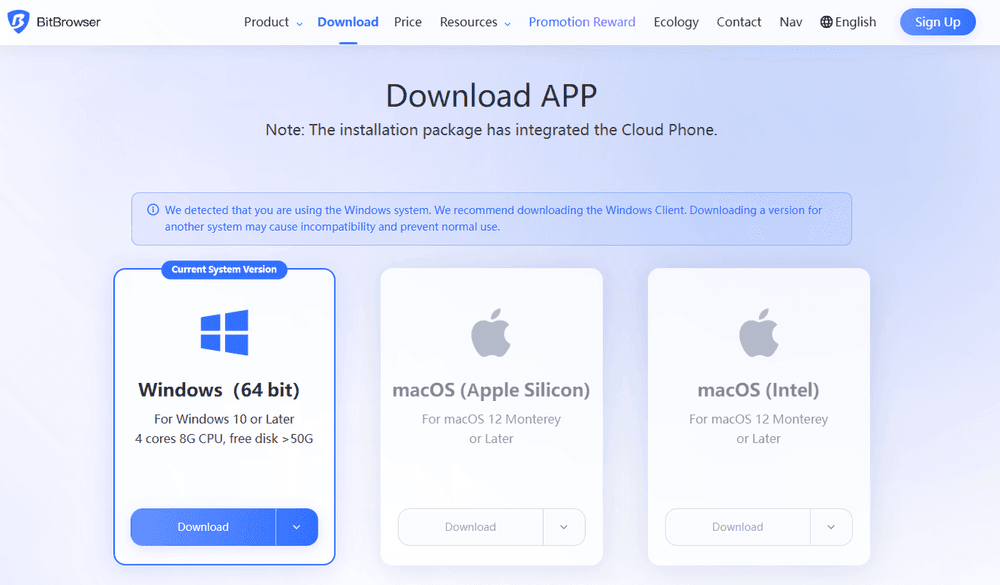
Step 1: Download, Install & Sign Up
1. Download BitBrowser and install it from the official website.
2. Register and log in.
3. BitBrowser provides 10 free browser profiles with no expiration date.
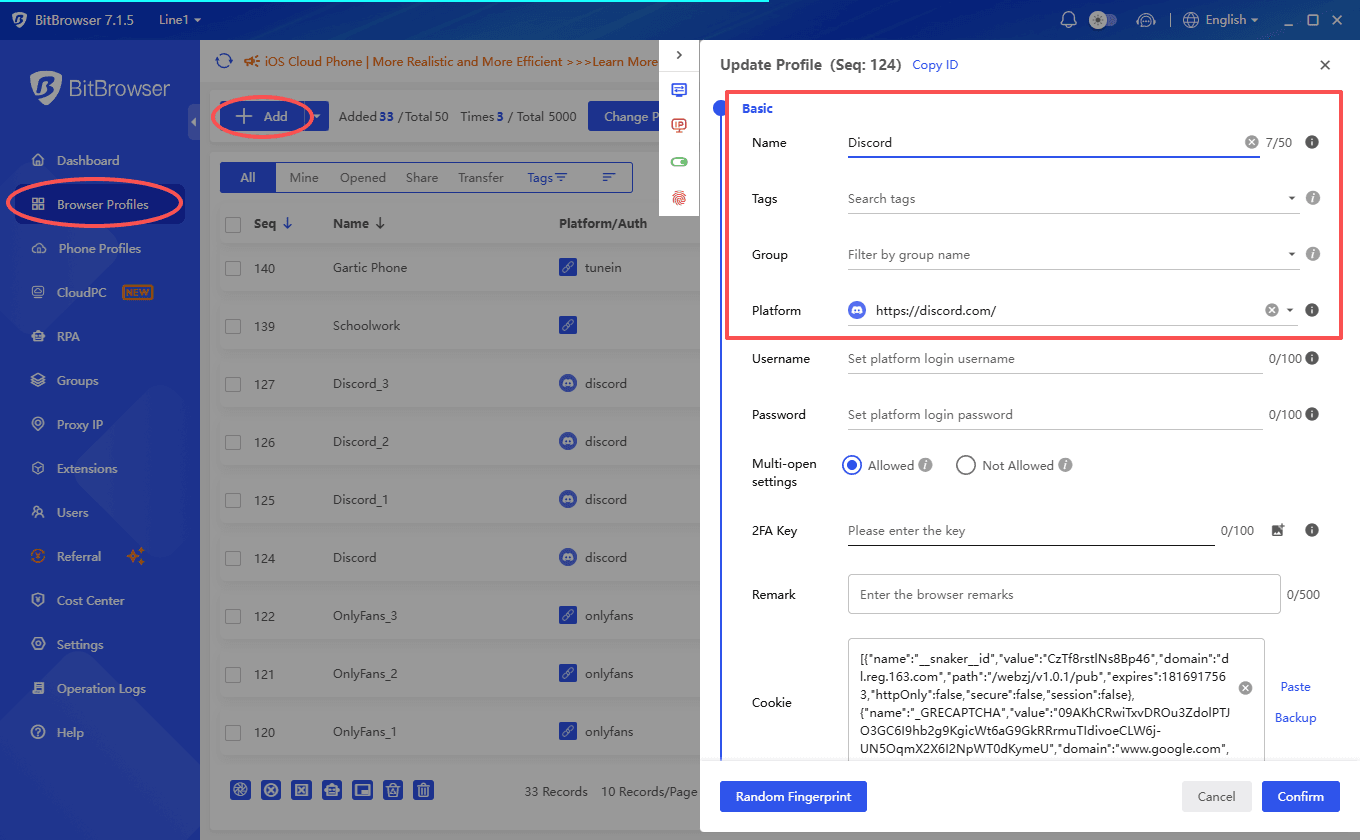
Step 2: Create a Browser Profile
1. Open Browser Profiles from the left menu.
2. Click Create or + Add.
3. Give the profile a simple name, such as Discord.
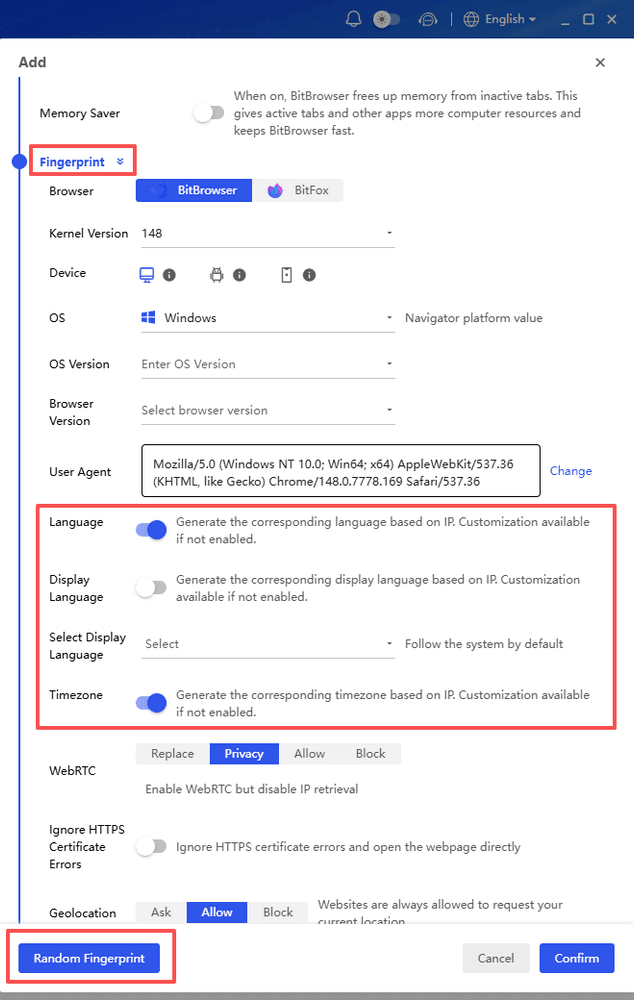
4. Keep the Time Zone and Language consistent with your actual location.
Step 3: Configure a Proxy if Needed
A proxy is optional. You may need one if Discord is being restricted based on the network connection.
1. Open the proxy settings.
2. Select your proxy type, such as HTTP, HTTPS, or SOCKS5.
3. Enter the proxy IP, port, username, and password if required.
4. Click Check Proxy to test the connection.
5. Save the profile.
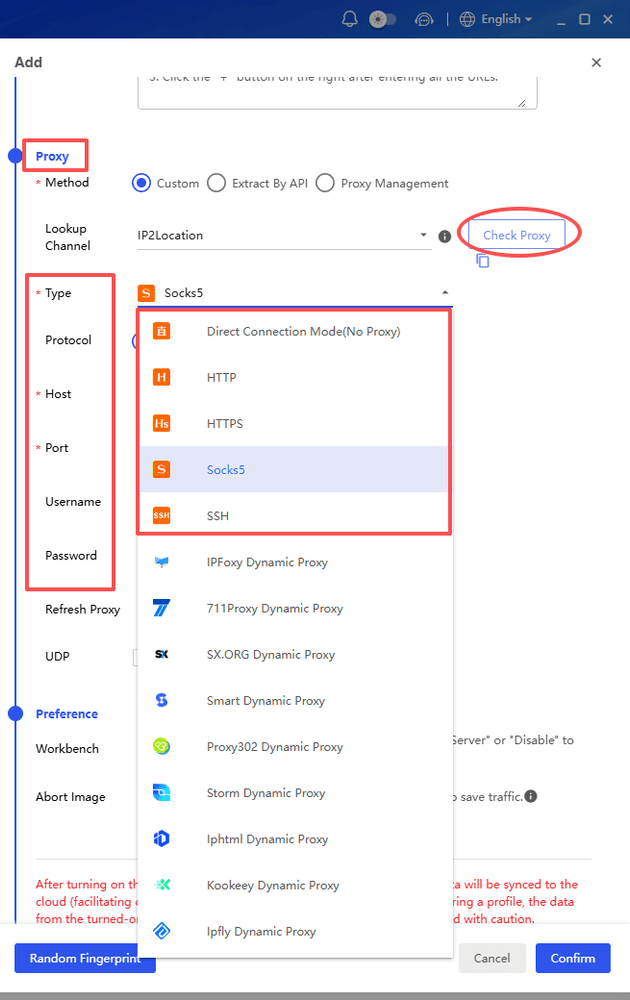
For better consistency, keep the browser's timezone and language aligned with the proxy location.
Step 4: Open Discord
1. Find your Discord profile in the browser profile list.
2. Click Open.
3. Enter discord.com in the address bar and sign in to your account.
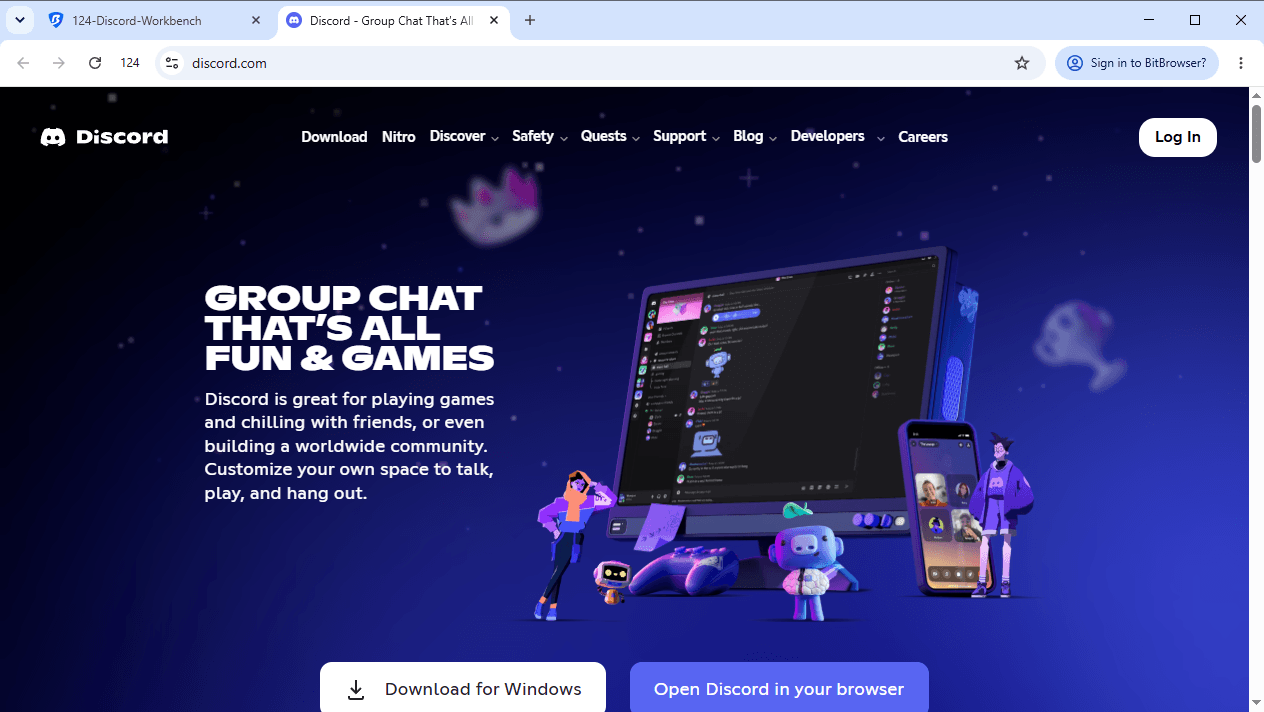
If Discord still cannot be reached, the school may be blocking it at the firewall or device management level. BitBrowser cannot guarantee access when restrictions are enforced directly by the school managed device or network.
What If None of These Methods Work?
Sometimes the school's filtering is simply too robust, or you don't have access to a personal device or mobile data during school hours. In that case, consider these alternatives.
· Use Discord before and after school. Most students have unrestricted access at home. Schedule your Discord-based collaboration for evenings or weekends, and use school-approved tools like Google Chat or Microsoft Teams during the day.
· Explore alternatives that aren't blocked. Platforms like Slack (which some schools allow for educational use), GroupMe, or even WhatsApp Web might serve similar purposes for group communication without triggering the school's filters. They're not Discord, but they get the job done.
For students who also need access to AI tools like ChatGPT on campus, many of the same methods for unblocking ChatGPT at school apply to Discord and other restricted platforms.
Final Thoughts
Unblocking Discord at school depends mainly on how the site is being blocked and which option works with your device and network.
BitBrowser is a practical first option to try, while mobile data, VPNs, and other methods may work in different situations. Keep privacy and your school's rules in mind when choosing an approach.
If Discord is needed for legitimate schoolwork or clubs, talking to your school may be the simplest long term solution.
Frequently Asked Questions
How can I unblock Discord at school?
Try BitBrowser first, or use mobile data, a personal hotspot, or a VPN on your own device. What works depends on how your school blocks Discord.
Can I use BitBrowser to unblock Discord?
Yes, BitBrowser can help when Discord is blocked at the browser or network level. Create a browser profile, configure a proxy if needed, and open Discord from the new profile.
How do I unblock Discord on a school Chromebook?
It depends on the school's restrictions. Managed Chromebooks may block browser extensions, VPNs, and other tools. If the device is admin managed, you may not be able to change these settings yourself.
Can I use a VPN to unblock Discord at school?
A VPN can work on a personal device connected to school Wi Fi, but some school networks block VPN traffic. VPNs may also be restricted on school managed devices.
Does changing DNS unblock Discord?
Sometimes. Changing DNS can help if the school only uses DNS based filtering. It won't usually work against firewalls or deeper network restrictions.
Is it safe to use a proxy to access Discord?
Free proxies can create privacy and security risks. Avoid entering your Discord password through an untrusted proxy and use reputable services instead.
Can I use Discord without the app?
Yes. You can use the Discord web app by visiting discord.com in a supported browser.
Why is Discord blocked at school?
Schools may block Discord because of distractions, inappropriate content, bandwidth usage, privacy concerns, or school network policies.

 Multi-Account Management
 Prevent Account Association
 Multi-Employee Management
Recommended
See More 



