How to Unblock YouTube on a School Chromebook (2026 Guide)
 2026.01.26 12:04
 YT.Shi
You’re sitting in class, trying to access YouTube on your school-issued Chromebook, and suddenly… it’s blocked. Many students immediately search for “unblocked YouTube sites,” but on Chromebooks, these sites often fail to work reliably. In this guide, we’ll explain why this happens and explore real solutions that actually work in 2026, including a safe, browser-based method using BitBrowser.
Why Is YouTube Blocked on School Chromebooks?
If YouTube won’t load on a school Chromebook, it’s usually not an accident. In most cases, it’s blocked on purpose. This normally happens for two main reasons.
1. School Device Management
School Chromebooks are managed by the school, so administrators control what students can open.
Common restrictions include:
• Blocking certain websites like YouTube
• Limiting which apps or extensions can be installed
• Forcing YouTube Restricted Mode or SafeSearch on student accounts
Even if everything looks normal on the surface, these rules are always running in the background.
2. School WiFi and Network Restrictions
The school network adds another layer of control.
This often includes:
• DNS filtering that blocks video or entertainment sites
• Network rules that limit or stop video streaming altogether
Because of this, YouTube may not load properly even if the Chromebook itself isn’t fully blocking it.
When both the device restrictions and the network filters are in place, YouTube usually ends up being inaccessible.
Do Unblocked YouTube Sites Work on School Chromebooks?
Short answer: sometimes. But usually not for very long.
A lot of students try “unblocked” YouTube sites and mirrors. They might work at first, but after a few days, many of them suddenly stop loading or get blocked again. That’s pretty common.
Some typical reasons are:
• The site’s IP address gets blocked by the school
• The domain changes too often and gets flagged
• Too many ads or scripts trigger filters
Common Problems Students Face
Even when these sites do open, the experience is often rough:
• Videos don’t load or keep buffering
• Pages redirect to random sites
• Some sites are filled with trackers or even malware
If you want a full list of unblocked YouTube sites and a clear breakdown of how they work, check out our detailed guide here
How to Unblock YouTube in 2026: 12 Proven Ways to Watch YouTube Anywhere Safely
Methods to Unblock YouTube on a School Chromebook (2026 Comparison)
Here’s a quick comparison of the most common methods:
| Method | Setup Difficulty | Works on Managed Chromebooks | Stability | Speed & Quality | Security Risk | Can Be Combined With Other Methods | Best Use Case |
|---|---|---|---|---|---|---|---|
| Unblocked YouTube Sites | Very Easy | ✅ Yes | ❌ Very Low | ❌ Often unstable | ❌ High | ❌ No | Quick, temporary access |
| Free Web Proxies | Easy | ✅ Yes | ❌ Low | ❌ Slow / buffering | ❌ High | ❌ Limited | Testing if a network is loosely filtered |
| VPN Browser Extensions | Medium | ❌ Often Blocked | ⚠️ Medium | ⚠️ Varies | ⚠️ Medium | ❌ No | Personal devices with no admin restrictions |
| Browser-Based Solutions | Medium | ✅ Yes | ✅ High | ✅ Consistent | ✅ Low | ✅ Yes (VPN, proxy, unblocked sites) | Long-term, stable access |
Key Differences Explained
The main difference between these methods is how they interact with school network controls.
Unblocked YouTube sites and free web proxies rely on public domains that are quickly detected and blocked. VPN browser extensions depend heavily on whether the Chromebook allows extension installation, which many schools disable.
Browser-based solutions, on the other hand, focus on isolating the browsing session itself and optionally routing traffic through VPNs or proxies. This layered approach makes them more adaptable and significantly more stable for consistent use, even on managed Chromebooks.
1. Unblocked YouTube Sites
Unblocked YouTube sites act as mirrors or proxies that let you load YouTube content through alternative URLs, bypassing network restrictions. They are simple to use and require no installation, making them ideal for quick access.
Step-by-Step Instructions:
1. Open your Chromebook browser.
2. Enter a reliable unblocked YouTube URL in the address bar, e.g.:
https://www.youtubeunblocked.live/
3. Once the site loads, locate the search or input field.
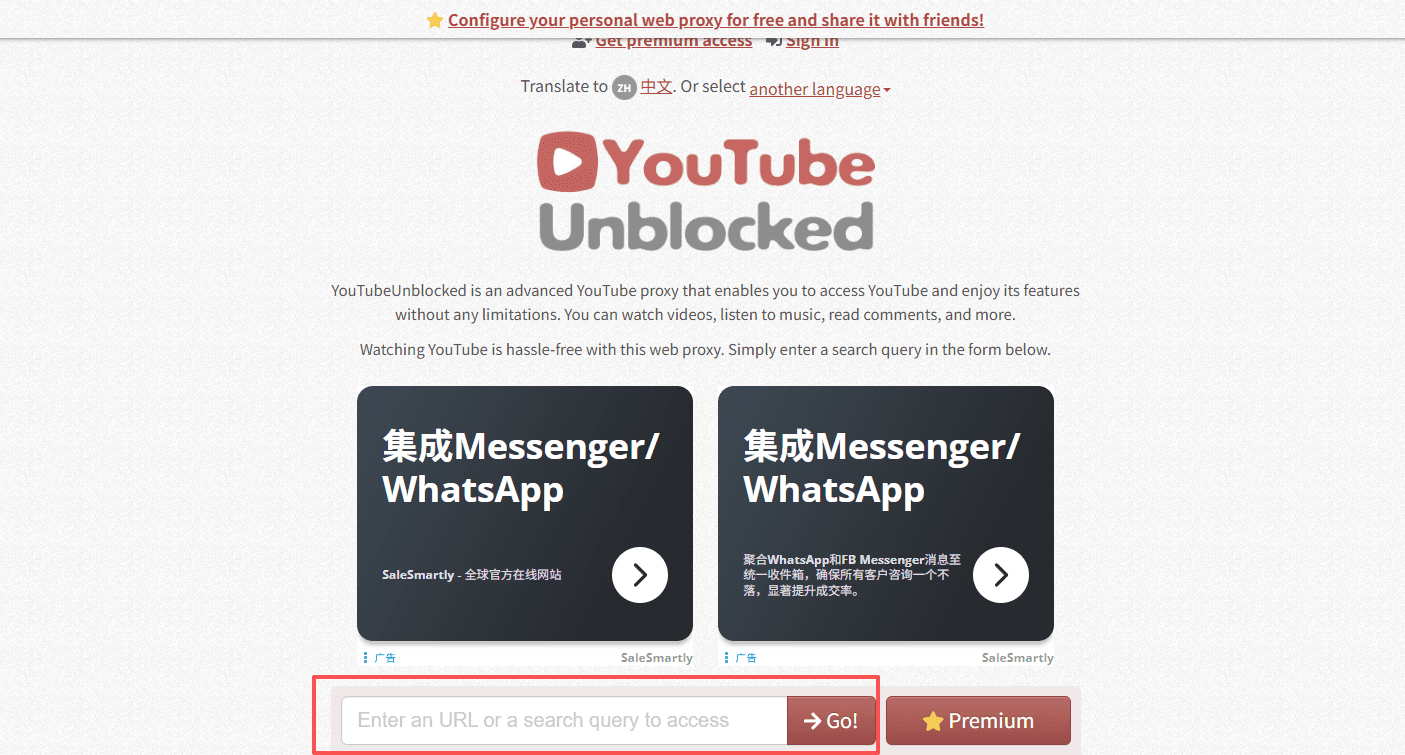
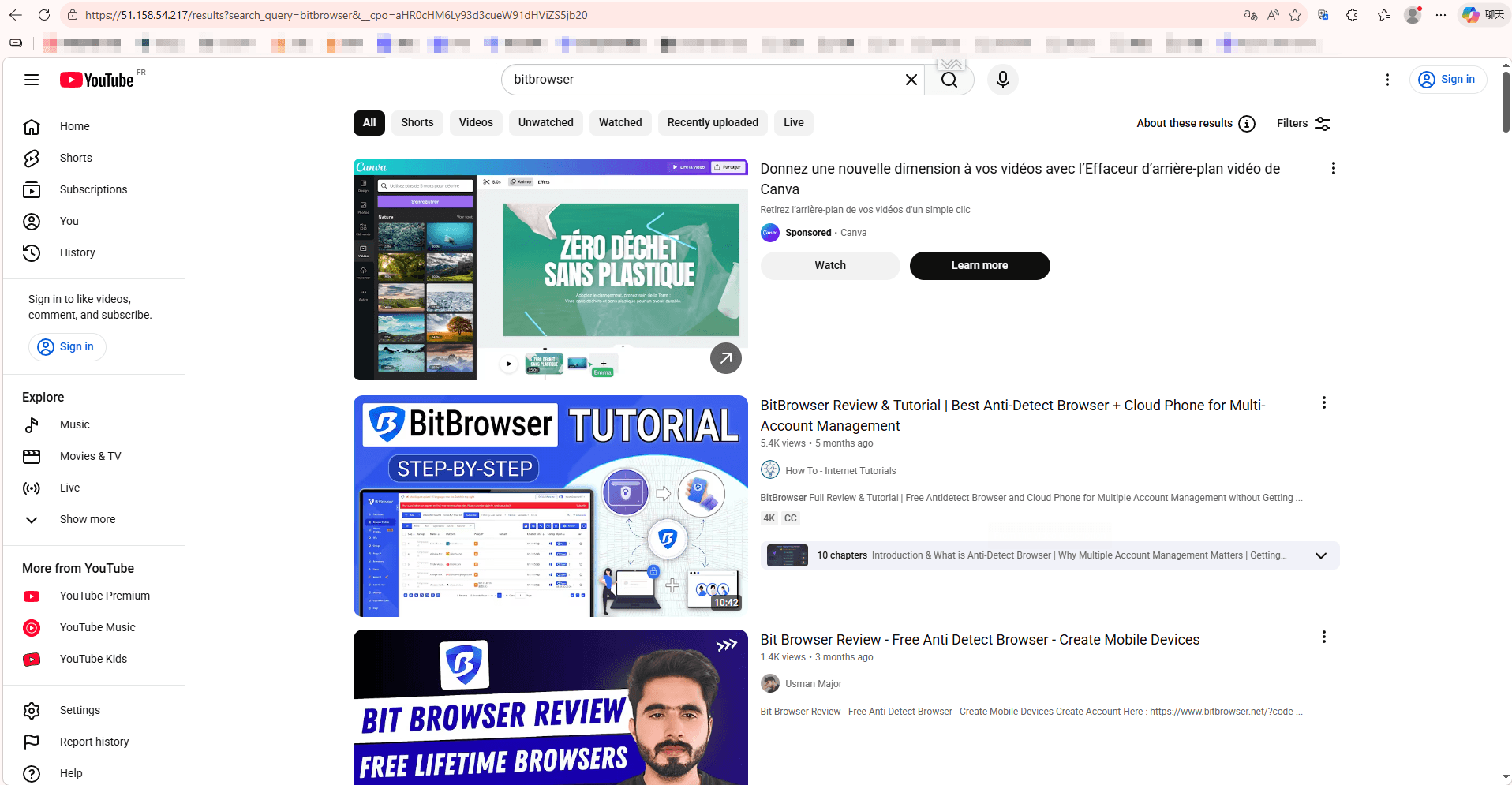
4. Paste the full YouTube video URL or type the video title. Then press Enter or click “Go” to load the video.

5. Watch the video directly in the site’s interface.
Pros:
• No installation required
• Quick access if a site works
Cons:
• Very short-lived; URLs are often blocked quickly
• May contain ads, pop-ups, or malware
• Not stable for consistent use
Why it fails:
• School firewalls detect and block known proxy domains
• IP addresses change, causing links to break
• High traffic makes sites easily blacklisted
⚠ Only suitable for temporary, casual viewing, not for consistent use
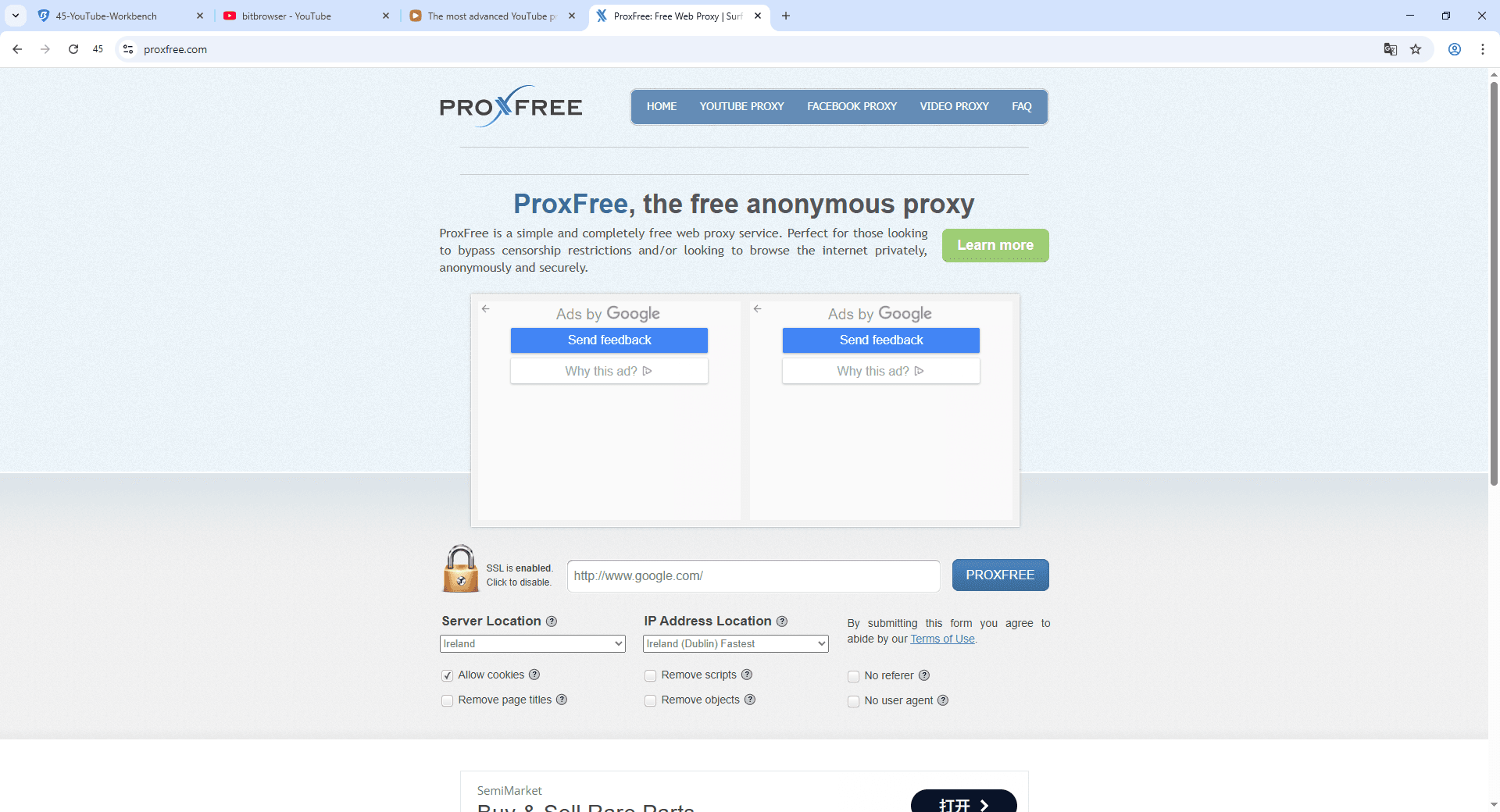
2. Free Web Proxies
Free web proxies fetch YouTube content through an external server, making your access appear to come from the proxy rather than your school network.
Step-by-Step Instructions:
1. Open your Chromebook browser.
2. Navigate to a free proxy service, e.g.:
3. Find the input box on the proxy site.
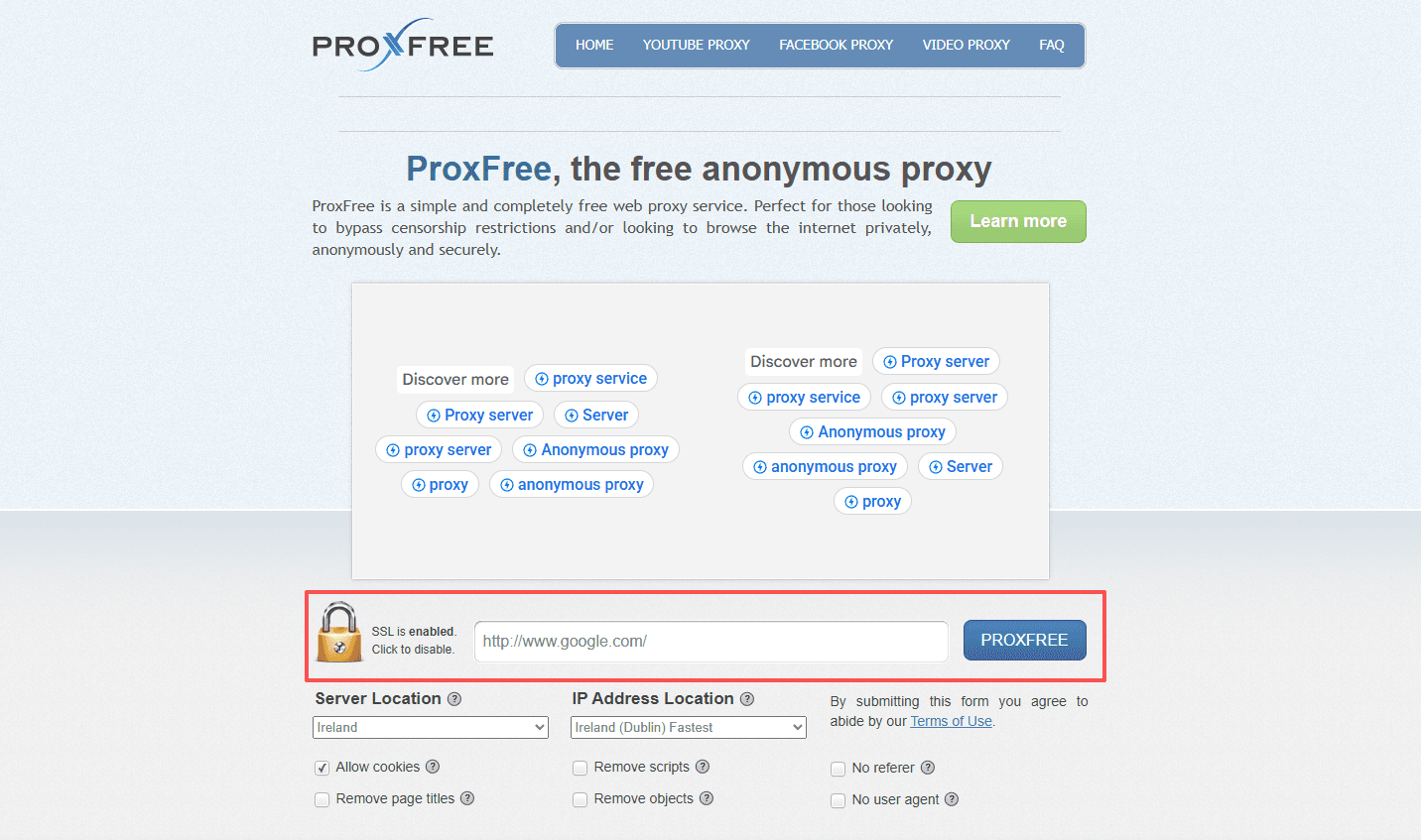
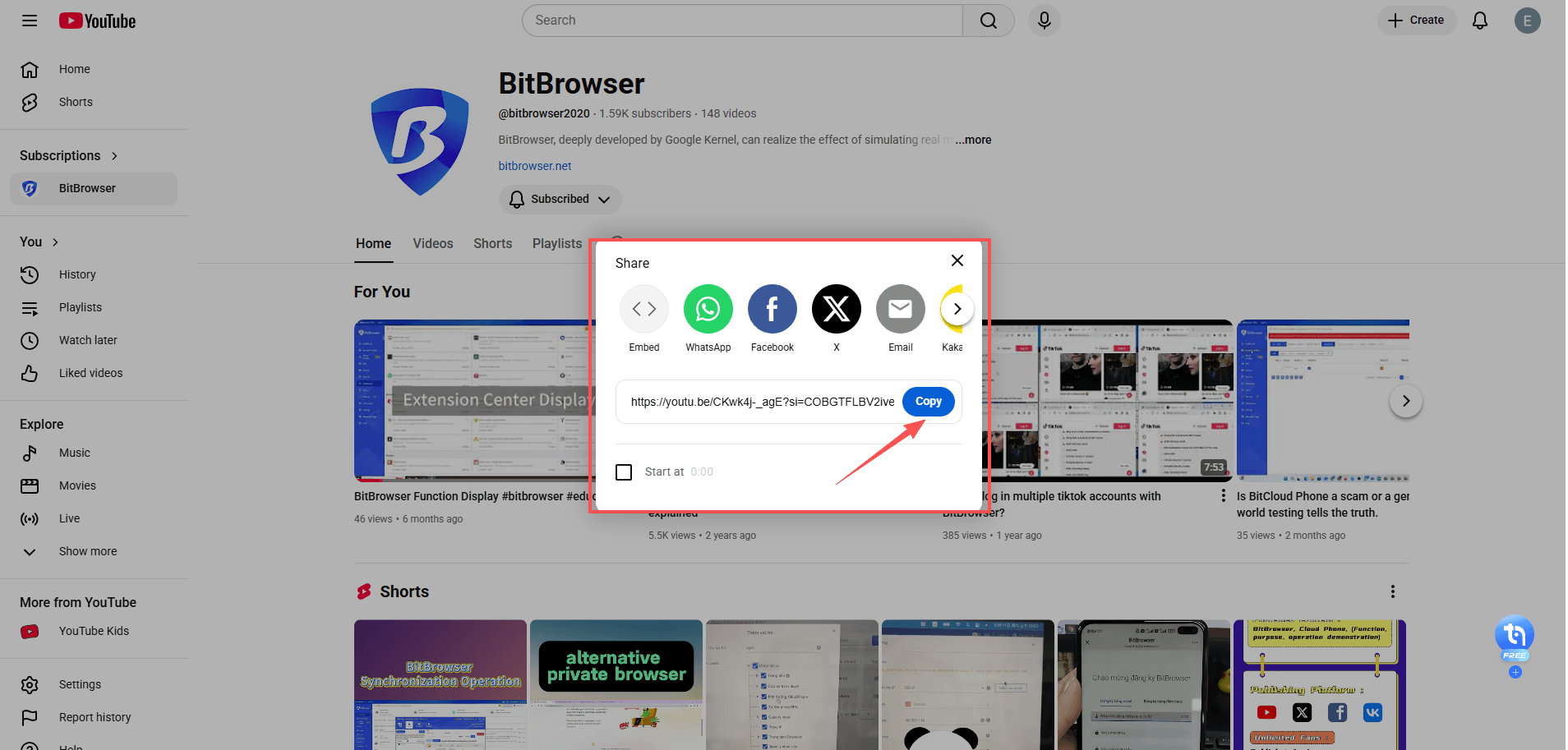
4. Copy the share link for a specific YouTube video. Paste the YouTube video URL you want to watch. Then click “Go” or “Surf” to load the video through the proxy.

5. Watch the video in the proxy window.
Pros:
• No installation required
• Can sometimes bypass simple network filters
Cons:
• Often slow, with buffering and low video quality
• Many proxy sites are tracked or blocked by school networks
• High risk of malware or intrusive ads
Why it fails:
• Schools can detect and block the proxy IPs
• HTTPS inspection may prevent content from loading
• Proxy sites are frequently down or removed
3. VPN Browser Extensions
VPN extensions encrypt your traffic and route it through external servers, effectively hiding your YouTube access from the school network.
Step-by-Step Instructions:
1. Open the Chrome Web Store on your Chromebook: https://chrome.google.com/webstore
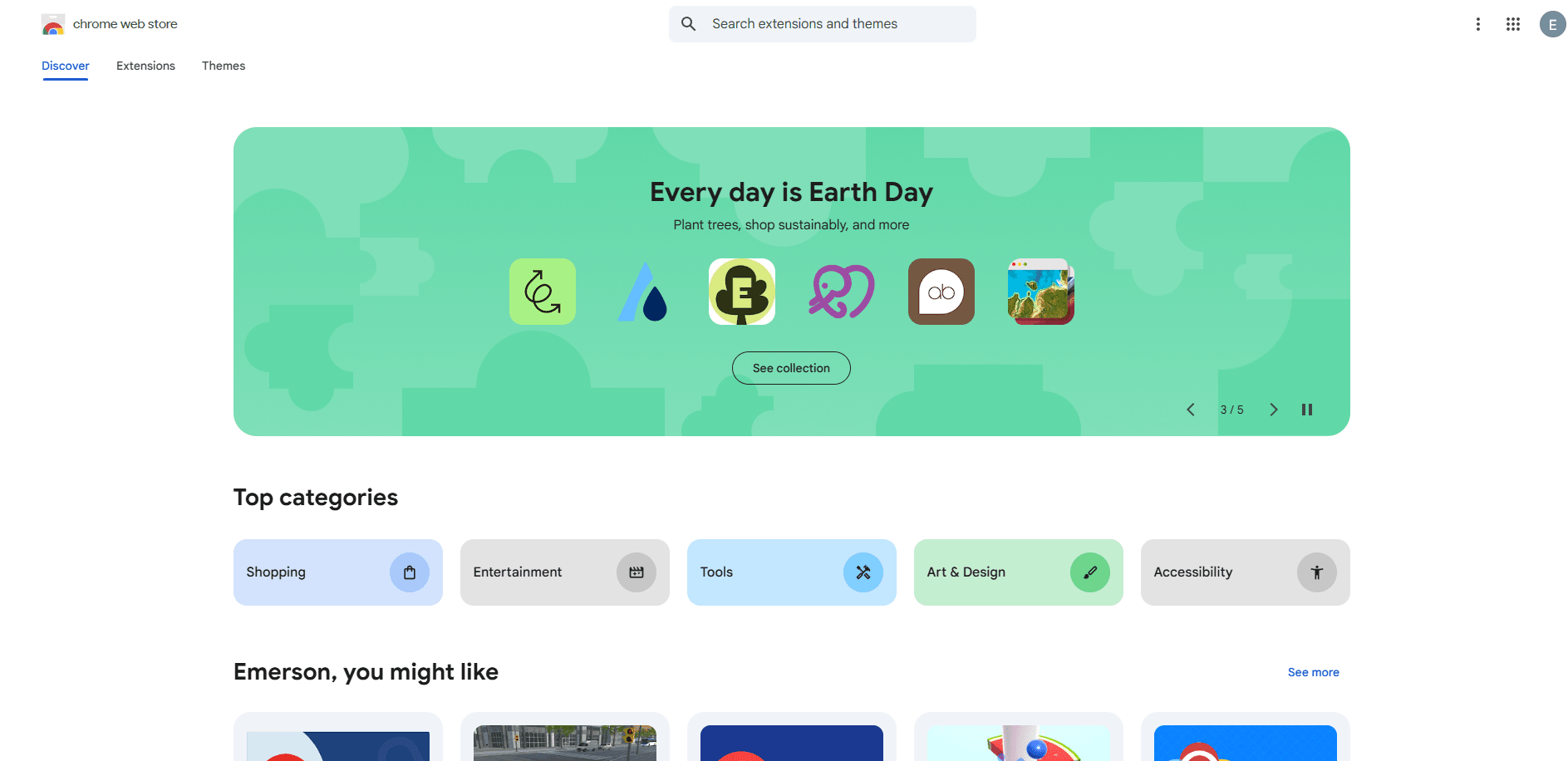
2. Search for a reputable VPN extension (e.g., NordVPN).
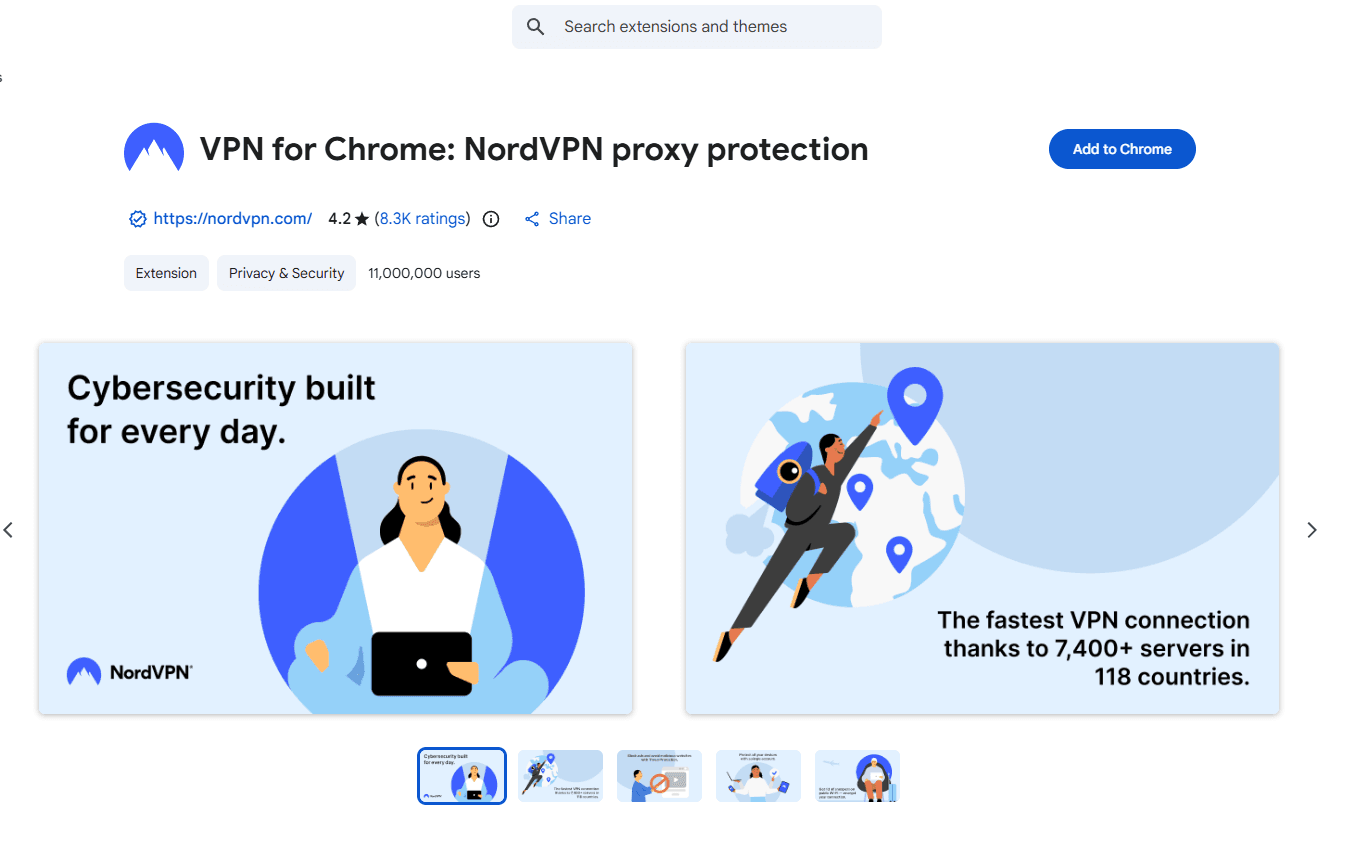
3. Click “Add to Chrome” and follow prompts to install.
4. Open the VPN extension and log in with your account.
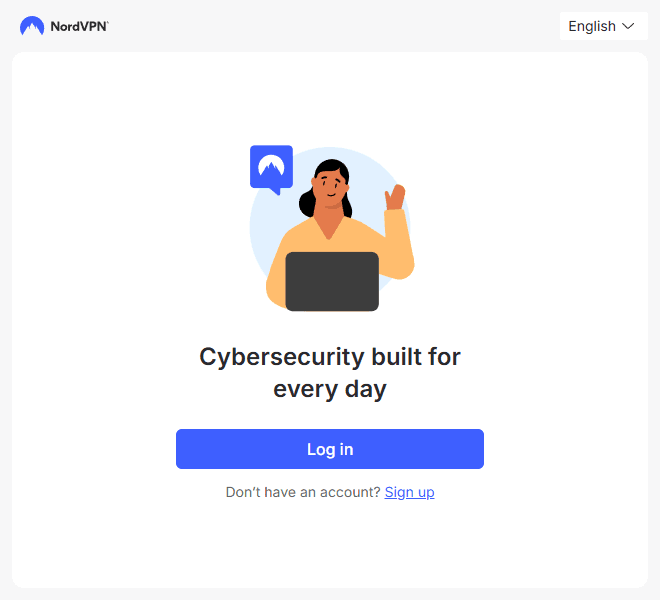
5. Select a server location where YouTube is accessible.
6. Ensure the VPN is active, then open YouTube in a new browser tab.
Pros:
• Encrypts traffic
• Can sometimes bypass network restrictions
Cons:
• Most Chromebook admin policies block extension installations
• Free VPNs have bandwidth limits, slow speeds, or are blocked
• May require account login, creating privacy risk
Why it fails:
• Admin policies disable unapproved VPN extensions
• Networks can detect VPN traffic patterns
• VPN server IPs get blacklisted
4. Browser-Based Solutions (Recommended)
Browser-based solutions focus on using a controlled browsing environment rather than relying on temporary mirror sites or installing system-level tools. This approach is especially useful on school Chromebooks, where device settings, extensions, and VPN apps are often restricted by administrators.
Instead of changing network rules directly, browser-based solutions work by isolating browsing sessions and optionally routing traffic through VPNs or proxy services. This makes them flexible: they can be used on their own, or combined with other unblocking methods discussed earlier for improved stability.
Step-by-Step Instructions:
1. Open the default browser on your Chromebook.
2. Visit the official website of a browser-based solution that supports isolated profiles (for example, BitBrowser).
3. Sign up or log in to your account.
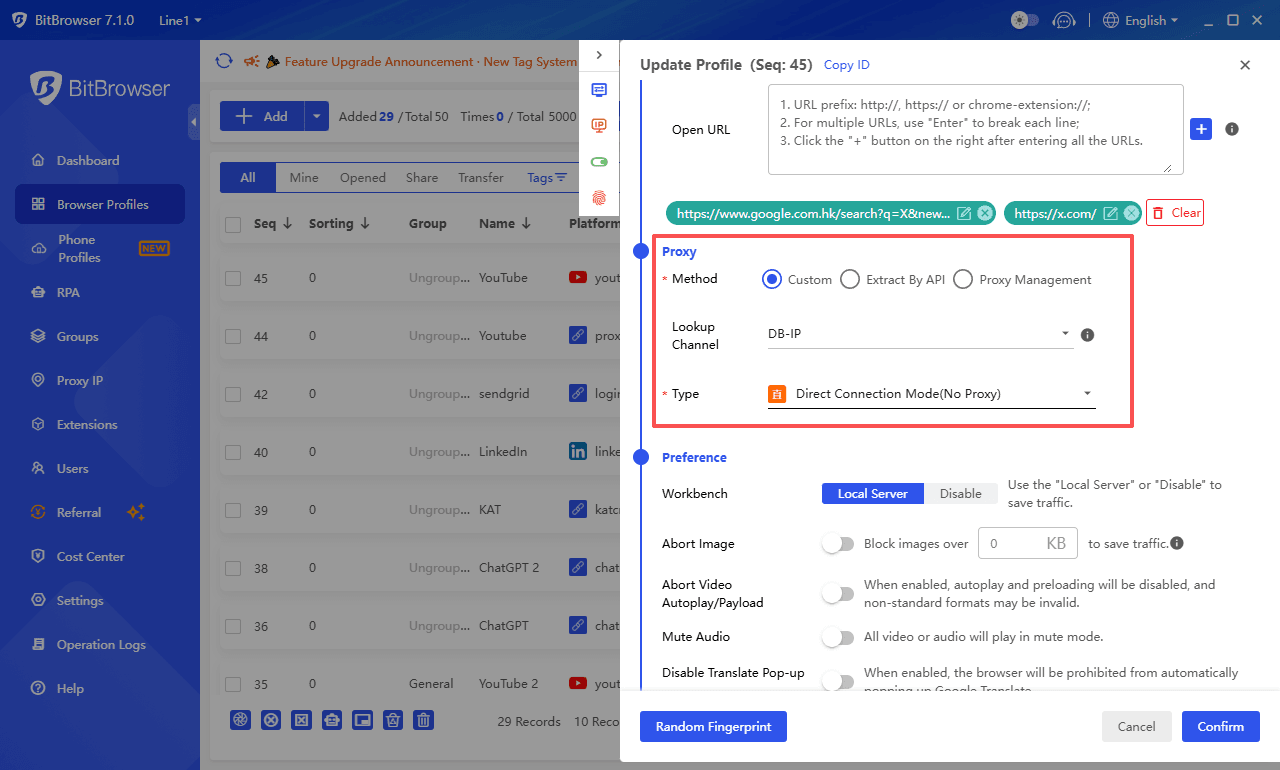
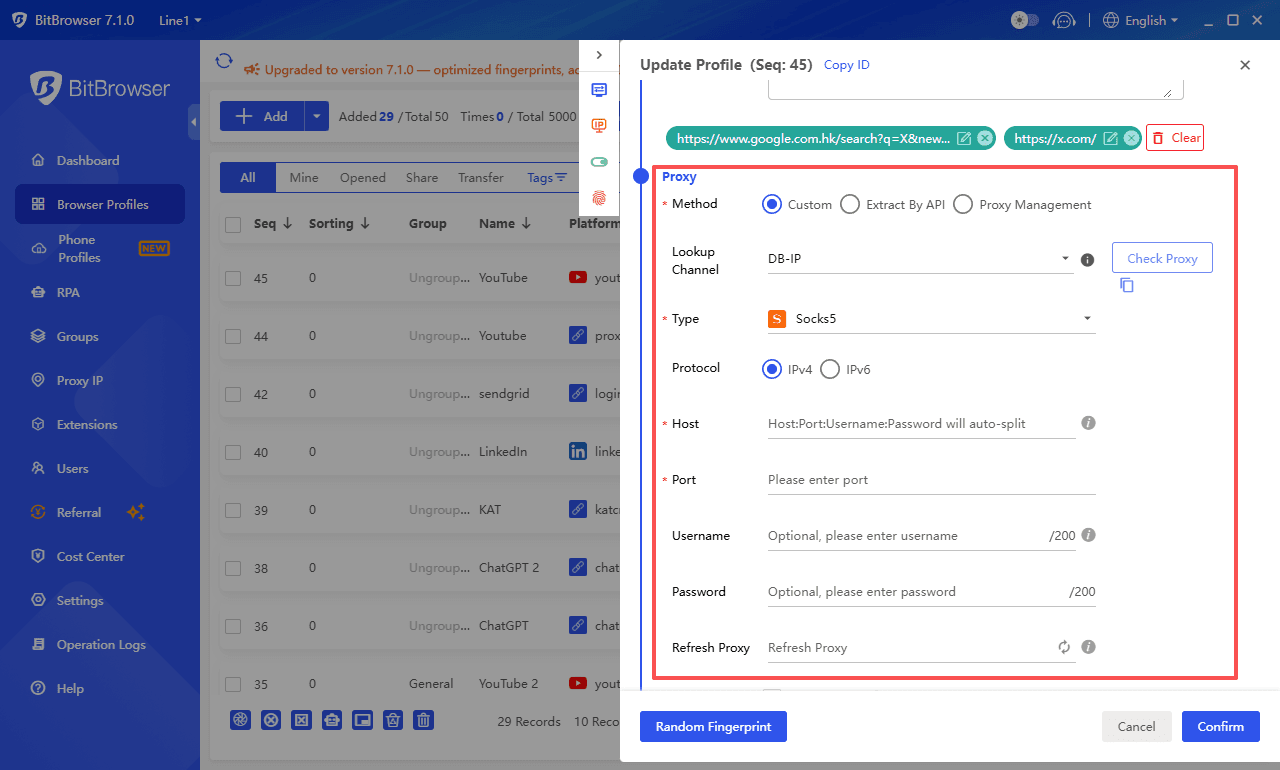
4. Create a new isolated browser profile.
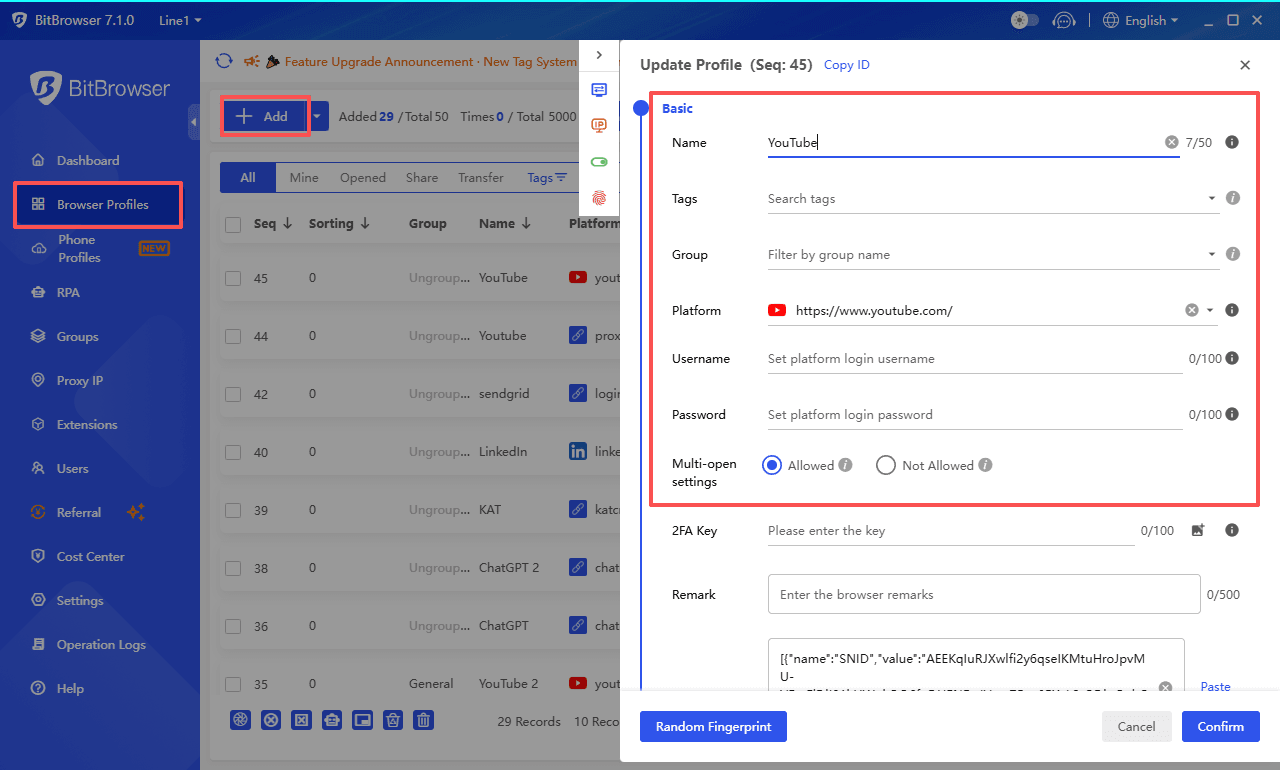
5. (Optional) Configure a VPN or proxy for that profile if you have access to one.
6. Launch the browser profile.
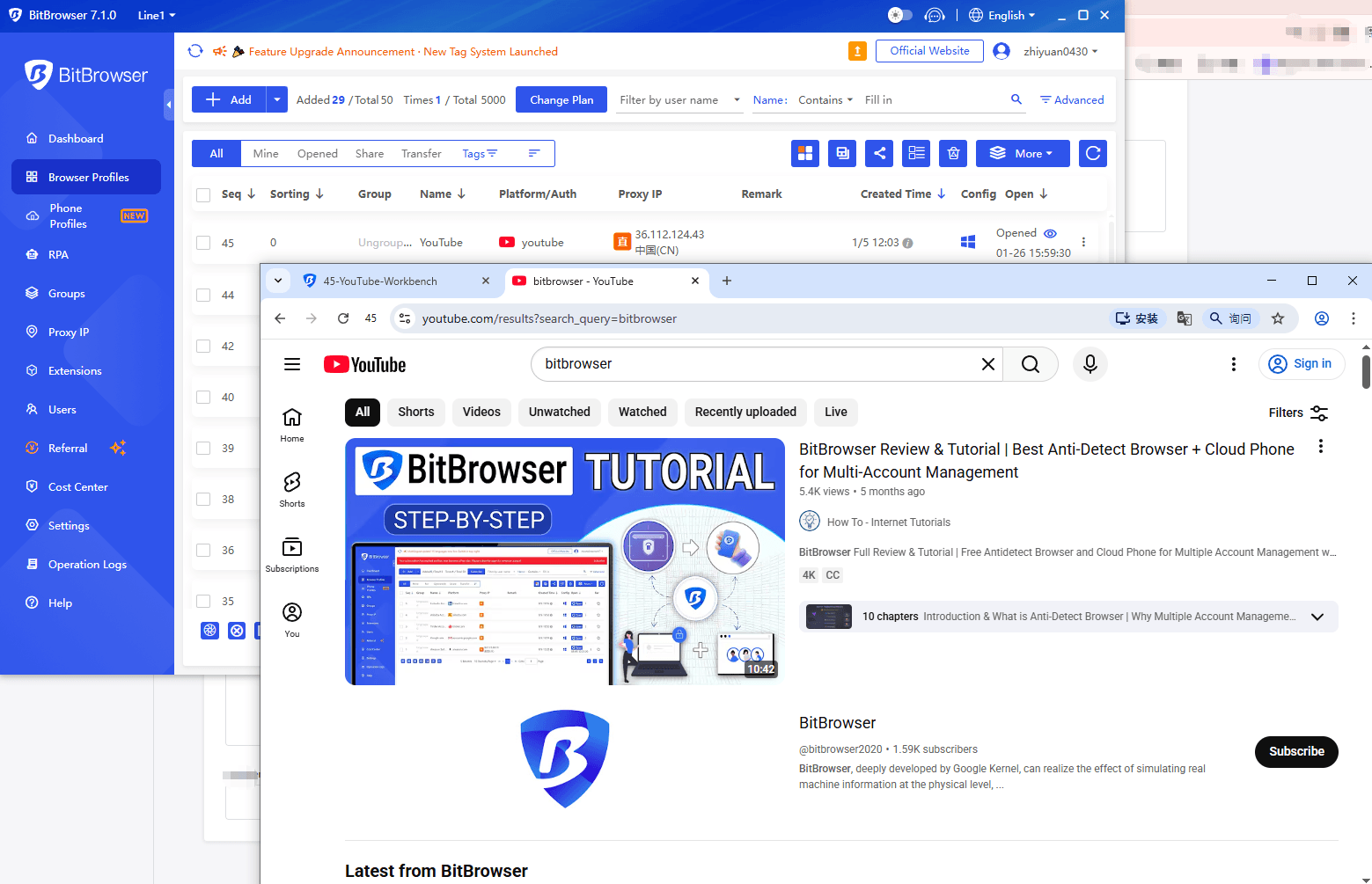
7. Inside the browser environment, open YouTube directly, or access it via:
• an unblocked YouTube site, or
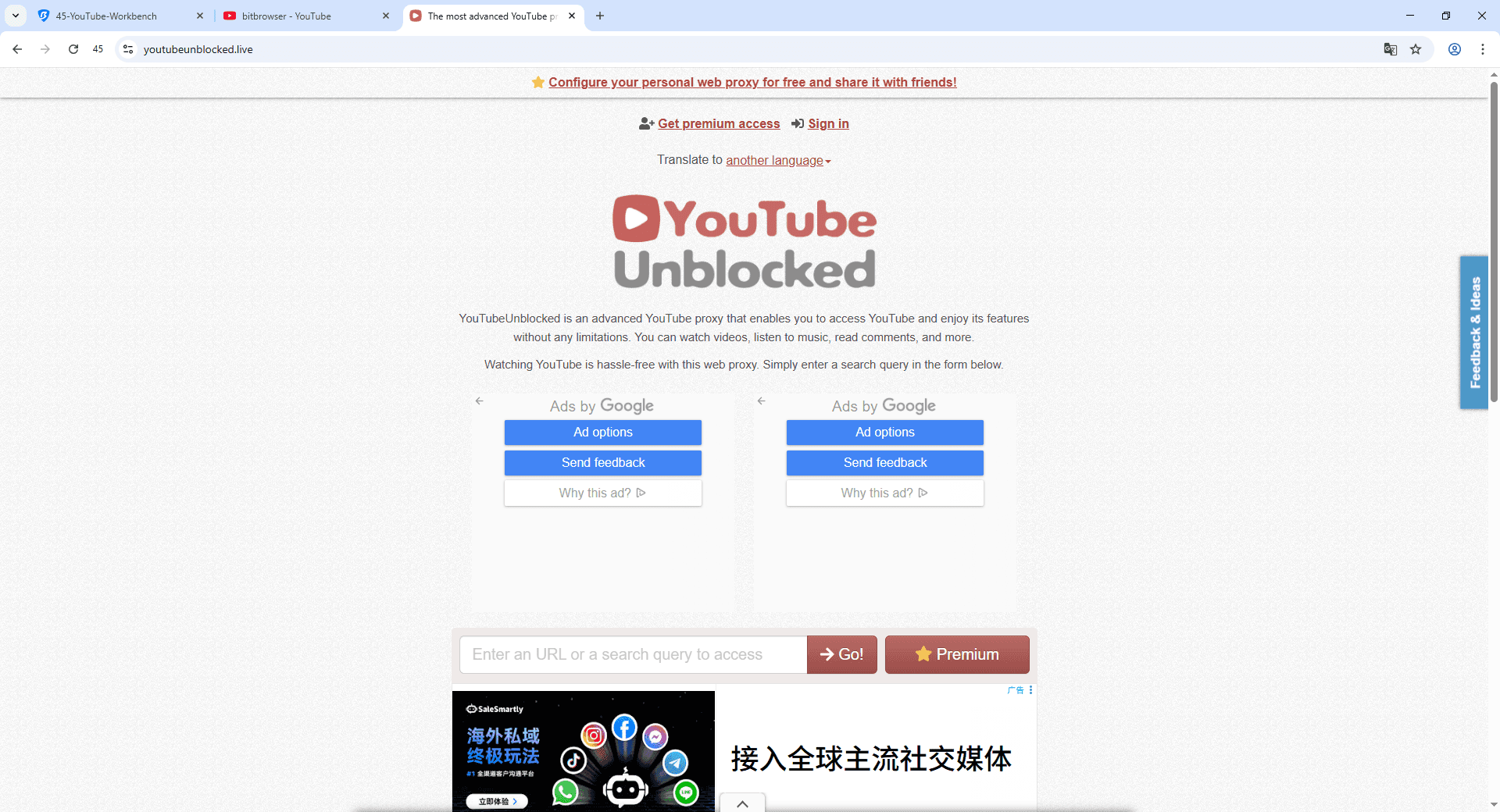
• a web proxy service introduced in the previous sections.
8. Search for videos and play them as usual.
Pros:
• Works on many managed Chromebooks without modifying system settings
• Flexible: can be combined with VPNs, proxies, or unblocked YouTube sites
• Cleaner and more stable than relying on public mirror websites alone
• No need to install browser extensions on the Chromebook
Cons:
• Requires creating an account with a browser-based service
• Effectiveness depends on the school’s network policies
• VPNs or quality proxies may require additional setup or cost
Why This Method Often Works
By isolating browser sessions and optionally routing traffic through VPN or proxy connections, browser-based solutions reduce direct exposure to local device restrictions.
In many school environments, network filters only see traffic going to the browser platform or proxy endpoint, not the final destination itself. When combined with unblocked YouTube sites or web proxies, this layered approach often improves success rates compared to using a single method alone.
While no solution is guaranteed in every school network, browser-based solutions offer a more controlled and adaptable way to access YouTube content on Chromebooks—especially when simpler methods fail or become unstable.
You may also want to read:
• How to Get Unblocked ChatGPT for School in 2026
• How to Play Roblox Unblocked at School on Computer/iPad
• How to Access TamilMV in 2026?
• How to Safely Access Kickass Torrents in 2026
For students who need more consistent access on school Chromebooks, browser-based solutions offer the most controlled and adaptable option, especially when simpler methods become unreliable.
Final Thoughts
Unblocking YouTube on a school Chromebook isn’t about finding a “magic trick.” It’s about choosing methods that actually fit school restrictions.
Quick options like unblocked YouTube sites or free web proxies can work in a pinch, but they’re usually unstable and don’t last long. If you need something more reliable, browser-based solutions tend to work better because they don’t require installs, system changes, or admin access, and they can be combined with proxies, unblocked sites, or VPNs when needed.
Just avoid sketchy mirror sites, random extensions, or sharing login details. Those shortcuts often cause more problems than they solve.
Bottom line: stick to browser-level, low-risk methods. They’re easier, safer, and far more consistent on managed Chromebooks.
A Quick Reminder for Students
While YouTube can be incredibly useful for learning, such as tutorials, lectures, explanations, and exam prep, it is still important to use it responsibly at school.
School restrictions are usually there to help students stay focused and avoid distractions, not to make learning harder. If you’re using YouTube, try to keep it tied to study-related content and avoid letting it turn into background entertainment during class.
Used the right way, YouTube can be a powerful learning tool. Just make sure it supports your studies, rather than getting in the way of them.
FAQ (Frequently Asked Questions)
Q1: Can I unblock YouTube on a school Chromebook without installing anything?
Yes, quick methods like unblocked YouTube sites or free web proxies can sometimes work without installing anything, but they’re often temporary.
Q2: Are browser-based solutions guaranteed to work?
No method is 100% guaranteed. Browser-based solutions increase reliability by isolating sessions and optionally using VPNs or proxies, but strict network restrictions may still block access.
Q3: Can I combine BitBrowser with other tools?
Yes. BitBrowser can be used alongside unblocked YouTube sites, web proxies, or VPNs to improve stability and access chances.
Q4: Are free proxies or mirror sites safe?
They may carry risks such as ads, malware, or tracking. They are fine for occasional use, but browser-based solutions are safer for consistent access.
Q5: Should I focus on learning or entertainment when using these methods?
Always prioritize learning. Use YouTube for tutorials, lectures, or exam prep, and avoid letting it become a distraction during class.

 Multi-Account Management
 Prevent Account Association
 Multi-Employee Management
Recommended
See More 



