How to Manage Multiple Amazon Seller Accounts on iOS with BitCloudPhone
 2026.08.31 08:12
 YT.Shi
Selling on Amazon can grow into a much bigger operation than you expected. You may have several brands, work with different businesses, or operate separate stores for different product lines.
In these situations, managing multiple Amazon Seller accounts can make sense. But it also creates another challenge: keeping each business organized and maintaining a consistent working environment for every account.
This is where an iOS cloud phone can help.
Instead of switching between accounts on the same physical phone, you can assign a separate cloud iOS device to each business and keep its apps, data, and working environment organized independently.
This guide explains how to manage multiple Amazon Seller accounts on iOS, what you should separate between accounts, and how BitCloudPhone can simplify the process.
Can You Have Multiple Amazon Seller Accounts?
Yes, but having multiple Amazon Seller accounts is not simply a matter of creating several accounts with different email addresses.
Amazon generally allows one Seller Central account per region unless you have a legitimate business need for additional accounts. If you need another account, you should follow Amazon's approval process and provide a clear reason for operating more than one store.
A legitimate business reason may include:
· Owning separate and unrelated brands
· Operating different businesses
· Managing separate business entities
· Participating in an Amazon program that requires a separate account
Creating another account just to get around a suspension or other restriction is a different situation and can create serious problems.
Before setting up multiple accounts, make sure your business structure and reason for having additional accounts are compliant with Amazon's requirements.
Why Is Managing Multiple Amazon Accounts on iOS Difficult?
Managing one Amazon account from an iPhone is simple. Managing several accounts is a different story.
If you regularly switch between different seller accounts on the same phone, information from different businesses can easily become mixed together. App data, login sessions, notifications, files, and other device information all live on the same physical device.
This can also make everyday management confusing. You may need to remember which account is currently logged in, which notifications belong to which store, and which business information you are working with.
For sellers running multiple businesses, having a dedicated environment for each account can make the entire workflow much easier to manage.
What Is an iOS Cloud Phone?
An iOS cloud phone gives you access to an iOS device environment through the cloud. Instead of purchasing a separate physical iPhone for every business, you can create and access cloud based iOS devices remotely.
This can be useful when you need multiple independent mobile environments for different business operations.
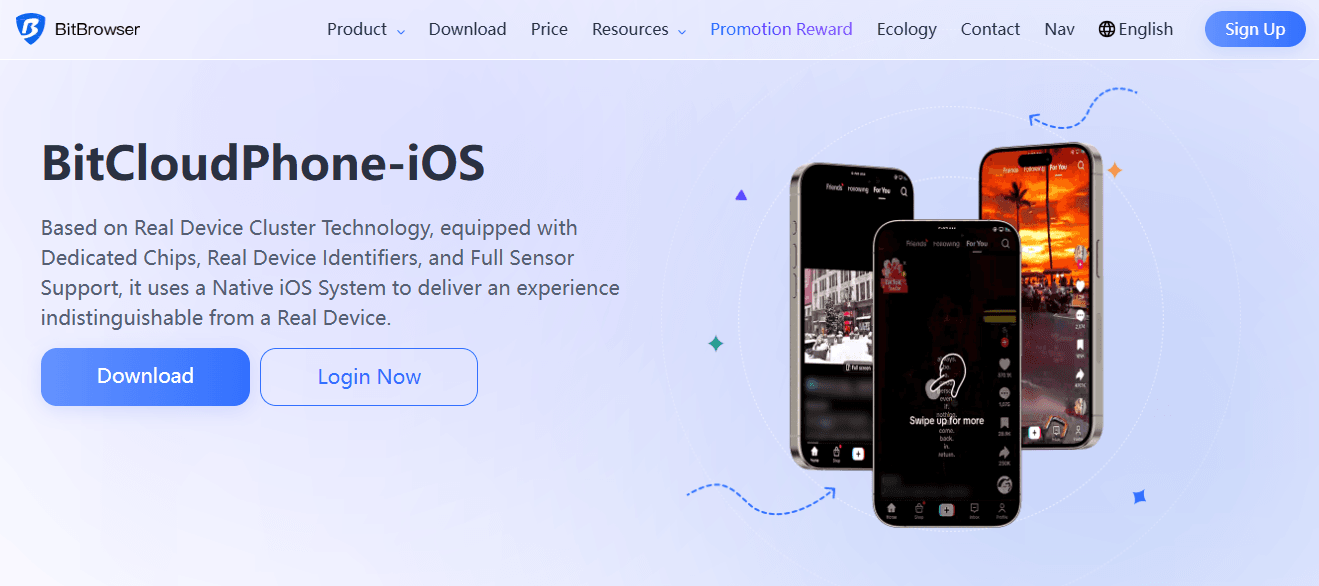
With BitCloudPhone iOS, you can create separate cloud iOS devices and assign them to different Amazon seller accounts.
For example:
· Cloud iOS Device 1 → Amazon Store A
· Cloud iOS Device 2 → Amazon Store B
· Cloud iOS Device 3 → Amazon Store C
Each device can then be treated as its own working environment. The goal is not to bypass Amazon's policies. It is to keep your business operations organized and separated.
How to Manage Multiple Amazon Seller Accounts with BitCloudPhone iOS
The setup is straightforward. The key is to give each account its own consistent environment and avoid mixing your business operations.
1. Create a Separate Cloud iOS Device
Start by creating a cloud iOS device for each Amazon business you need to manage.
Give each device a clear name so you can immediately identify which store it belongs to.
For example:
· Amazon Store A
· Amazon Store B
· Amazon Store C
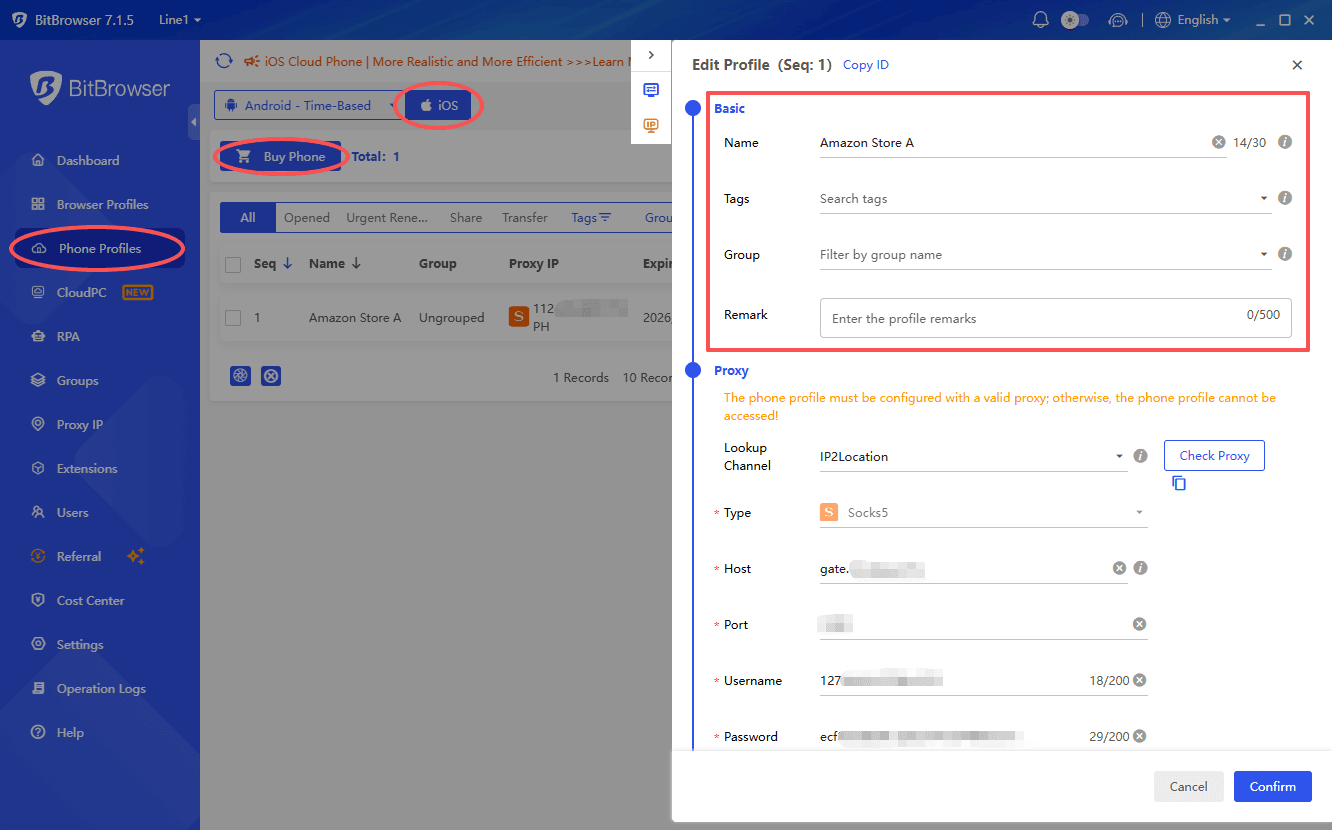
This small step becomes surprisingly useful once you have several devices. You no longer need to remember which session belongs to which store.
2. Assign One Amazon Account to Each Device
Once your cloud devices are ready, assign each Amazon seller account to its corresponding device.
For example:
· Device A → Store A
· Device B → Store B
· Device C → Store C
Try to keep this assignment consistent.
If Store A is normally managed from Device A, continue using Device A for Store A instead of constantly moving between different environments.
3. Configure the Network Environment
Your network environment is another important part of managing multiple online accounts.
BitCloudPhone iOS supports SOCKS5 proxy configuration, allowing you to configure the network environment for your cloud iOS device when needed.
For businesses that require different network environments, you can configure the appropriate proxy before using the device.
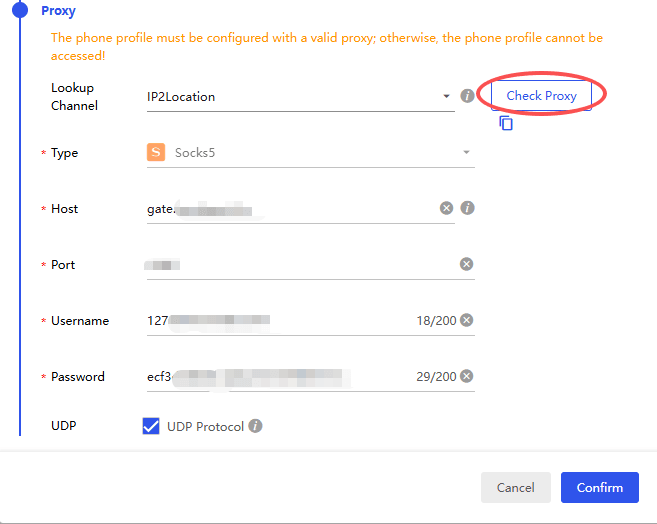
For iOS cloud phones, the proxy needs to be configured before the first boot.
The important thing is consistency. Avoid constantly changing network environments without a business reason.
4. Download Amazon from the Built-in App Store
Before signing in to Amazon, you can download the Amazon app directly from the built-in App Store in BitCloudPhone.
The App Store provides access to many commonly used apps, so you can install the apps you need directly on your cloud iOS device without having to manage everything from a physical phone.
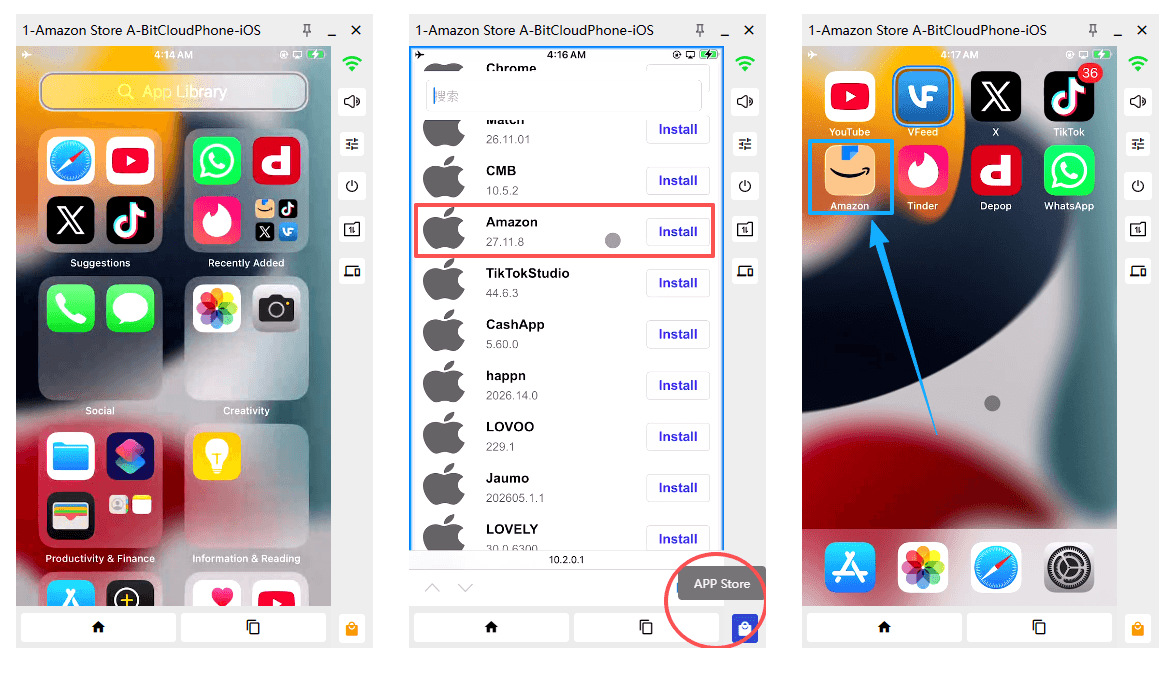
Search for Amazon, download the app, and wait for the installation to finish.
If you manage different businesses, you can repeat this setup on each dedicated cloud iOS device.
5. Set Up Amazon on Each Device
Once the Amazon app and network environment are ready, sign in to the appropriate Amazon Seller account.
Keep each account inside its assigned cloud device.
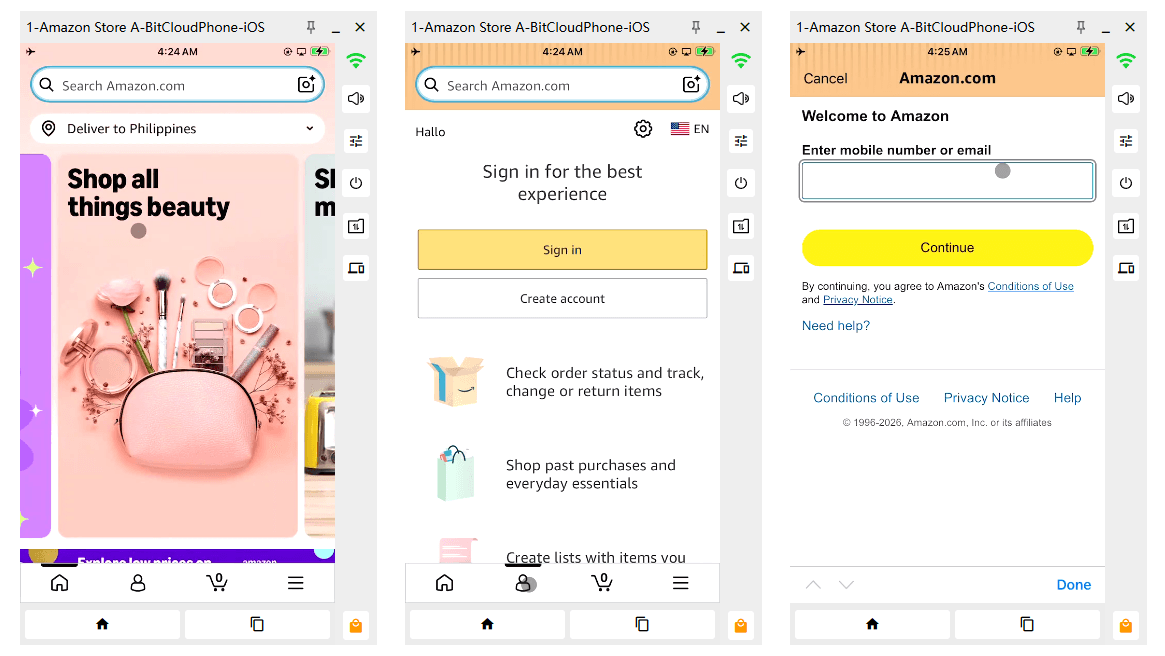
· If you are managing Store A, work from Device A.
· When you need to manage Store B, switch to Device B instead of logging out and signing into another account on Device A.
This simple workflow makes it much easier to keep different stores separated and organized.
How to Keep Multiple Amazon Accounts Separate
Using separate cloud devices is only one part of the process. Your business and financial information should also be properly organized.
Business Information
If your Amazon accounts represent different businesses, keep the relevant legal and business documentation organized for each entity.
Prepare documents such as:
· Company registration documents
· Tax information
· Business licenses
· Brand information
· Product documentation
If Amazon asks you to verify an account, having accurate documentation ready can make the process much easier.
Email and Phone Numbers
Use the appropriate email addresses and phone numbers for each account.
Don't create accounts with random information simply to make them look different.
Your account information should accurately represent the business operating the store.
Payment Information
Payment information also deserves careful attention. Keep bank accounts, credit cards, and payment accounts organized according to the legal entity and business they belong to.
Don't reuse financial information simply because it is convenient. The goal is to maintain accurate business records, not to create artificial differences between accounts.
Common Mistakes to Avoid
Here are some of the mistakes that can cause problems when managing multiple Amazon accounts.
Creating Additional Accounts Without a Legitimate Reason
Having multiple accounts is not automatically permitted just because you have different email addresses.
Make sure you have a legitimate business reason and follow Amazon's requirements.
Creating an Account to Circumvent a Suspension
Never use a new seller account as a replacement for an account that has been suspended.
This can make the situation much worse.
Constantly Switching Accounts on One Device
Logging out of one Amazon account and immediately signing into another on the same phone may seem convenient, but it creates a messy workflow.
Dedicated cloud devices provide a cleaner way to organize different accounts.
Reusing Business Information Carelessly
Don't accidentally mix payment information, documents, phone numbers, or other business details between stores.
Keep your records organized from the beginning.
Changing Network Environments Constantly
If you use a proxy, avoid frequently changing the network environment without a legitimate reason.
A stable and consistent setup is easier to manage.
What If One Amazon Account Gets Suspended?
Don't immediately create another account to replace it.
First, identify the reason for the suspension.
Go to the Account Health section and review the relevant policy issue. Gather the necessary information, correct the underlying problem, and submit an appeal according to Amazon's process.
If other accounts are affected by a related account issue, deal with the original problem first.
Creating additional accounts before resolving the root cause can make the situation more complicated.
Final Thoughts
Managing multiple Amazon Seller accounts on iOS doesn't have to mean buying a separate iPhone for every business.
The more important part is creating a clear and consistent workflow.
Make sure you have a legitimate reason for operating multiple accounts. Keep your business and financial information accurate and organized. Give each store a dedicated working environment, and avoid careless account switching.
For sellers who prefer working from iOS, BitCloudPhone provides a practical way to create and manage separate cloud iOS devices for different businesses.
Instead of juggling several physical phones, you can keep your Amazon operations organized in dedicated cloud environments and access them whenever you need them.

 Multi-Account Management
 Prevent Account Association
 Multi-Employee Management
Recommended
See More