What Is a VPS Server and What Can You Use It For
 2026.11.27 06:24
 YT.Shi
A virtual private server (VPS) is a server you rent that runs in its own environment on a physical machine. You can use it to host a website, run an application, or keep a game world online for friends.
Say you build a website on your laptop. If the laptop goes to sleep, visitors lose access. Move the site to a VPS, and you can close your laptop for the night. The server at the hosting provider keeps serving your pages.
In this guide, we'll look at what you get when you rent a VPS, how it compares with other hosting options, and what you see when you log in. We'll also walk through opening an existing Windows VPS from your computer with CloudPC Connector.
How Does a VPS Work?
A hosting provider can use virtualization software to divide one physical server into several virtual servers. Each customer gets a separate environment with an operating system, storage, and an allocation of computing resources. Two customers can use the same physical machine and still install different software and manage their files separately.
For example, you might see a VPS plan listed with 2 vCPUs, 4 GB of RAM, and 80 GB of storage. Here's what those numbers mean in practice.
▸ 2 vCPUs. The operating system sees two virtual processors. Your hosting plan determines whether the underlying CPU capacity is shared or dedicated.
▸ 4 GB of RAM. The operating system and running programs draw from this memory. A website, its database, and any other apps you run all need to fit.
▸ 80 GB of storage. This holds the operating system, installed software, and your files. For a game server, that includes the world your players have built.
The word private refers to the separation between your server environment and other customers' environments. You can still make a website on your VPS public so anyone with its address can visit.
What Is a VPS Server Used For?
1. Host a Website That Needs Its Own Software
Suppose you're adding a product catalog to your website. The catalog needs a particular version of Python and a background process to update stock levels. With administrator access to a VPS, you can install that version and schedule the updates. With shared hosting, you'd first need to check whether your plan supports both.
2. Run an App or a Scheduled Task
A small online store might need a sales report every morning at 7 a.m. You can put the reporting script on a VPS and schedule it there. The job can run before anyone opens a laptop, and the team can check the server log if the report is late.
3. Host a Minecraft Server for Friends
Install the Minecraft server software on a compatible VPS, put your world files there, and give your friends the server address. They can join while the server software is running, even when you're away. Before choosing a plan, check the requirements for your Minecraft edition, the mods you want, and the number of people who usually play together.
4. Test Changes Before Updating a Live Site
If a client wants to preview a new checkout page, you can run a test copy of the store on a VPS. Give the copy its own database and use the payment provider's test mode. The client can then place a test order and check the confirmation page while customers continue shopping on the live site.
Shared Hosting vs. VPS vs. Dedicated Server
Imagine you're choosing hosting for the same store. Start with two questions. Does the store need software you have to install yourself? Does it need an entire physical machine? The answers help narrow down the three options.
| Hosting type | What you control | When it fits |
|---|---|---|
| Shared hosting | Your website and the settings available in the host's control panel. The provider manages the server software. | The store runs on software the plan already supports, and you want the provider to handle server maintenance. |
| VPS hosting | A virtual server with its own resource allocation. Your access level and maintenance responsibilities depend on the plan. | You need a custom application, a background job, or settings your shared hosting plan doesn't offer. |
| Dedicated server | An entire physical server reserved for your use. The provider may also offer a management service. | Your workload needs the capacity of a whole machine, or your project specifically requires dedicated hardware. |
What Should You Check Before Renting a VPS?
1. The Operating System Your Software Needs
Start with the application you plan to run. If its setup guide is written for Ubuntu, an Ubuntu VPS lets you follow those steps directly. If you need a Windows application with a desktop interface, check which Windows versions it supports and whether the plan includes a desktop and remote access.
2. Who Will Maintain the Server
With an unmanaged VPS, you generally take care of operating system updates, software setup, and backups. With a managed VPS, the provider handles the tasks listed in the plan. Check the details before ordering. In particular, find out who can restore your files and how far back the available backups go.
3. Capacity, Location, and the Monthly Bill
Use your application's requirements as a starting point for CPU and memory. Allow storage for the files you'll add over time. Location matters more for some tasks than others. Friends sharing a game world may notice a distant server every time they play, while a report that runs overnight may work just as well there.
When comparing prices, check whether Windows licensing, backups, and data transfer are included. Also check how the provider bills a stopped server, especially if you only need it for a short test.
What Does a VPS Look Like When You Log In?
On a typical Linux VPS, you connect through SSH and see a terminal where you can type commands. On a Windows VPS with a desktop and Remote Desktop Protocol (RDP) enabled, you can open a window on your own computer and see the remote Windows desktop inside it.
For example, open File Explorer inside the remote window and save a document in the remote Downloads folder. The file is now on the VPS. You can reconnect from another computer later and find it in the same folder when you sign in to that Windows account.
The VPS is the machine you're using. RDP is one way to reach its desktop. For a closer look at the two terms, see VPS vs. RDP.
How to Connect to a Windows VPS with CloudPC Connector
If you already have a Windows VPS that accepts RDP connections, you can add it to CloudPC Connector. The client is available for Windows and macOS. Have your provider's connection details ready before you begin.
Step 1. Find Your VPS Connection Details
Open the VPS entry in your hosting provider's dashboard. Look for the IP address or domain, RDP port, Windows username, and password. Use the credentials assigned to the remote Windows account. Your hosting dashboard may have a separate login.
Step 2. Add the Windows VPS
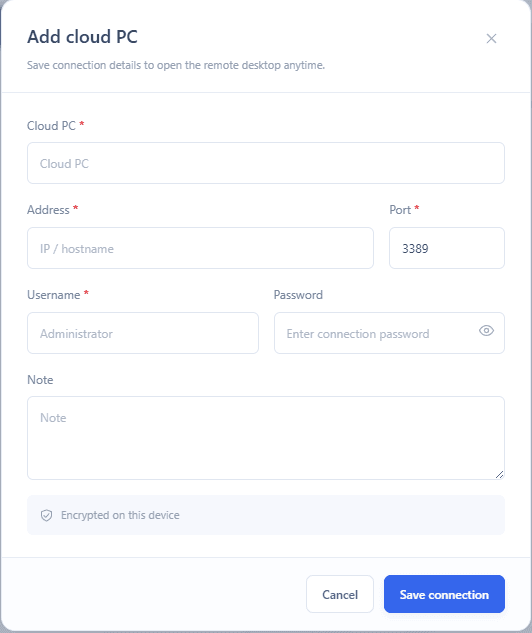
Open CloudPC Connector, select Custom cloud PC in the left sidebar, and click Add cloud PC. Give the machine a name you'll recognize, such as Store Test Server. Enter the connection details from your provider and click Save Connection.
Step 3. Open the Remote Desktop
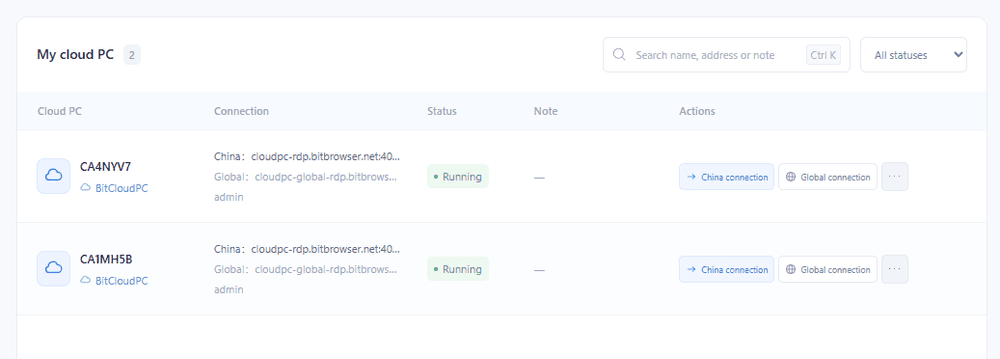
Find the saved entry and click Connect. The Windows desktop opens in a separate window with the machine's name in the title bar. If you also use BitCloudPC for desktop work, you can access those cloud PCs from the same client.
What If the Connection Fails?
▸ The connection times out. Check that the VPS is running. Compare the saved address and port with the provider's dashboard, then check whether the host allows RDP from your connection.
▸ Windows rejects the login. Check the remote account's username, including any prefix supplied by the provider. If you recently changed its password, update the saved connection.
▸ Your provider only supplies SSH details. Check the operating system you ordered. A standard Linux VPS usually expects an SSH client for the first login.
Conclusion
A VPS makes sense when you can name something that needs to run independently of your own computer. That might be a store with a custom stock update, a sales report due every morning, or a Minecraft world your friends can visit while you're offline. Start with that task, check its software requirements, and decide who will maintain it.
Already have a Windows VPS? Save its connection in CloudPC Connector once. The next time you need the remote desktop, open the client and select the machine by name.
Frequently Asked Questions
Does a VPS keep running when I turn off my computer?
Yes, as long as the VPS itself stays powered on. If a program needs to keep working after you disconnect or after the VPS restarts, configure it as a service or scheduled task and check that it resumes as expected.
Do I need a domain name to use a VPS?
You can usually connect to the server using the IP address your provider gives you. A domain name is useful when you want visitors to reach a website through a memorable address.
Can I host more than one website on a VPS?
Yes. You can configure the web server to send visitors to the right site based on the domain they enter. The sites share the resources of your VPS, so account for their combined traffic, databases, and storage when choosing a plan.
Is a Minecraft VPS ready to play as soon as I rent it?
Check what's included. A game hosting plan may come with Minecraft installed and a control panel for starting the server. A general-purpose VPS may come with only an operating system, leaving the game installation, updates, and world backups to you.
Should I choose a Windows VPS or a cloud PC?
Choose based on what you'll do after signing in. For a server application, check its supported Windows edition, resource requirements, and the administrator access it needs. If your daily work is opening desktop apps, editing files, and returning to the same workspace from another computer, a ready-to-use Windows cloud PC such as BitCloudPC may be a simpler fit.

 Multi-Account Management
 Prevent Account Association
 Multi-Employee Management
Recommended
See More