Managing Multiple Social Accounts With AI: BitBrowser MCP + LiveProxies
 2026.10.29 20:59
 BeYou
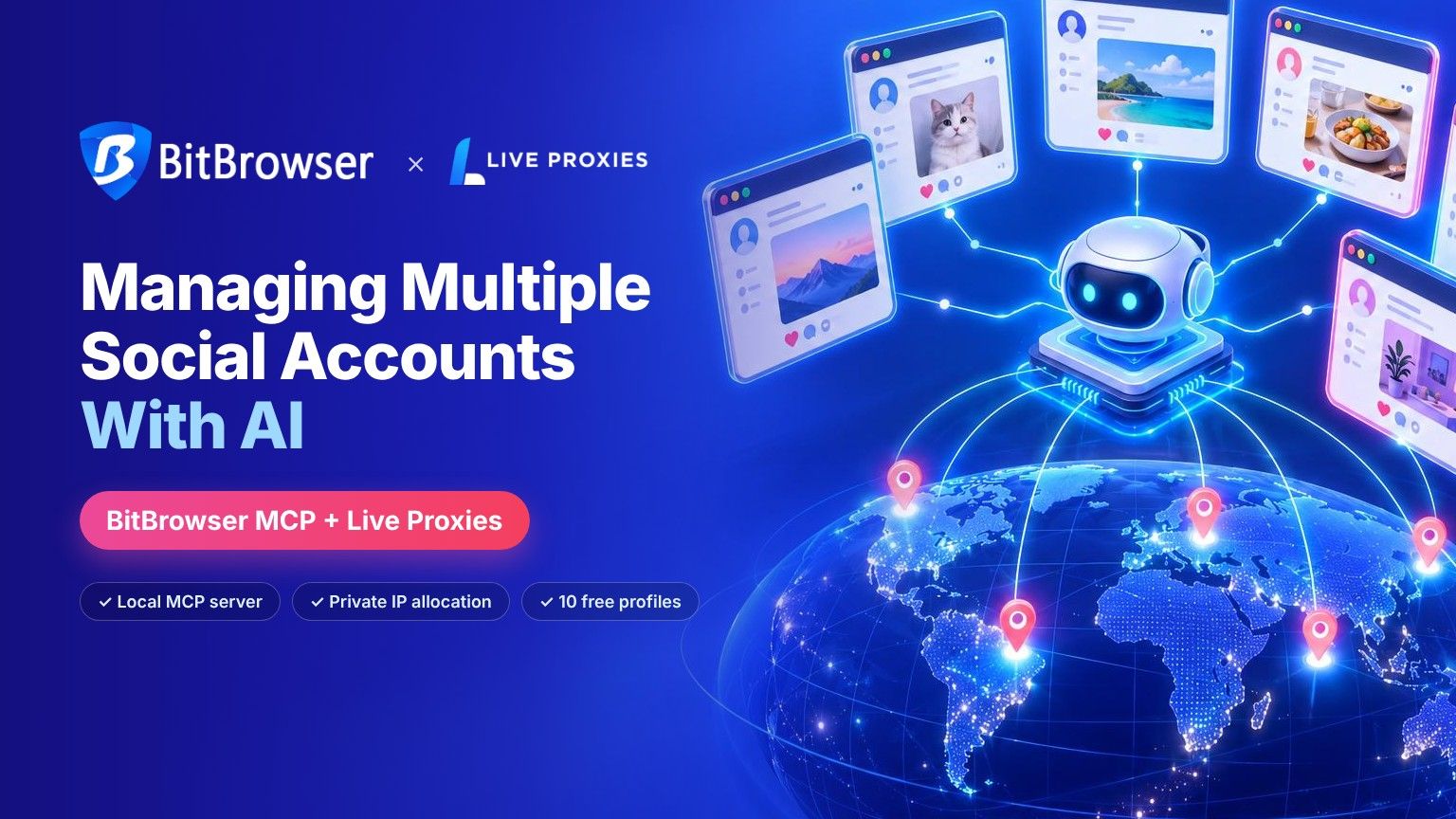
On August 20, 2026, BitBrowser announced version 7.1.5 with a built-in MCP server. For anyone who runs several social media accounts, that update matters more than its size suggests: instead of clicking through 40 browser profiles every morning, you can type one sentence into Claude Code, Cursor, or another AI client and let the agent create, open, check, and organize those profiles for you.
The AI side solves only half of the job. Every profile still needs its own clean IP address, and the quality of that IP decides how long an account stays healthy. This is where a proxy provider with private IP allocation, such as Live Proxies, fits into the setup.
This guide covers how BitBrowser MCP works, which Live Proxies plan suits social accounts, and the exact prompts that turn a morning of manual profile work into a few minutes of supervised automation.
What Is BitBrowser MCP?
MCP (Model Context Protocol) is an open standard that lets AI assistants call outside tools in a structured way. BitBrowser's MCP server runs locally, on the same computer as the BitBrowser app, and passes your requests to the BitBrowser Local API. You write a request in plain language; the AI turns it into tool calls such as "create a profile" or "update this proxy"; BitBrowser carries them out.
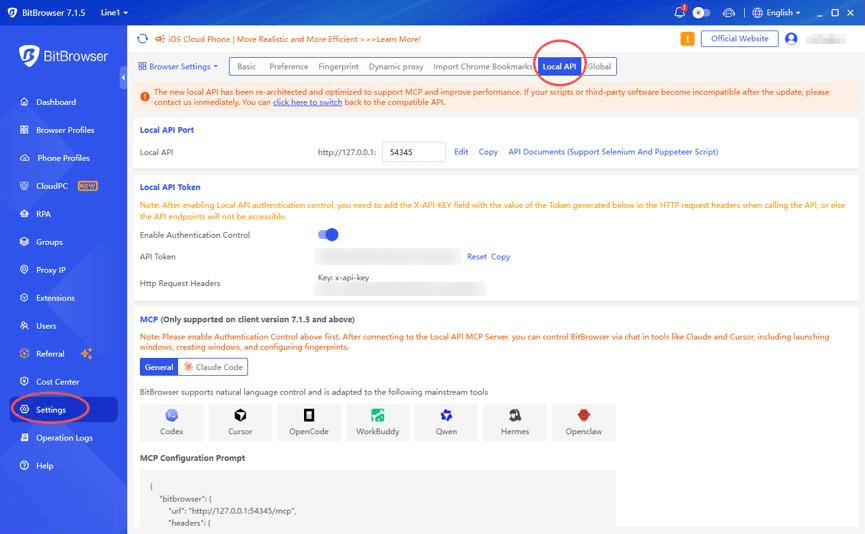
▸ Minimum version: BitBrowser 7.1.5
▸ Endpoint: http://127.0.0.1:54345/mcp (default Local API port)
▸ Authentication: x-api-key header with your Local API token
▸ Ready-made configs: Claude Code, Codex, Cursor, OpenCode, WorkBuddy, Qwen, Hermes, OpenClaw, plus a General config for other MCP clients
▸ Where it runs: Only on your computer, and only while BitBrowser is open
According to BitBrowser's MCP documentation, the server groups its tools into a handful of areas:
▸ Browser profiles: create, update, open, close, delete, and query
▸ Fingerprints: randomize a profile's fingerprint or clear its cache
▸ Proxies: configure or update proxy settings and check proxy status
▸ Groups and tags: build folders and labels, then move profiles between them
▸ Cloud phones: create, open, restart, reset, suspend, shut down, or delete Android instances, with ADB access
▸ Window management: read and change the position and size of profile windows
For social media work, the first three areas do most of the heavy lifting. A profile is the account's home, the fingerprint is its device identity, and the proxy decides which IP address the platform sees. If you also run app-only accounts, the same MCP connection can manage BitCloudPhone instances.
Why Every Social Account Needs Its Own Profile and Its Own IP
Social platforms connect accounts through two families of signals. The first is the device: browser version, screen size, fonts, canvas and WebGL output, time zone, language, and stored cookies. The second is the network: the IP address, its type (residential, mobile, or datacenter), its location, and its history.
BitBrowser covers the device side. Every profile has its own fingerprint and its own storage, so the cookies from one client's Instagram never touch the browser where you manage another client's X account.
The network side needs a proxy. If ten profiles all leave through the same home connection, the platform sees ten "different devices" sharing one IP, which is exactly what it is. A proxy per profile fixes that.
The Shared Pool Problem
There is a second, quieter risk. Most residential providers place every customer in one large shared pool. The IP you receive this morning may have been used last night by someone spamming or scraping the same platform, and you inherit that history along with the address. For scraping jobs, a burned IP is a retry. For a social account with years of followers behind it, a burned IP can mean a checkpoint, a phone verification, or a lock.

Live Proxies is built around the opposite model. On its individual plans, the company states that "your IPs are unique and only shared with you" instead of coming from one pool that every customer draws from. For account work, that removes the bad-neighbor problem at the source.
What Live Proxies Adds to a BitBrowser Setup
Live Proxies is a proxy provider based in Studio City, California, selling residential and mobile proxies to individuals (B2C) and enterprises (B2B). It also lists BitBrowser on its official partners page and publishes its own BitBrowser setup guide, so the two products are used together often enough to have documentation on both sides.
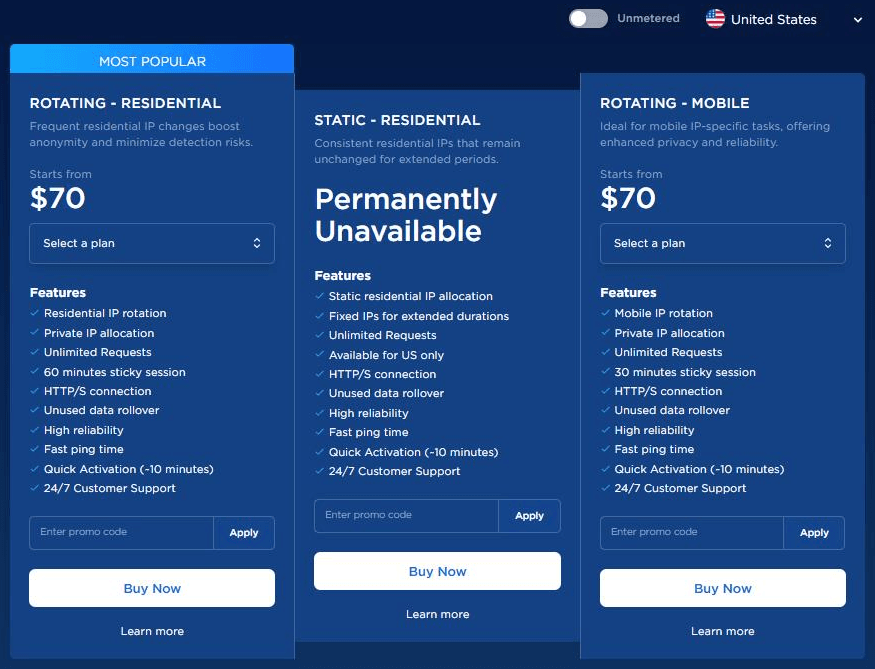
Three products are relevant for social media managers right now. (The static residential plan is listed as permanently unavailable on the pricing page, so it is left out here.)
1. Rotating Residential (Individual Plan)
▸ IP allocation: Private
▸ Sticky session: Up to 60 minutes
▸ Protocol: HTTP/HTTPS
▸ Entry plan: $70 for 200 IPs and 4 GB over 30 days (US)
▸ Locations: United States (with state-level plans), United Kingdom, Canada, and random
This is the default pick for desktop social accounts that live inside BitBrowser profiles. Unused data rolls over, there is no concurrency limit, and a 200-IP plan gives you far more private addresses than most small teams have accounts.
Quick take: Start here for Facebook, X, LinkedIn, Pinterest, and Reddit accounts that you manage from a desktop browser.
2. Rotating Mobile (Individual Plan)
▸ IP allocation: Private
▸ Sticky session: Up to 30 minutes
▸ Protocol: HTTP/HTTPS
▸ Entry plan: From $70 (US)
▸ Best for: Mobile-first platforms
Mobile IPs come from cellular carriers, where many real people share each address through carrier-grade NAT. One IP serving several sessions is ordinary traffic on a mobile network, which is why mobile proxies are popular for platforms that are used mostly on phones.
Quick take: Use mobile IPs for TikTok and Instagram work, and plan shorter sessions around the 30-minute sticky window.
3. Enterprise (B2B Network)
▸ Pool: 10M+ IPs in 50+ countries
▸ Protocols: HTTP and SOCKS5
▸ Targeting: Country, state, city, and ASN filtering
▸ Price: From $2,000 per month
▸ Trial: Free trial after an initial agreement
The B2B network is a separate product built for volume, with API access and a dedicated account manager. One detail to know before you buy: Live Proxies describes the B2B network as using shared IPs, so the private-allocation benefit applies to the individual plans. Agencies with several hundred accounts and a need for SOCKS5 or city targeting are the realistic audience.
Which Plan Fits Your Accounts?
For a team running 10 to 100 desktop accounts, rotating residential is the sensible start. Add a mobile plan when a client's work centers on TikTok or Instagram. Move to B2B only when you need SOCKS5, more countries than the US, UK, and Canada, or API-driven provisioning at scale.
How BitBrowser MCP and Live Proxies Work Together
The chain is short. You talk to the AI client. The AI client calls BitBrowser's MCP server on your machine. BitBrowser creates or changes a profile and attaches a Live Proxies IP to it. When the profile opens, the social platform sees one device with one residential or mobile IP.
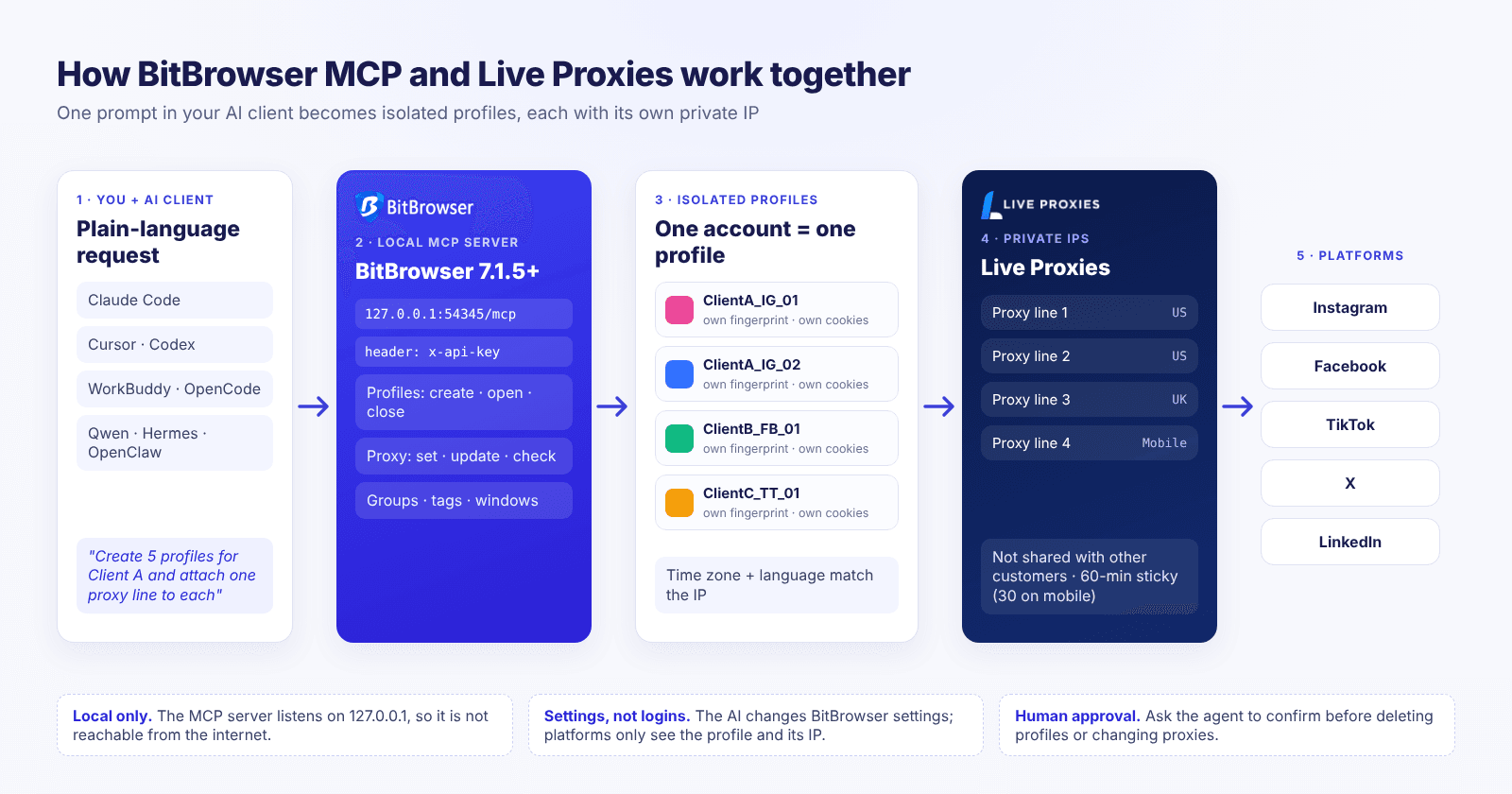
Two details in that chain are worth knowing. The MCP server listens on 127.0.0.1, so nobody on the internet can reach it unless you expose it yourself. And the AI never logs in to Instagram or TikTok on its own through this connection: it changes BitBrowser settings, and the profile (with its proxy) is what the platform sees.
Step 1: Connect BitBrowser MCP to Your AI Client
1. Download or update BitBrowser to version 7.1.5 or later. Older builds do not include the MCP server, so check the version number first.
2. Open Settings → Browser Settings → Local API and switch on Enable Authentication Control. BitBrowser then generates an API token.

3. Scroll down to the MCP section. BitBrowser shows a ready-made configuration for each supported tool, with a separate tab for Claude Code. Pick your client, or use General for anything else.
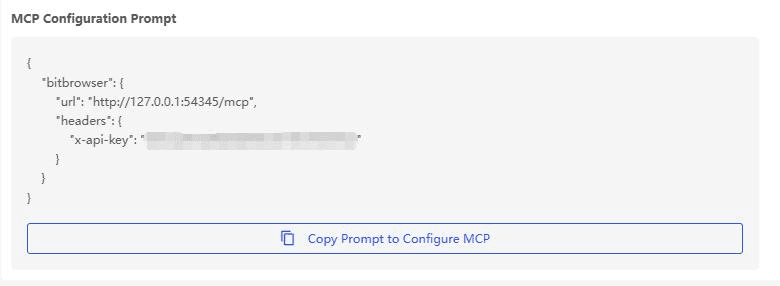
4. Paste the configuration into your client's MCP settings. The General version looks like this, with your own token in place of the placeholder:
{
  "mcpServers": {
    "bitbrowser": {
      "url": "http://127.0.0.1:54345/mcp",
      "headers": {
        "x-api-key": "<YOUR_API_TOKEN>"
      }
    }
  }
}
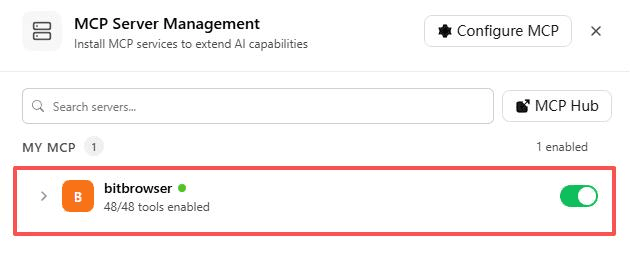
5. Reload or restart the client and confirm that the bitbrowser server is enabled and its tools have loaded. In BitBrowser's own WorkBuddy test, the server reported 48 of 48 tools enabled.
6. Run a read-only test before anything else:
List all my BitBrowser profiles and cloud phones with their names, groups, and status. Do not change anything.If the list comes back, the connection works. If it fails, the usual causes are BitBrowser not running, an old version, authentication switched off, or a token that was reset without updating the client config.
Step 2: Get Your Live Proxies Credentials
1. Choose a Live Proxies plan that matches your accounts' locations. Payment runs through Stripe, and network activation can take up to 20 minutes after purchase, so early connection errors are normal.
2. Open the dashboard. On individual plans, the Proxy List shows one proxy per line in host:port:username-N:password format, where the number after the username identifies each private slot. Use Copy or Export to take the list.
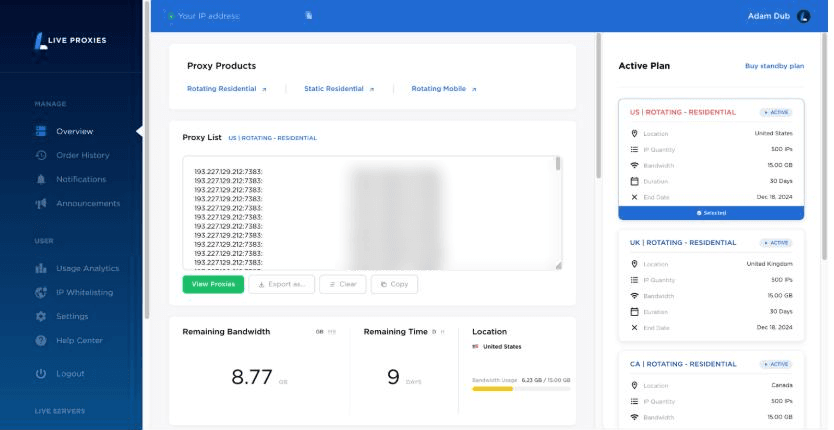
3. Save the lines in a local file and label them by account, for example ClientA_IG_01 → line 1. One line belongs to one account, permanently.
4. (Optional) Check the IP Whitelisting tab in the dashboard if your office has a fixed IP address. It adds an extra layer of account security.
On the B2B network the format is different: you connect to b2b.liveproxies.io on port 7383, add an access code such as lv_US or lv_GB to the username, and append a numeric sticky ID (up to 8 digits) when an account must keep the same IP for the 60-minute window.
Step 3: Build Social Account Profiles With AI Prompts
With both pieces ready, the agent can take over the repetitive part. A good prompt says what to create, what to change, and what to leave alone. BitBrowser's own guidance recommends the same habit: state what must stay unchanged and verify the result after every important operation.
Create a client group and its profiles:
Create a group called "ClientA-Social". Inside it, create five profiles named ClientA_IG_01 to ClientA_IG_05 with language English (US) and time zone America/New_York. Do not modify any existing profiles. When finished, list the five new profiles with their IDs.Attach one Live Proxies line to each profile:
Assign one HTTP proxy to each profile in the group "ClientA-Social", in this order:
ClientA_IG_01 -> [paste proxy line 1]
ClientA_IG_02 -> [paste proxy line 2]
(continue for all five profiles)
Never reuse a line. Keep fingerprints, language, and group unchanged. Then check the proxy on each profile and report the exit IP and country.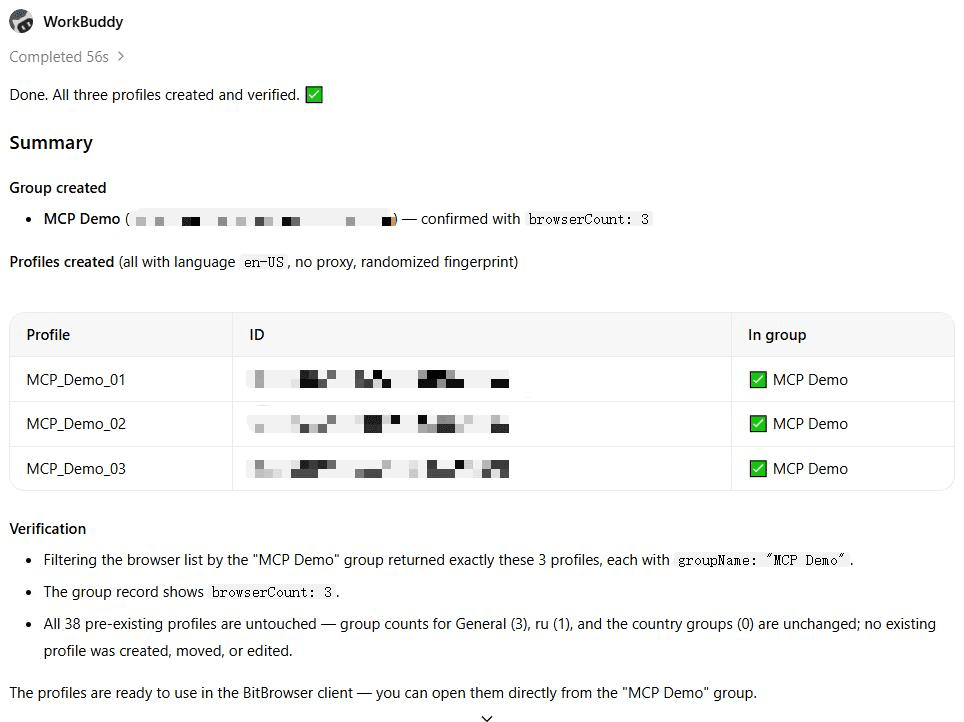
Open BitBrowser afterwards and look at the profiles yourself. The AI's summary is a report, not proof. In each profile's Proxy section you should see the Live Proxies host, port, username, and password, with the type set to HTTP for individual plans.
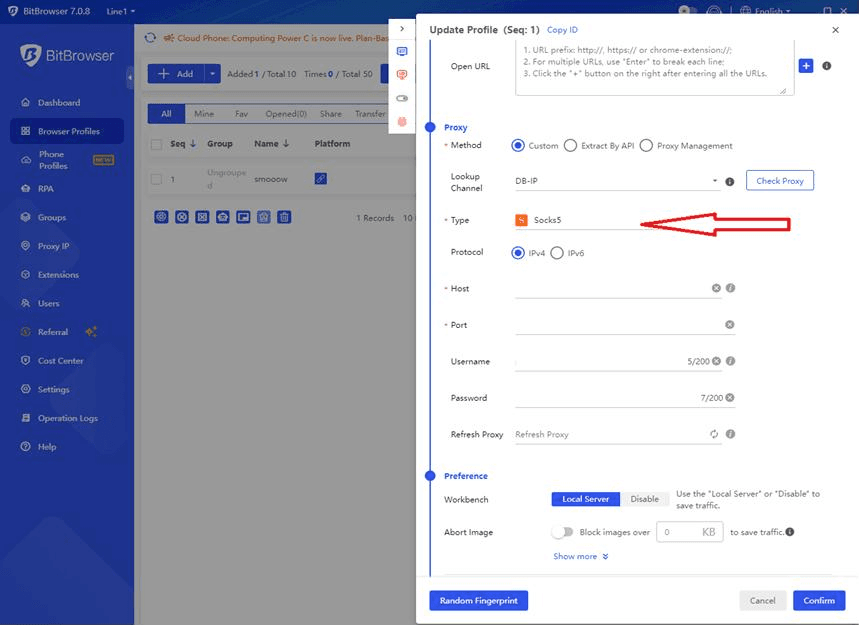
A note on credentials: proxy lines pasted into a prompt are sent to your AI provider. If your team prefers not to do that, add the Live Proxies lines through BitBrowser's Proxy IP manager or bulk import first, then limit the agent to opening, checking, grouping, and arranging profiles.
Daily Prompts for Managing Multiple Social Accounts
Once the profiles exist, most of the time savings come from small, repeatable commands. These six cover a typical agency day.
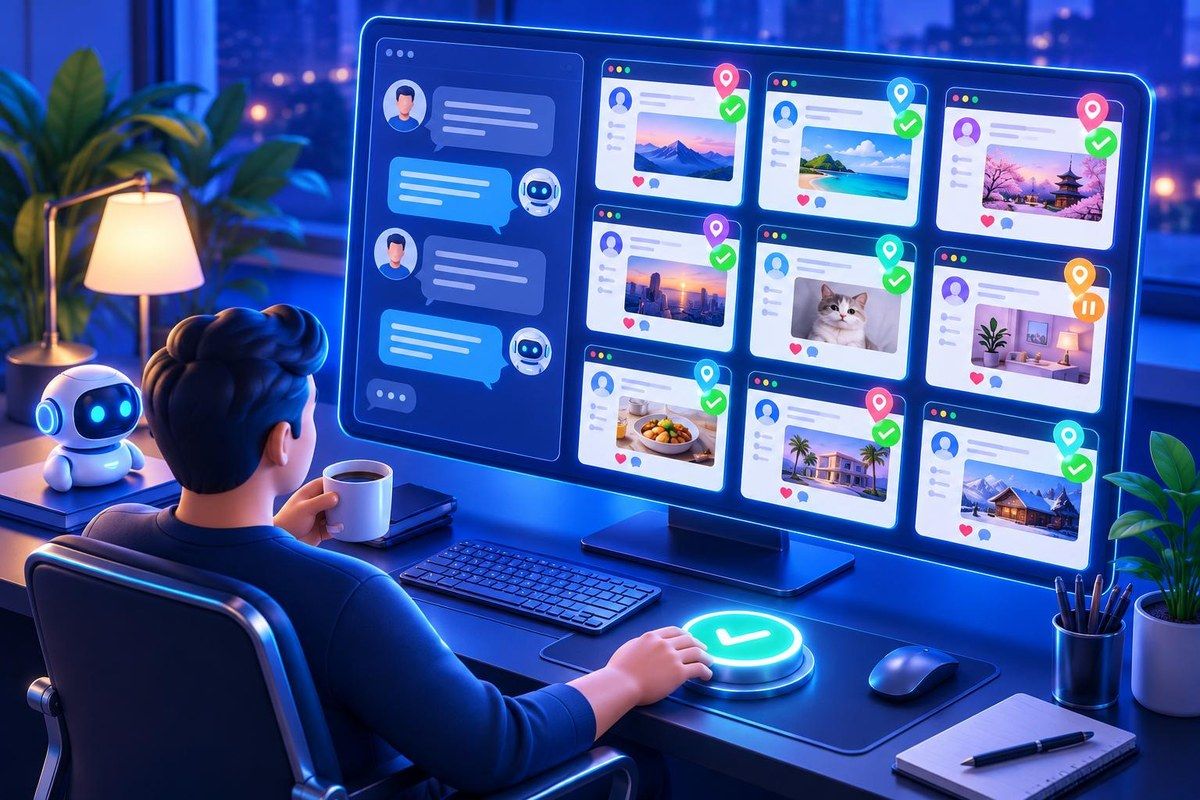
Morning Launch
Open every profile in the group "ClientA-Social" one at a time, then arrange the windows in a grid on my main screen.Opening profiles one by one keeps CPU and memory load manageable, and the grid saves you from hunting through the taskbar.
Proxy Health Check
Check the proxy status of every profile in the groups ClientA-Social and ClientB-Social. List any profile whose proxy fails or whose exit country does not match its time zone. Change nothing.Run this before logging in anywhere. A failed proxy caught at 9:00 is a two-minute fix; the same proxy discovered after a login attempt can cost a security check.
Replace a Dead IP
The proxy on ClientB_FB_03 fails. Replace it with this new Live Proxies line: [paste line]. Keep the fingerprint, language, and group unchanged, then test the proxy.Onboard a New Client
Create the group "ClientC-Social" with four profiles named ClientC_TT_01 to ClientC_TT_04, language English (UK), time zone Europe/London. Assign one UK proxy line to each from the list I paste below, then check all four proxies and summarize the results in a table.Tag Accounts by Status
Add the tag "needs-review" to ClientA_IG_02 and ClientA_IG_04, and remove the tag "warming" from both.Tags turn the profile list into a simple status board that anyone on the team can filter.
End of Day
Close all open profiles and confirm that none are still running.One prompt to avoid: asking the agent to randomize fingerprints on accounts that already have login history. A sudden device change on an established account looks like a new device signing in. Randomize only when you create a profile, before its first login.
Rules That Keep a Multi-Account Setup Stable
Automation makes good habits faster and bad habits faster too. These rules matter more than any single prompt.
▸ One account, one profile, one proxy line: Two accounts should never share either a profile or an IP.
▸ Match location signals: Set each profile's time zone and language to its proxy's country. A UK IP paired with a Los Angeles time zone is an easy mismatch to spot.
▸ Work inside the sticky window: Live Proxies holds a residential IP for up to 60 minutes (30 on mobile). Plan logins and posting sessions shorter than that, so an account does not switch IP halfway through.
▸ Keep a human on destructive actions: MCP can delete profiles. Tell the agent to ask before any deletion, and use the sub-account controls added in 7.1.5 to give the AI's account only the permissions it needs.
▸ Follow each platform's rules: Instagram, TikTok, Facebook, and LinkedIn all publish their own policies on multiple accounts and automation. Separate profiles keep legitimate client and brand accounts organized; they do not make banned behavior acceptable.
Keep Your API Token and Proxy Credentials Safe
The Local API token gives full control over BitBrowser, so treat it like a password. Keep it out of screenshots, shared prompts, and Git repositories. If it leaks, press Reset in the Local API settings and update your AI client's configuration with the new value.
Proxy credentials deserve the same care. Store your Live Proxies list in one local file, share it with teammates through a password manager rather than chat, and use the dashboard's IP whitelisting where your network allows it. If a teammate leaves, rotate both the BitBrowser token and the proxy password the same day.
What BitBrowser MCP Does Not Do
MCP manages the browser environment, not the content inside the pages. It will not write captions, answer comments, or press "Post" for you. For in-page work you have three options: do it by hand inside the profile, build a flow in BitBrowser's RPA module, or let a developer drive the profile with Selenium or Puppeteer, both of which the Local API supports.
It also stops when your computer sleeps. The server lives on 127.0.0.1, so BitBrowser has to be open on that machine for any command to work. Teams that want profiles available around the clock usually keep one always-on workstation for the job.
Tool availability can change between versions, too. The 7.1.5 release notes are the best place to check what a given build supports.
Start With BitBrowser and Live Proxies Today
You do not need a large budget to test this workflow. BitBrowser gives every new account 10 browser profiles for free, permanently, which is enough to build one complete client group, connect MCP, and run every prompt in this guide.
Pair those profiles with the smallest Live Proxies rotating residential plan, run the read-only test, and build a single group from start to finish before you scale. Once the first group runs cleanly for a week, adding the next client is a two-prompt job.
Frequently Asked Questions
What Is BitBrowser MCP?
BitBrowser MCP is a local Model Context Protocol server built into BitBrowser 7.1.5 and later. It lets AI clients such as Claude Code, Cursor, Codex, and WorkBuddy create, open, close, and configure browser profiles, proxies, groups, tags, and cloud phones through plain-language requests.
Which AI Clients Work With BitBrowser MCP?
BitBrowser provides ready-made configurations for Claude Code, Codex, Cursor, OpenCode, WorkBuddy, Qwen, Hermes, and OpenClaw. Any other MCP-compatible client can connect with the General configuration, which points to http://127.0.0.1:54345/mcp with your token in the x-api-key header.
Do I Need a Proxy if Every BitBrowser Profile Has Its Own Fingerprint?
Yes. The fingerprint separates the device side, but platforms also compare IP addresses. Profiles that share one IP can still be linked, so each social account should use its own proxy line in addition to its own profile.
Why Use Live Proxies Instead of a Shared Residential Pool?
Live Proxies allocates IPs privately on its individual plans, so the addresses you receive are not drawn from a pool that every other customer uses. That lowers the chance of inheriting an IP that someone else already burned on the same platform.
Which Live Proxies Plan Is Best for Social Media Accounts?
Rotating residential suits most desktop accounts and includes 60-minute sticky sessions. Rotating mobile, with 30-minute sticky sessions, suits mobile-first platforms such as TikTok and Instagram. The B2B network fits large agencies that need SOCKS5, city or ASN targeting, and API access.
Can the AI Post to My Social Accounts Automatically?
Not through BitBrowser MCP alone. MCP manages profiles, proxies, and windows, while posting and replying happen inside the pages. For that you can work manually, use BitBrowser's RPA module, or connect Selenium or Puppeteer through the Local API.
How Many Social Accounts Can I Manage for Free?
BitBrowser includes 10 free browser profiles permanently, so you can run up to 10 isolated accounts at no cost. Proxies are a separate purchase, and the Live Proxies entry plan includes 200 private IPs.

 Multi-Account Management
 Prevent Account Association
 Multi-Employee Management
Recommended
See More